
Security Tweaks
The Security section in Titan Anti-Spam & Security provides hardening options and brute force protection for your WordPress site. You can access it by expanding Titan Anti-Spam & Security → Security in your WordPress dashboard. It contains three subpages: Settings, Limit Login Attempts, and Login Attempts Log.
In this article
Settings
The Settings subpage lets you configure security hardening and protection settings for your site.
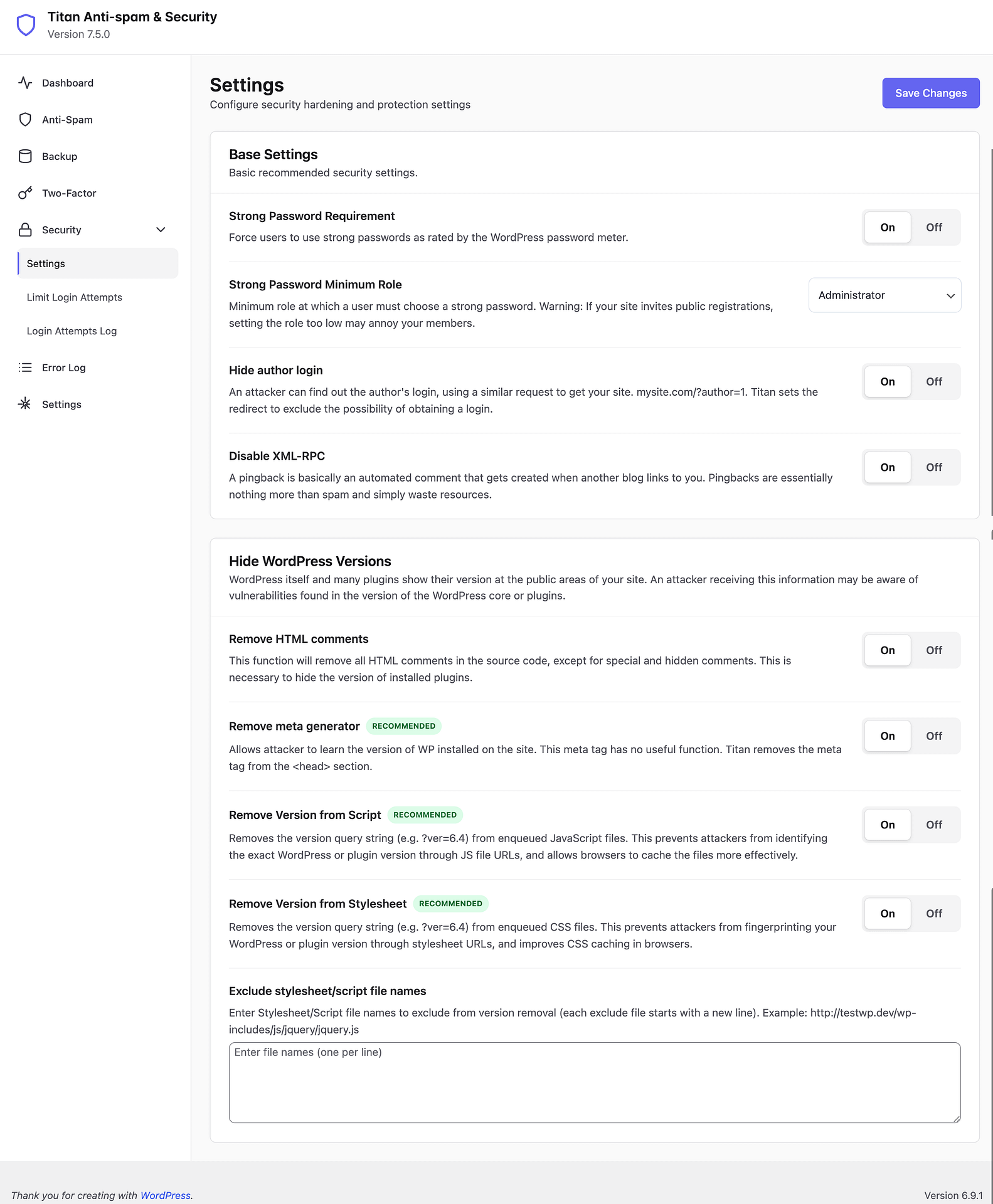
Base Settings
Basic recommended security settings for your site.
Strong Password Requirement — Force users to use strong passwords as rated by the WordPress password meter. When enabled, users will not be able to set weak passwords. (On/Off)
Strong Password Minimum Role — Minimum role at which a user must choose a strong password. If your site invites public registrations, setting the role too low may annoy your members. Select from the dropdown (e.g., Administrator, Editor, Author).
If your site allows public registrations, setting this too low may annoy your members. Use with caution.
Hide author login — An attacker can find out the author's login using a similar request to get your site (e.g., mysite.com/?author=1). Titan sets the redirect to exclude the possibility of obtaining a login. (On/Off)
Disable XML-RPC — A pingback is basically an automated comment that gets created when another blog links to you. Pingbacks are essentially nothing more than spam and simply waste resources. (On/Off)
Hide WordPress Versions
WordPress itself and many plugins show their version at the public areas of your site. An attacker receiving this information may be aware of vulnerabilities found in the version of the WordPress core or plugins.
Remove HTML comments — This function will remove all HTML comments in the source code, except for special and hidden comments. This is necessary to hide the version of installed plugins. (On/Off)
Remove meta generator RECOMMENDED — Allows attacker to learn the version of WP installed on the site. This meta tag has no useful function. Titan removes the meta tag from the <head> section. (On/Off)
Remove Version from Script RECOMMENDED — Removes the version query string (e.g., ?ver=x.y.z) from enqueued JavaScript files. This prevents attackers from identifying the exact WordPress or plugin version through JS file URLs, and allows browsers to cache the files more effectively. (On/Off)
Remove Version from Stylesheet RECOMMENDED — Removes the version query string (e.g., ?ver=x.y.z) from enqueued CSS files. This prevents attackers from fingerprinting your WordPress or plugin version through stylesheet URLs, and improves CSS caching in browsers. (On/Off)
Exclude stylesheet/script file names — Enter Stylesheet/Script file names to exclude from version removal (each exclude file starts with a new line). For example: http://testwp.dev/wp-includes/js/jquery/jquery.js
After adjusting your settings, click the Save Changes button to apply your configuration.
Limit Login Attempts
The Limit Login Attempts subpage protects your site from brute force attacks by limiting login attempts.
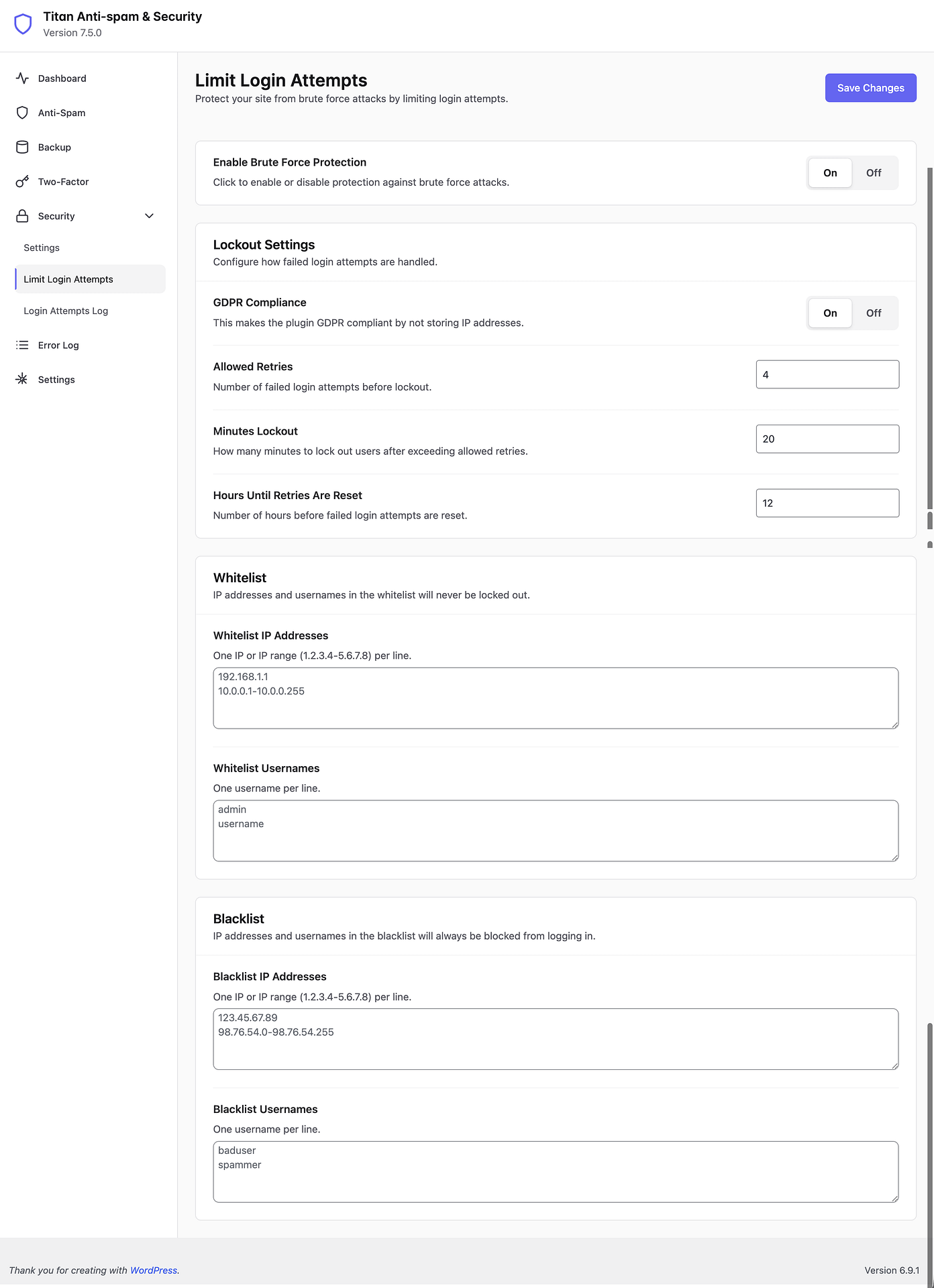
Enable Brute Force Protection
Click to enable or disable protection against brute force attacks. When turned on, the plugin will monitor login attempts and lock out users who exceed the allowed number of retries. (On/Off)
Lockout Settings
Configure how failed login attempts are handled.
GDPR Compliance — This makes the plugin GDPR compliant by not storing IP addresses. When enabled, IP-based tracking is anonymized. (On/Off)
Allowed Retries — Number of failed login attempts before lockout. (Default: 4)
Minutes Lockout — How many minutes to lock out users after exceeding allowed retries. (Default: 20)
Hours Until Retries Are Reset — Number of hours before failed login attempts are reset. (Default: 12)
Whitelist
IP addresses and usernames in the whitelist will never be locked out.
Whitelist IP Addresses — One IP or IP range (1.2.3.4-5.6.7.8) per line. Use this to ensure your own IP address or your team's IPs are never accidentally locked out.
Whitelist Usernames — One username per line. These accounts will bypass the lockout restrictions.
Always whitelist your own IP address and admin username to avoid accidentally locking yourself out.
Blacklist
IP addresses and usernames in the blacklist will always be blocked from logging in.
Blacklist IP Addresses — One IP or IP range (1.2.3.4-5.6.7.8) per line. Use this to permanently block known malicious IPs.
Blacklist Usernames — One username per line. Common entries include usernames frequently targeted by bots, such as "admin" or "administrator".
After adjusting your settings, click the Save Changes button to apply your configuration.
Login Attempts Log
The Login Attempts Log subpage displays a table of all login attempts that the brute force protection module has tracked.
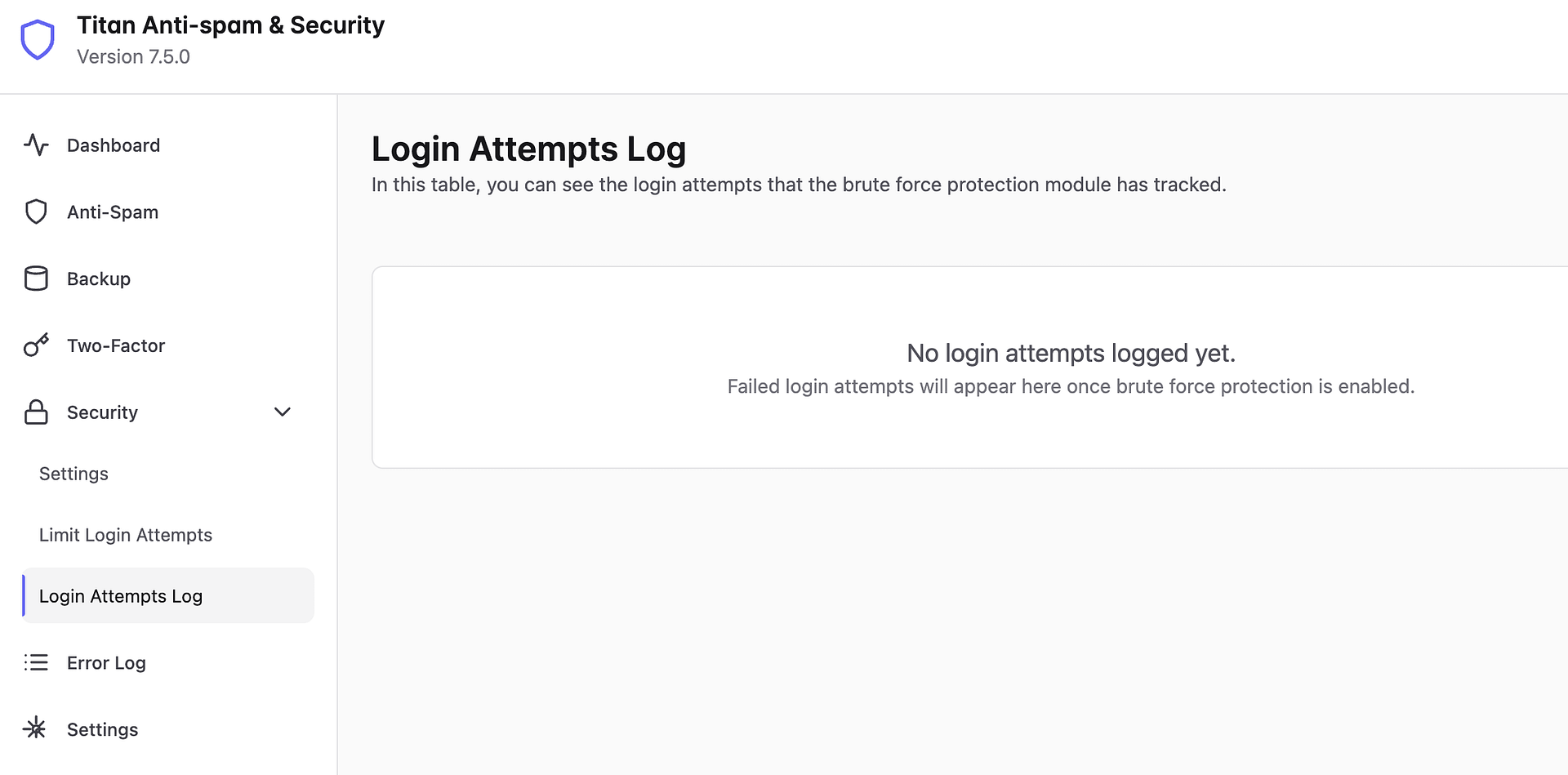
Failed login attempts will appear here once brute force protection is enabled. Use this log to monitor suspicious activity on your site, identify patterns in unauthorized access attempts, and decide whether to add specific IPs or usernames to your blacklist.
The log will show "No login attempts logged yet" until brute force protection is enabled and failed login attempts occur.