
Backup
The Backup page in Titan Anti-Spam & Security lets you create and manage full backups of your WordPress site. You can access it by navigating to Titan Anti-Spam & Security → Backup in your WordPress dashboard.
📝 Info: Backup is a Pro feature. Free users see the backup controls disabled with an upgrade banner.
In this article
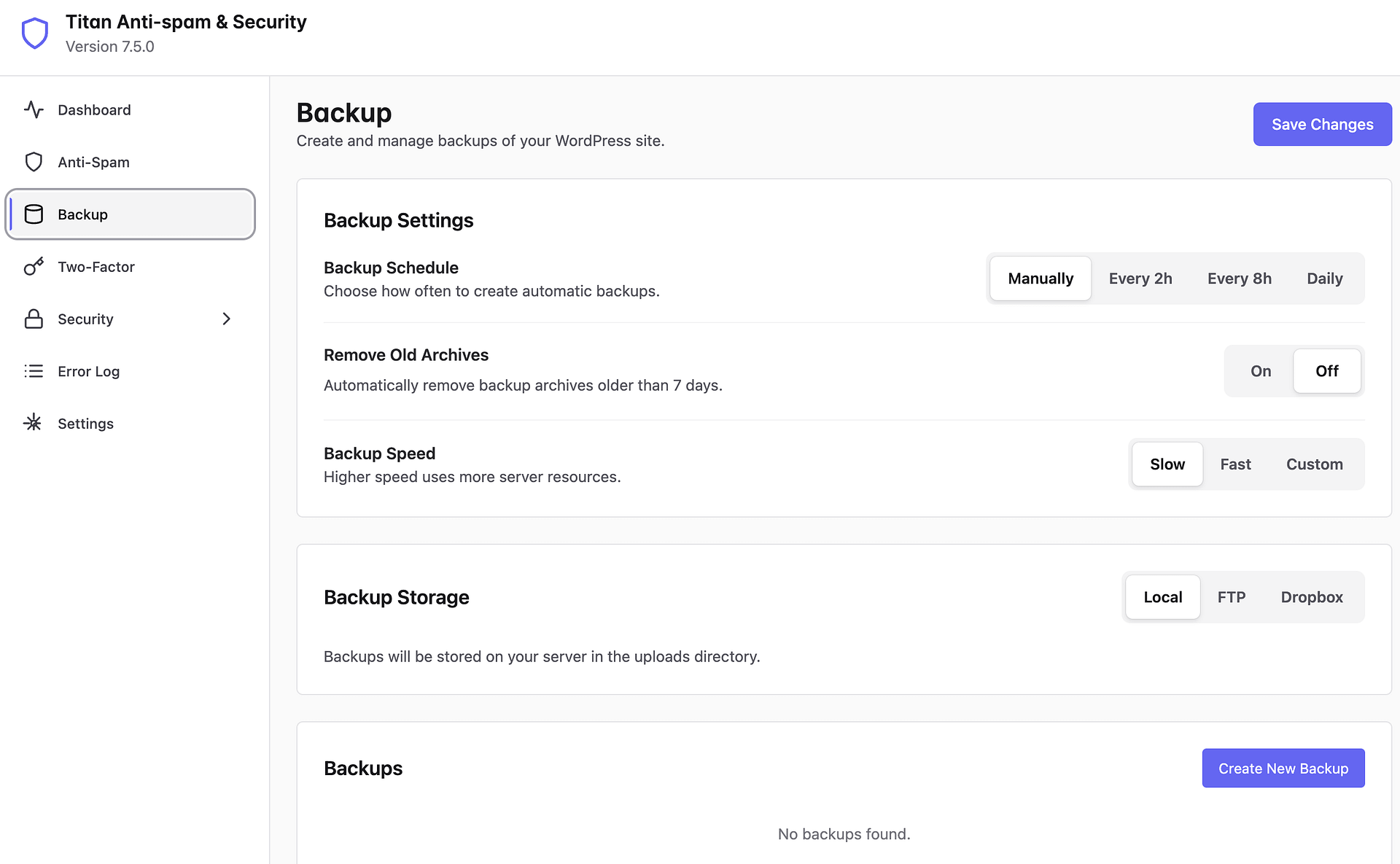
Backup Settings
The Backup Settings section lets you configure how and when backups are created.
Backup Schedule
Choose how often to create automatic backups. The available options are:
- Manually — Backups are only created when you click the Create New Backup button. No automatic backups are scheduled.
- Every 2h — A new backup is automatically created every 2 hours.
- Every 8h — A new backup is automatically created every 8 hours.
- Daily — A new backup is automatically created once per day.
For most sites, a daily backup schedule offers a good balance between protection and server resource usage. High-traffic sites with frequent content changes may benefit from more frequent backups.
Remove Old Archives
Automatically remove backup archives older than 7 days. When turned on, the plugin cleans up outdated backups to prevent them from consuming excessive disk space on your server.
Backup Speed
Controls how much server resources the backup process uses. The available options are:
- Slow — Uses fewer server resources, reducing the impact on site performance during backup. Recommended for shared hosting environments.
- Fast — Uses more server resources to complete backups faster. Suitable for dedicated servers or VPS with sufficient resources.
- Custom — Allows you to fine-tune the backup speed to match your server's capabilities.
Backup Storage
Choose where your backups are stored. The available options are:
- Local — Backups will be stored on your server in the uploads directory. This is the default option and requires no additional configuration.
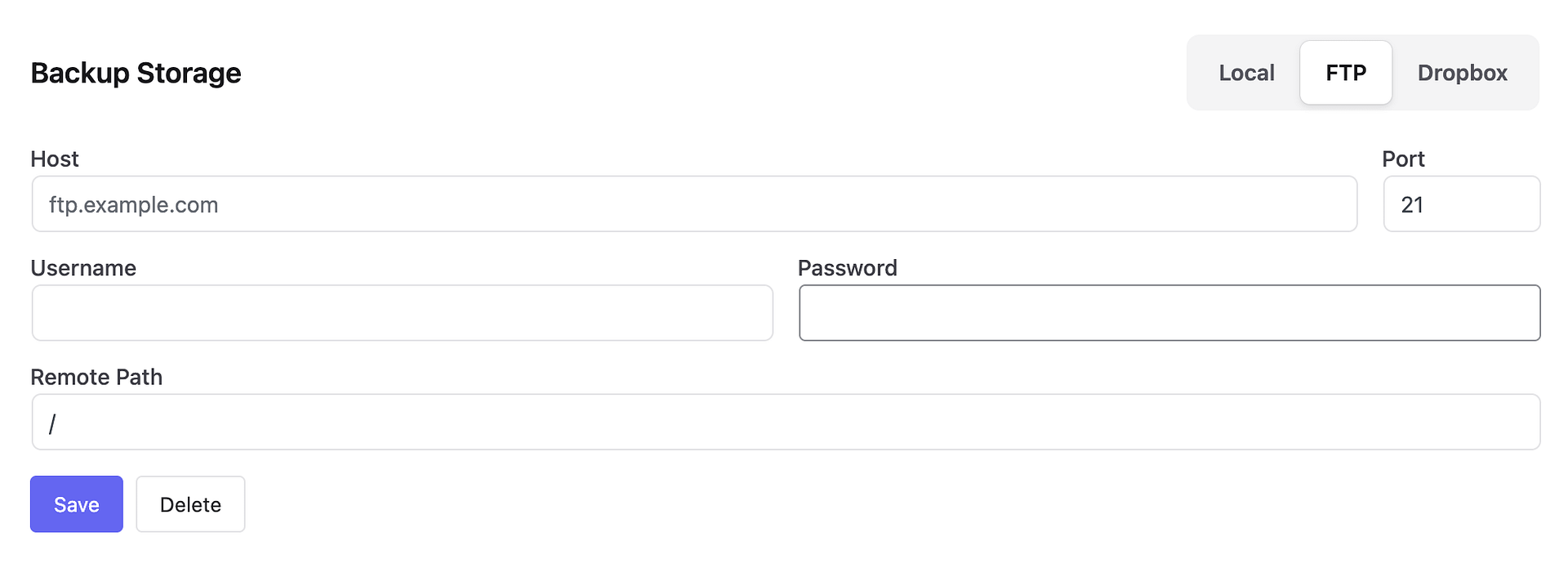
- FTP — Store backups on a remote FTP server. Useful for keeping backups separate from your hosting server. You can connect easily with your FTP credentials.
- Dropbox — Store backups in your Dropbox account for secure off-site storage.
Storing backups off-site (via FTP or Dropbox) is recommended as an extra layer of protection. If your server goes down, you'll still have access to your backup files.
Backups
This section displays a list of all existing backups. From here you can download or delete previous backups.
To create a new backup, click the Create New Backup button. The backup process may take a few minutes depending on the size of your site.
After adjusting any settings, click the Save Changes button at the top right to apply your configuration.