
Two-Factor Authentication
The Two-Factor Authentication page in Titan Anti-Spam & Security adds an extra layer of security to your WordPress login. You can access it by navigating to Titan Anti-Spam & Security → Two-Factor in your WordPress dashboard.
📝 Info: Two-Factor Authentication is a Pro feature. Free users see a disabled preview of the page with an upgrade banner.
In this article
Setup Authenticator App
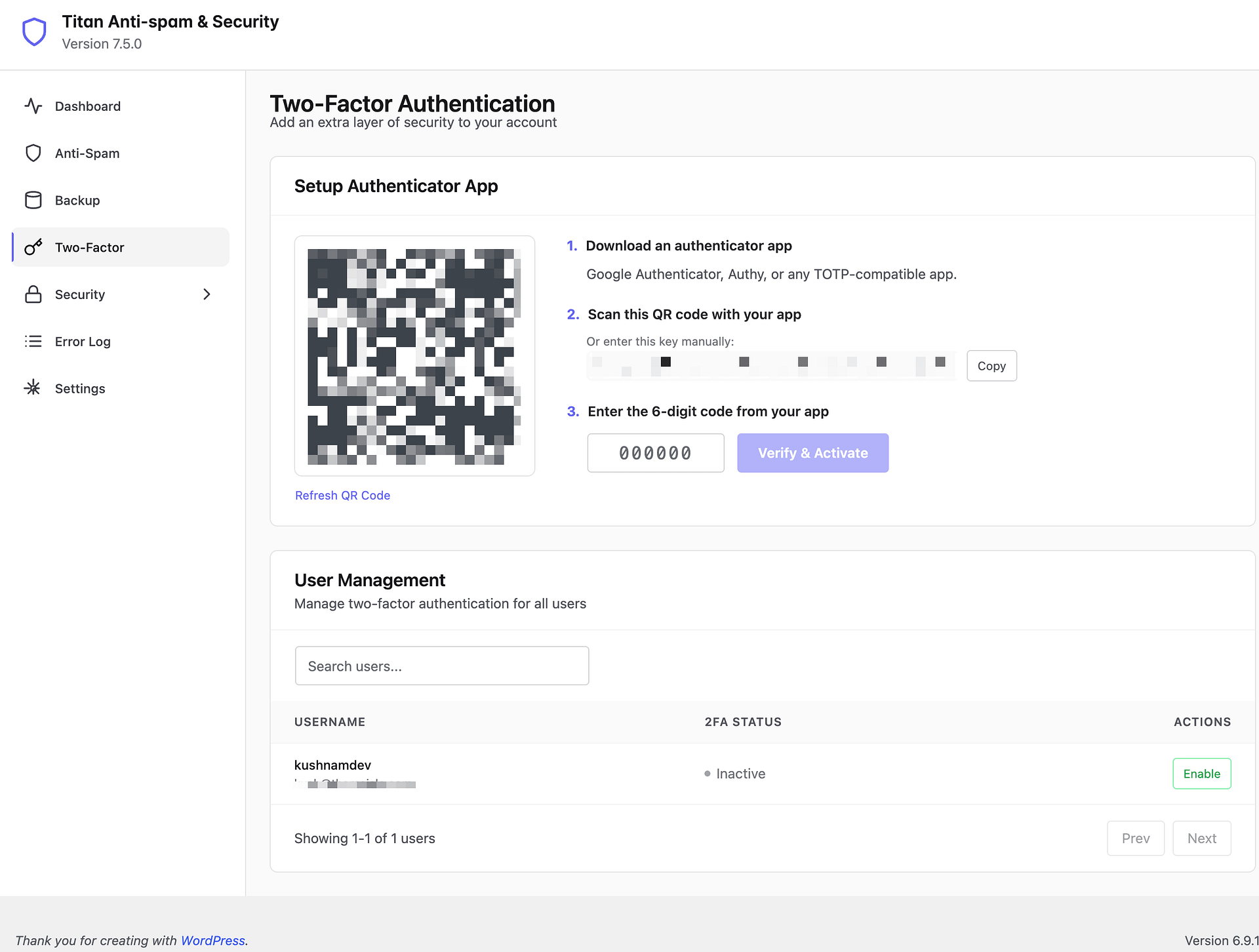
This section walks you through connecting an authenticator app to your WordPress account. Follow these three steps:
1. Download an authenticator app
Install a TOTP-compatible authenticator app on your smartphone. Popular options include Google Authenticator, Authy, or Microsoft Authenticator.
2. Scan this QR code with your app
Open your authenticator app and scan the QR code displayed on the page. This links your WordPress account to the app. If you are unable to scan the QR code, you can click Copy next to the manual key and enter it directly into your authenticator app.
If the QR code is not working or has expired, click the Refresh QR Code link below the code to generate a new one.
3. Enter the 6-digit code from your app
Type the current 6-digit code shown in your authenticator app into the input field and click Verify & Activate to complete the setup.
Codes refresh every 30 seconds. If a code is about to expire, wait for the next one to ensure it's accepted.
User Management
The User Management section allows administrators to manage two-factor authentication for all users on the site. It displays a table with the following columns:
- Username — The WordPress username and email address of each user.
- 2FA Status — Shows whether 2FA is currently Active, Pending Setup, or Inactive for that user.
- Actions — Provides an Enable or Disable button to control 2FA for each user.
You can use the Search users... field to quickly find a specific user. The table is paginated with Prev and Next controls at the bottom.
Managing 2FA in Your User Profile
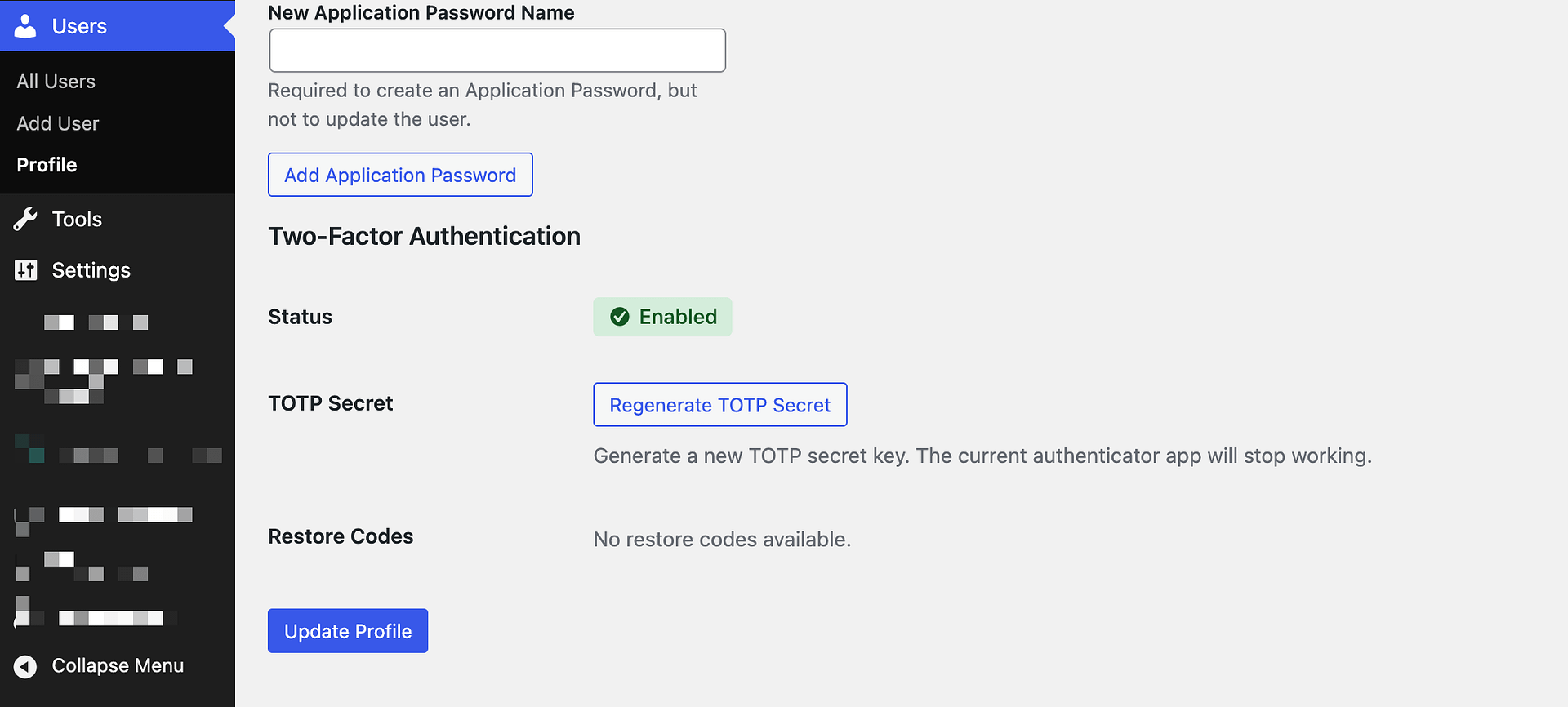
Once two-factor authentication has been activated, a Two-Factor Authentication section appears on your WordPress user profile page (under Users → Profile).
Status
Displays the current state of two-factor authentication for your account. When active, it shows a green Enabled badge.
TOTP Secret
Click the Regenerate TOTP Secret button to generate a new secret key. This is useful if you switch to a new phone or authenticator app. Note that regenerating the secret will cause your current authenticator app to stop working — you will need to scan a new QR code or enter the new key.
After regenerating the TOTP secret, make sure to update your authenticator app immediately. Your old codes will no longer be valid.
Restore Codes
Restore codes are one-time-use codes that let you log in if you lose access to your authenticator app. If no restore codes are available, you can generate new ones from this section.
Save your restore codes in a secure location such as a password manager. Each code can only be used once.
Two-factor changes on this page save immediately through their own buttons, such as Regenerate TOTP Secret. You do not need to click the profile page's Update Profile button to apply them.