
Connect an AI Agent to Titan Security
Connect a compatible AI client to Titan Security through the WordPress Abilities API to review security information and manage supported protection settings.
In this article
Requirements
- WordPress 6.9 or later, which includes the Abilities API.
- A compatible connector, such as Easy MCP AI, and an AI client connected to your WordPress site.
- A WordPress Administrator account. Titan checks the same permissions for these abilities that it uses for its dashboard routes.
- An active Titan Pro license to view vulnerability findings and use backup abilities.
Connect your AI client and enable Titan abilities
- Connect your AI client to WordPress through Easy MCP AI or another compatible connector. For Easy MCP AI, open Easy MCP AI > Dashboard. In Connect your AI client, choose your client, select Add this site, and follow the setup steps shown for that client. Complete Confirm it works by waiting for the first tool call. For more information, see Getting Started with Easy MCP AI.
- In your WordPress dashboard, open Easy MCP AI > Tools, then select Abilities.
- Find the Titan group, enable only the abilities your client needs, and click Save changes.
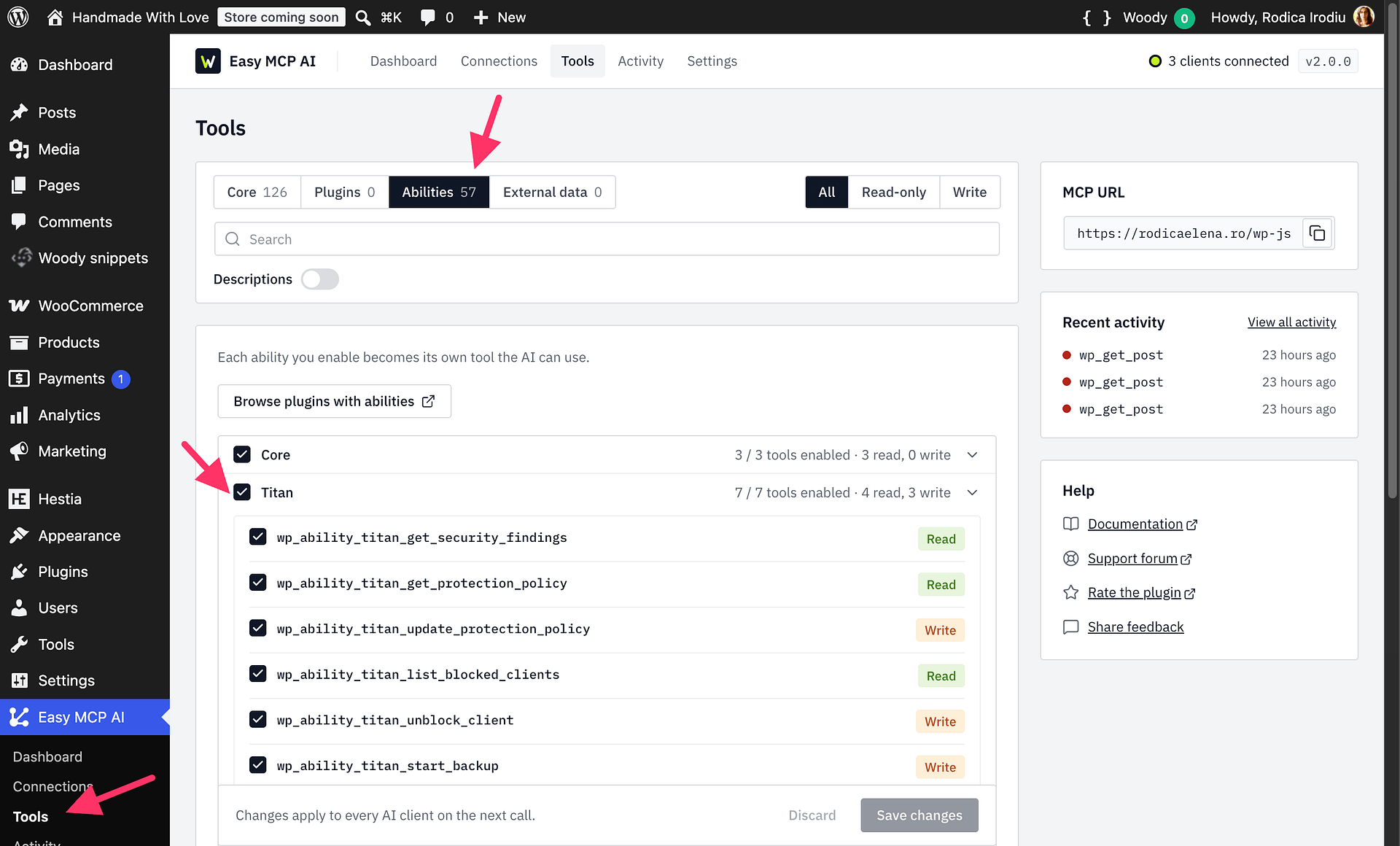
Available abilities
| Ability | Availability | Purpose |
|---|---|---|
titan/get-security-findings | Free; vulnerability results require Pro | Lists security audit findings and known vulnerabilities in installed plugins and themes. |
titan/get-protection-policy | Free | Reads anti-spam, brute-force, password, and hardening settings. |
titan/update-protection-policy | Free; advanced spam filtering requires Pro | Changes supported protection settings. This destructive ability is excluded from Titan's AI Connect quick-enable list. |
titan/list-blocked-clients | Free | Lists lockout records, including IP addresses and usernames. |
titan/unblock-client | Free | Removes a lockout for an IP address. |
titan/start-backup | Pro | Starts a background backup and returns a job_id. |
titan/list-backups | Pro | Lists backups or checks the status of a backup when you provide its job_id. |
Use abilities safely
Read the current protection policy before changing it. Before using titan/update-protection-policy to apply a change, submit the requested settings with dry_run: true. Review the proposed policy in the response, then send the update again without dry_run: true to save it.
Starting a backup is a background operation. Use the job_id returned by titan/start-backup with titan/list-backups to check the backup's status.
Permissions and privacy
The connected WordPress account must be an Administrator with permission to access Titan's dashboard routes. Enabling an ability does not bypass Titan's permission checks, and the connector must also allow the connected client to use it.
Blocked-client privacy: titan/list-blocked-clients can return IP addresses and usernames, which are personal data. Only enable it for trusted AI clients and accounts that should be able to view this information.
Changing protection settings and unblocking an IP address modify your site's security state. Starting a backup also creates a backup on your site. Enable these write abilities only for trusted clients, and review the requested changes before applying them.