

How to install and activate Super Page Cache Pro version
This is the premium version of the Super Page Cache plugin. Compared to Free version, the Pro version Includes more premium features.
🧰 Tools needed
- The Super Page Cache Pro Plugin - choose a plan here.
📩 Download and Install
1. Purchase the Pro version of Super Page Cache from our site.
2. Navigate to Themeisle store and insert your credentials.
3. Scroll down until you see the Super Page Cache plugin and click on download. 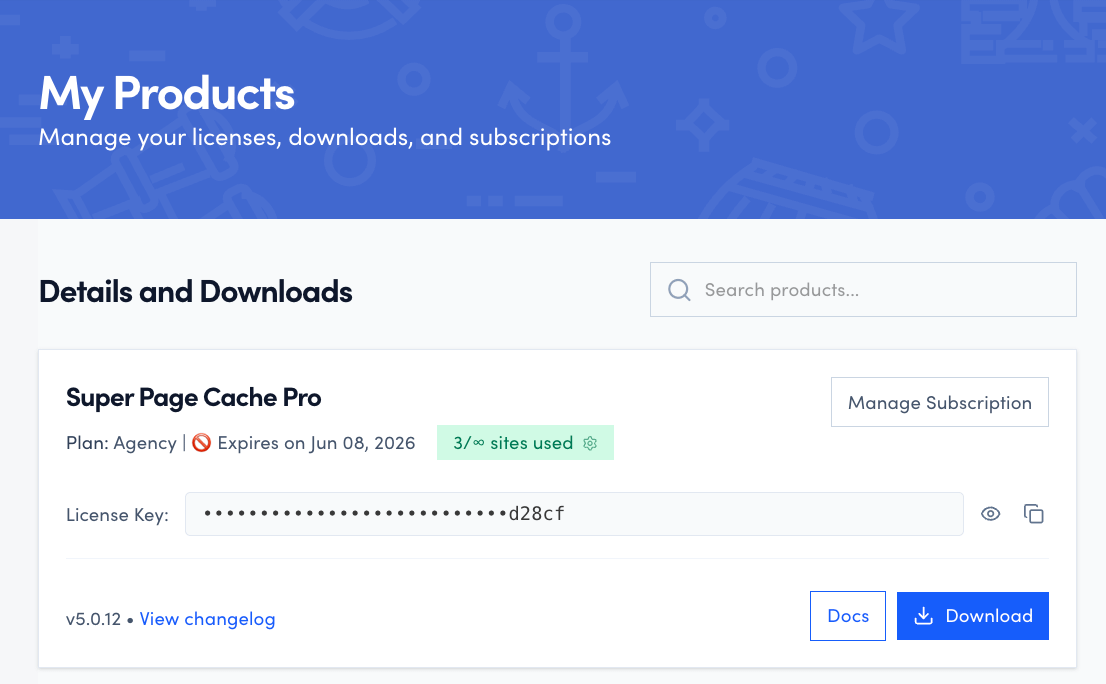
4. Navigate to Dashboard > Plugins > Add New and upload the .zip that you previously downloaded.

📝 Note: Once you install the Pro version, the free version plugin is no longer required, so you can remove it from your site.
💡 Tip: If the upload fails with a timeout error, see Upload timeout during installation below for how to fix it or install via FTP instead.
🔑 License Activation
It is very easy to activate the Pro version license on your site. Kindly go to Super Page Cache > License and add your license key there.
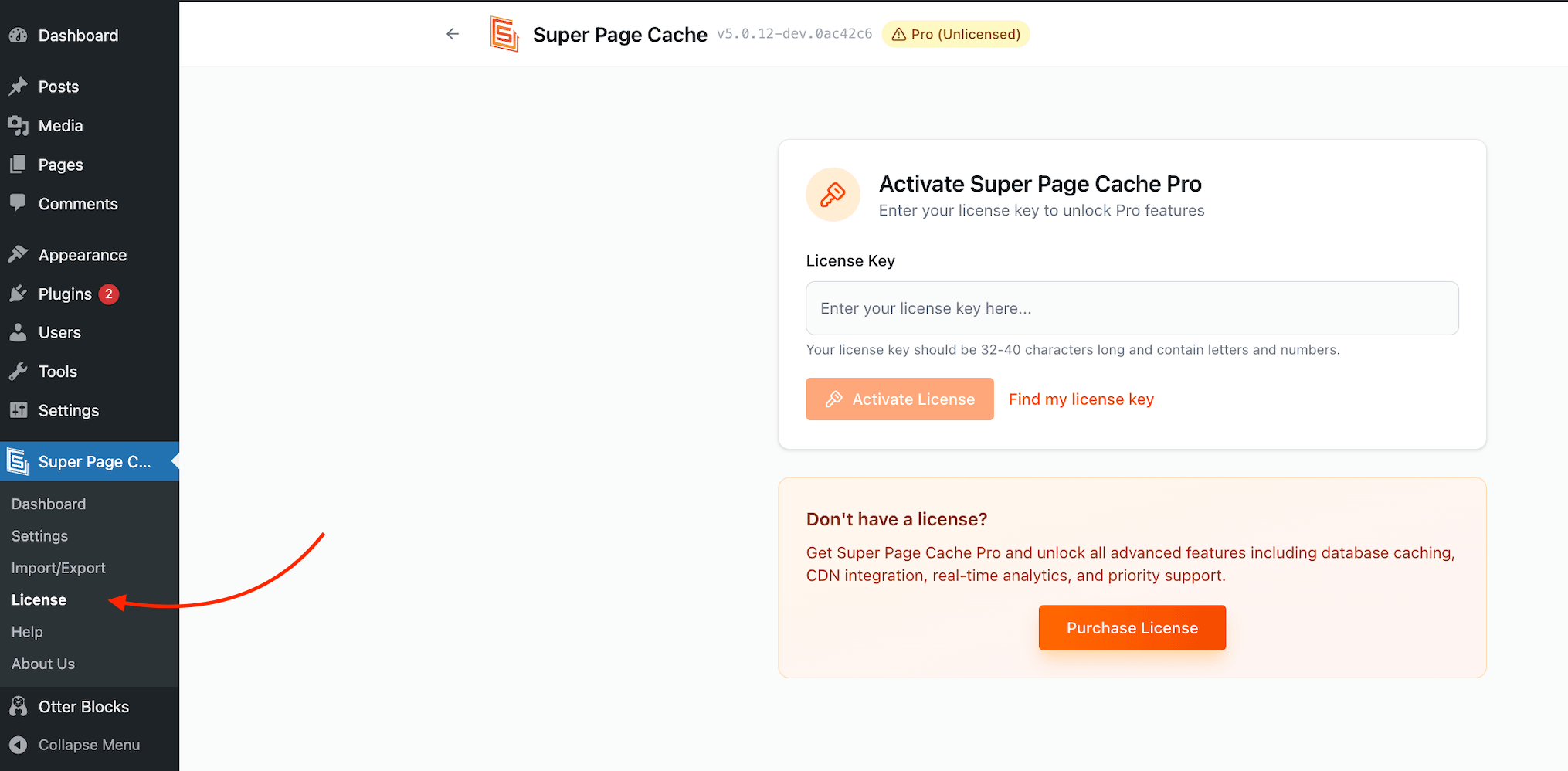
After entering your license key, click Activate License. If any error notices appear in the plugin after activation, dismiss or clear them before continuing with configuration.
⚠️ Important: If you do not see the License tab or the license key field, the free version of Super Page Cache is still active and is conflicting with the Pro version. See License field not visible below for how to fix this.
🛠️ Troubleshooting Installation Errors
Upload timeout during installation
If the zip upload fails with a timeout or "The uploaded file exceeds the upload_max_filesize" error, your server's PHP limits are too low. Check and increase the following settings:
| Setting | Recommended value |
|---|---|
upload_max_filesize | At least 10M |
post_max_size | At least as large as upload_max_filesize |
max_execution_time | At least 300 |
You can update these values through your hosting control panel (for example, cPanel > PHP Settings or MultiPHP INI Editor). Contact your host if you are unsure how to change them.
Alternative: install via FTP
If you cannot change the PHP limits, install the plugin manually via FTP:
- Extract the downloaded
.zipfile on your computer. - Connect to your server using an FTP client (such as FileZilla).
- Upload the extracted plugin folder to
/wp-content/plugins/on your server. - In your WordPress admin, go to Plugins and activate Super Page Cache Pro.
License field not visible
If you do not see the License tab or the license key field after installing Super Page Cache Pro, the free version of the plugin is still active on your site. The free version conflicts with the Pro version and hides the license field.
To resolve this:
- Go to Plugins in your WordPress admin.
- Deactivate and then Delete the free Super Page Cache plugin.
- Refresh the page and navigate to Super Page Cache > License.
- The license key field should now be visible and ready to use.
[Screenshot: WordPress Plugins list showing the free Super Page Cache plugin being deleted]
[Screenshot: Super Page Cache > License tab with the license key field visible after the free version is removed]
"Unable to remove the old advanced-cache.php" error
During installation or when switching from the free version to Pro, you may see a notice such as:
Unable to remove the old advanced-cache.php
This error means the plugin cannot automatically delete the old drop-in cache file because the wp-content folder does not have the correct write permissions.
Fix 1: Correct the folder permissions
- Connect to your server using an FTP client (such as FileZilla) or your hosting control panel's File Manager.
- Navigate to the
wp-contentdirectory. - Right-click the folder and select Change Permissions (or File Permissions / CHMOD).
- Set the permission value to 755 and apply the change.
- Return to Super Page Cache > Settings and re-save your settings to allow the plugin to retry.
Fix 2: Delete the file manually
If the error persists after updating permissions, delete the file directly:
- Connect to your server via FTP or File Manager.
- Navigate to
wp-content/. - Locate the file
advanced-cache.phpand delete it. - Go back to your WordPress admin and re-save Super Page Cache settings. The plugin will recreate the file with the correct content.
⚠️ Important: Only delete wp-content/advanced-cache.php if it was created by Super Page Cache (or another caching plugin you are replacing). If you are unsure, create a backup copy before deleting.
PHP Fatal Error: Class not found after installation
If you see a critical error immediately after installing or activating Super Page Cache Pro, such as:
Fatal error: Uncaught Error: Class "SWCFPC_Cache_Controller" not found in …/wp-super-page-cache-pro/bootstrap.php
This means the plugin files were only partially uploaded or became corrupted during installation. WordPress could not load the plugin because one or more required files are missing.
To fix this:
- If you can still access Plugins in your WordPress admin, deactivate Super Page Cache Pro first.
- Connect to your server using an FTP client (such as FileZilla) or your hosting control panel's File Manager.
- Navigate to
/wp-content/plugins/and delete the entirewp-super-page-cache-profolder. - Download a fresh copy of the Pro plugin
.zipfrom the Themeisle store. - Extract the
.zipfile on your computer and upload the extractedwp-super-page-cache-profolder to/wp-content/plugins/on your server. - Go to Plugins in your WordPress admin and activate Super Page Cache Pro.
⚠️ Important: If the critical error locks you out of the WordPress admin, you can still delete the plugin folder via FTP or File Manager — this will automatically disable the plugin and restore access to your dashboard.
🚀 Maximizing Performance After Installation
Installing Super Page Cache Pro enables full-page caching, but page caching alone may not produce a dramatic improvement in speed scores (such as Google PageSpeed Insights or GTmetrix). To get the best results, pair the plugin with the following:
- Cloudflare integration — Connecting your site to Cloudflare adds a global CDN layer that serves your cached pages from edge locations closest to each visitor. See Setting up Cloudflare with Super Page Cache for setup instructions.
- Asset Manager — Use the built-in Asset Manager to defer, delay, or remove unnecessary CSS and JavaScript files, which directly improves Core Web Vitals scores.
📝 Note: Full-page caching reduces server load and improves repeat-visit speed, but first-visit load times and performance scores improve most when caching is combined with a CDN and optimized asset delivery.
🎯 Features Library
The Super Page Cache Pro plugin has the following features:
- Ignore marketing parameters
- Defer Javascript
- Delay Javascript
- Skip lazy loading for the initial Viewport.