
What is WEBP format and how they can speed up the site
Meet WebP – a modern image format created by Google. It provides perfect lossless and lossy compression for online images.
According to Google, WebP lossless images are 26% lighter than PNGs. The size of WebP lossy images is 25-34% smaller than JPEGs with the same SSIM quality index. Lossless WebP format supports transparency (also known as alpha channel) adding just 22% of additional bytes. Lossy compression supports transparency too and provides 3x smaller file size compared to PNGs with lossy RBG compression – that’s a huge improvement.
So how can you leverage this new format to improve your website performance?
In this article
Creating WebP Versions of Images
Note that you can’t replace JPG, GIF, or PNG with the same WebP images, as they are not supported by all browsers. However, if you have a WordPress website, consider yourself lucky – there’s a simple solution.
Robin image optimizer includes a built-in feature to convert JPG & PNG images to WebP. Whenever you optimize JPG & PNG images, the plugin uses the Robin optimization service to create additional WebP copies of them, which are then stored on your site. It will cost you some disk space. But you can use smaller WebP images on the supported browsers and stick to JPG & PNG copies on the unsupported ones.
WebP conversion is available in the free version of Robin Image Optimizer. Install Robin image optimizer and go to Robin Image Optimizer > Settings. Enable Convert Images to WebP, then click Save Changes. Robin creates WebP copies when you optimize images.
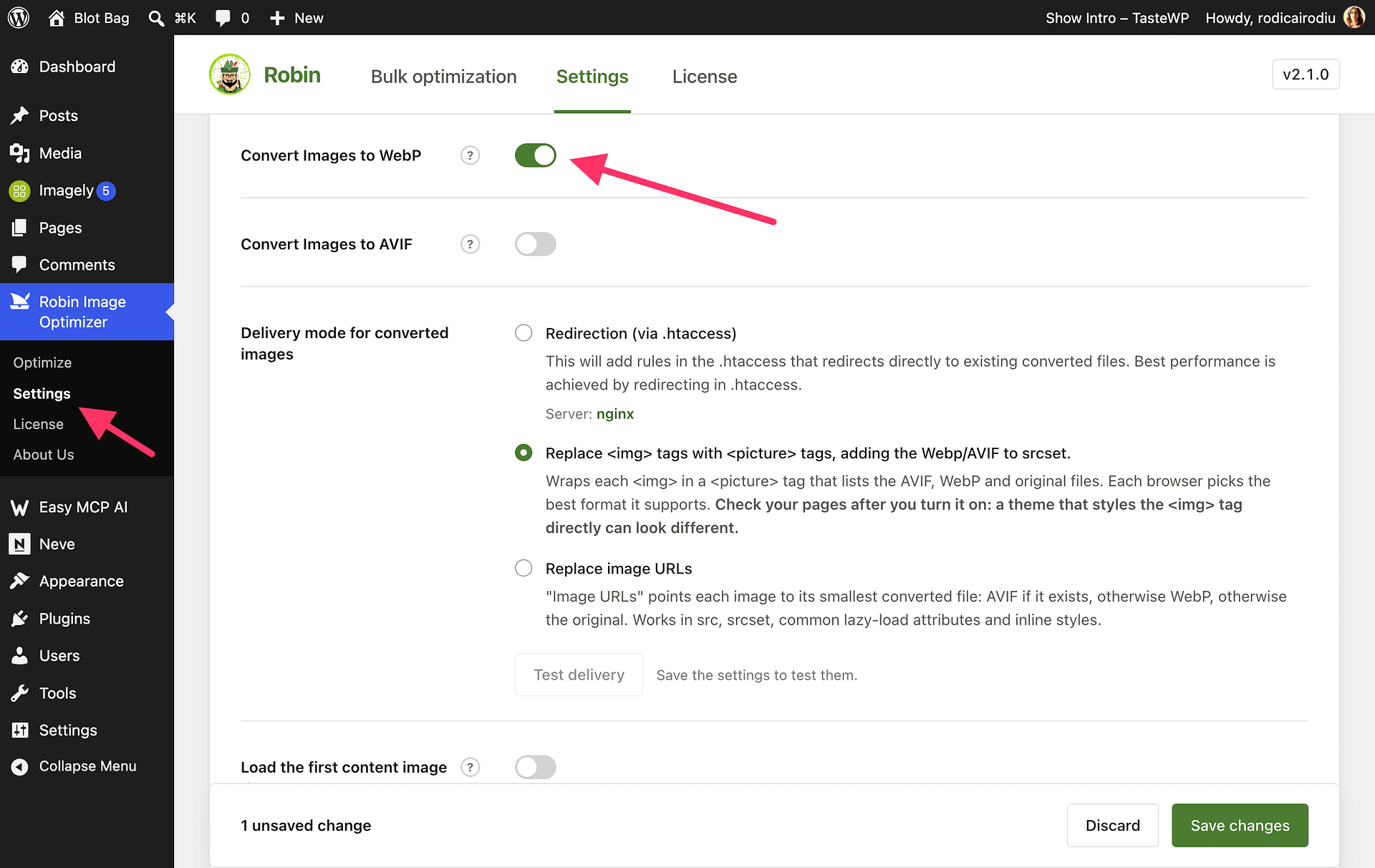
How to convert to webp if you have already optimized all images?
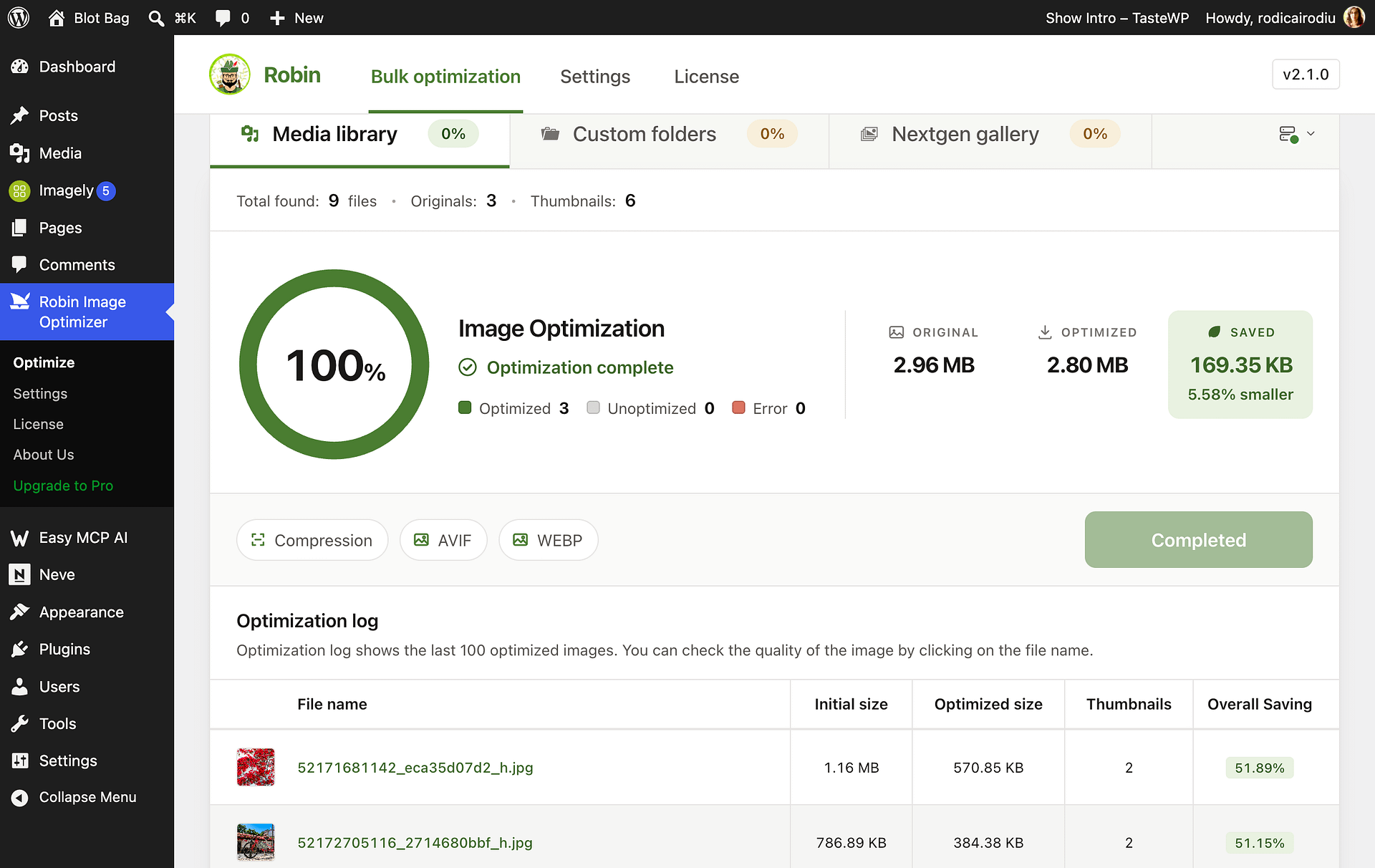
If you already optimized your images before enabling Convert Images to WebP, you do not need to restore them or repeat compression. Enable the setting, click Save Changes, then go to Robin Image Optimizer > Optimize and click Start Optimization. Review the run summary, which shows optimized images that still need WebP copies. Choose Optimize now to process them immediately, or use scheduled or background processing if available with your saved settings. Robin creates the missing WebP copies without recompressing already-optimized images. GIF images are not converted, and Robin can skip WebP files that do not provide sufficient savings.
WebP delivery modes
Now you need to decide how exactly you are planning to replace your JPG & PNG on the frontend. Each option has its downsides.
Redirection (via .htaccess)
This option serves an available converted image according to the browser’s supported formats. On supported Apache servers, Robin can add the rules to .htaccess automatically. Nginx does not use .htaccess; open Rules for nginx and ask your hosting provider to add the supplied rules to your site’s server block and reload Nginx. Robin does not edit the Nginx configuration itself. If your host cannot add the rules, choose Replace <img> tags with <picture> tags, adding the Webp/AVIF to srcset instead. Save your settings, then click Test delivery to check the result.
When Robin detects Cloudflare with Redirection, it warns that a shared image cache can serve a format that another visitor’s browser cannot display. Use Picture delivery unless the image cache varies by the Accept header.
Replace <img> tags with <picture> tags, adding the webp to srcset.
The plugin will change the HTML code of pages dynamically replacing each <img> tag with the <picture> tag and adding an additional WebP version of images. This way the browser could choose the most suitable image format. However, not all the browsers support the <picture> tag. And we’ve found a solution – use the picturefill.js library that adds the support of the <picture> tag to old browsers. This option works great with caching plugins and server caching. Still, it has a disadvantage. The styles used in your theme depend on your <img> tag position. That’s why you may experience some problems with the page appearance.
Replace image URLs
Robin replaces image URLs with a direct URL to an available converted file. It uses the same URL for every browser, which makes the markup deterministic for page caches. When available and enabled, AVIF is selected first, then WebP, then the original image. This mode does not check browser support or provide browser-specific fallback. AVIF conversion requires Pro; see How to convert images to AVIF in Robin Image Optimizer. Choose Picture delivery if you want each browser to select a format it supports.
P.S. Unfortunately, there are some websites where none of the options are going to work. We will keep on improving and developing the plugin until we find a universal solution for all websites.