
How to schedule Optimization
Robin Image Optimizer can automatically optimize images on a schedule so you don't need to trigger bulk optimization manually.
In this article
Overview
This article explains how to schedule image optimization using the Robin Image Optimizer plugin so images are optimized automatically in the background.
What scheduled optimization does
Scheduled optimization allows Robin Image Optimizer to process images automatically at set intervals instead of running optimization manually. This helps reduce server load and ensures new images are optimized without user action.
Enable scheduled optimization
To schedule image optimization:
- Go to WordPress Dashboard > Robin Image Optimizer > Settings
- Enable Auto optimization on upload
- Save the settings
Once enabled, every newly uploaded image will be queued and optimized automatically.
Optimize existing images gradually
For images already in the Media Library:
- Go to Robin Image Optimizer > Optimize
- Start optimization from the dashboard
- Leave the process running or allow it to continue in scheduled batches
The plugin uses WordPress cron to process images in the background.
Schedule NextGEN Gallery optimization
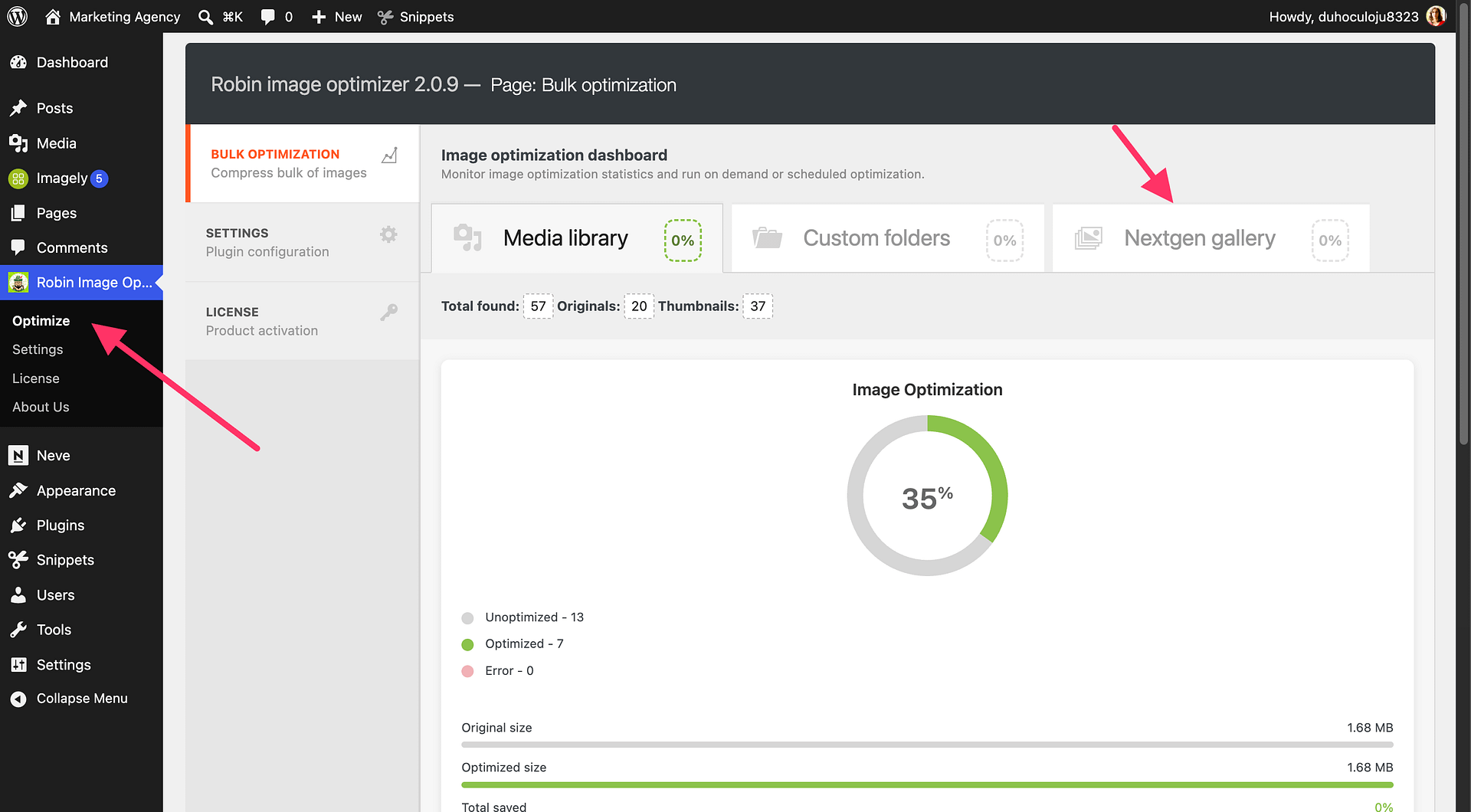
When the NextGEN Gallery plugin is active, Robin Image Optimizer provides a NextGen Gallery screen. Start optimization from that screen; remaining gallery images are processed in scheduled batches through WP-Cron.
Important notes
- Scheduled optimization relies on WordPress cron and site traffic
- Low traffic sites may process images more slowly
- Optimization runs in small batches to avoid server overload
Troubleshooting
If scheduled optimization is not running:
- Make sure WP-Cron is enabled on your site
- Check if a caching or security plugin is blocking cron requests
- Trigger cron manually by visiting your site homepage — this only helps when WordPress's built-in cron spawning is active
When manual optimization works but background optimization does not
If images compress correctly when you run optimization manually but the background queue never processes automatically, the plugin and optimization service are working. The issue is usually that the server cannot complete the internal HTTP requests WordPress needs to run scheduled tasks.
Background optimization relies on WordPress cron, which works by making loopback requests — HTTP requests the server sends to its own domain to trigger scheduled events. If those internal requests are blocked, background optimization stops running even when everything else looks correct.
Check Site Health for loopback errors
- Go to Tools > Site Health in your WordPress dashboard.
- Open the Status tab and look for failed tests.
- If you see a loopback request failure, your server cannot make HTTP requests back to itself.
- Contact your hosting provider and ask them to allow internal loopback requests to your domain, especially requests to
wp-cron.php.
Check firewall and security plugin settings
Firewalls, WAFs, and security plugins can block the loopback requests WordPress cron depends on:
- Check your hosting provider's firewall or server-level WAF for rules blocking requests to
wp-cron.php - Check security plugins such as Wordfence for bot-protection or firewall rules that restrict cron or loopback traffic
- If you use Cloudflare or another CDN, check that bot-protection settings are not blocking requests to
wp-cron.php
This ensures images are optimized steadily without impacting site performance.