
How to convert Images to WEBP in Robin Image Optimizer
This article explains how to convert images to WebP format using the Robin Image Optimizer plugin. It covers settings configuration, bulk conversion, and converting a single image from the Media Library.
In this article
Overview
Robin Image Optimizer sends images to its cloud-based optimization service for compression and conversion. WebP files are saved alongside the source images, while compression can replace a source JPEG or PNG with an optimized version.
Before you start
Make sure the following requirements are met:
- Robin Image Optimizer is installed and activated
- Image backups are enabled if you want the option to restore originals
Step 1: Configure WebP settings
- Go to WordPress Dashboard > Robin Image Optimizer > Settings
- Under Compression mode, choose your preferred option. Lossless is recommended if you want no visible quality change
- Make sure Backup images is enabled.
- Enable Convert Images to WebP.
- Under Delivery mode for converted images, choose how Robin should deliver converted images to visitors.
- Click Save Changes, then click Test delivery below Delivery mode for converted images and review the result. If the test uses a server-side fallback, it may not include the CDN in front of your site.
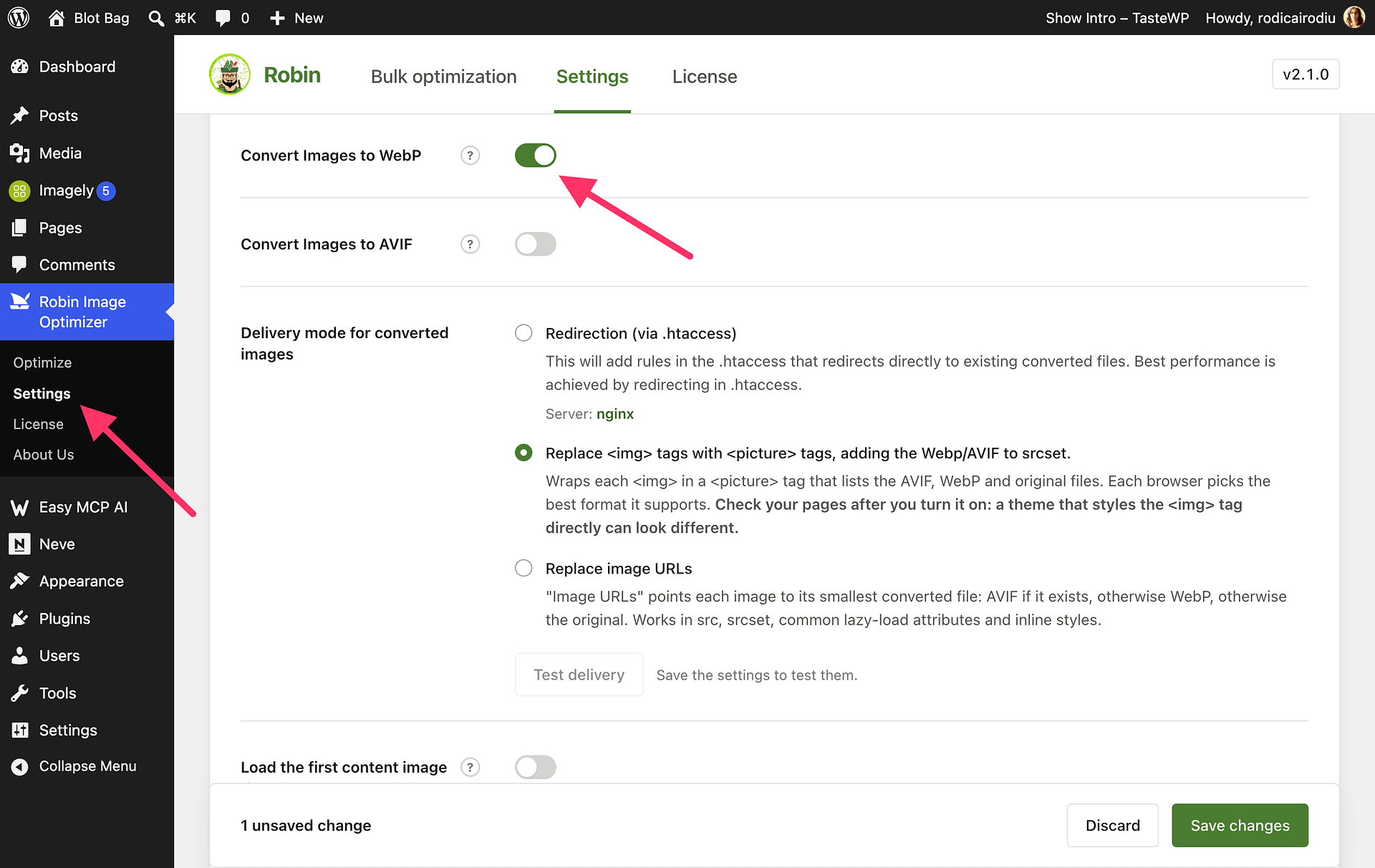
Choose a WebP delivery method
Select how WebP images should be delivered on the front end:
Replace
<img>tags with<picture>tagRecommended if your server does not support .htaccess redirects
Redirection via .htaccess
Recommended for Apache servers with WebP support enabled
Replace image URLs
Rewrites image URLs to point directly to the converted files.
Save the settings once done.
Step 2: Optimize images and create WebP copies
- Go to Robin Image Optimizer > Optimize
- Select the Media Library tab
- Click Start Optimization and review the run summary.
- Choose Optimize now to start immediately and keep the page open, or use scheduled optimization to continue later.
- Monitor the optimization and pending WebP counts in the dashboard.
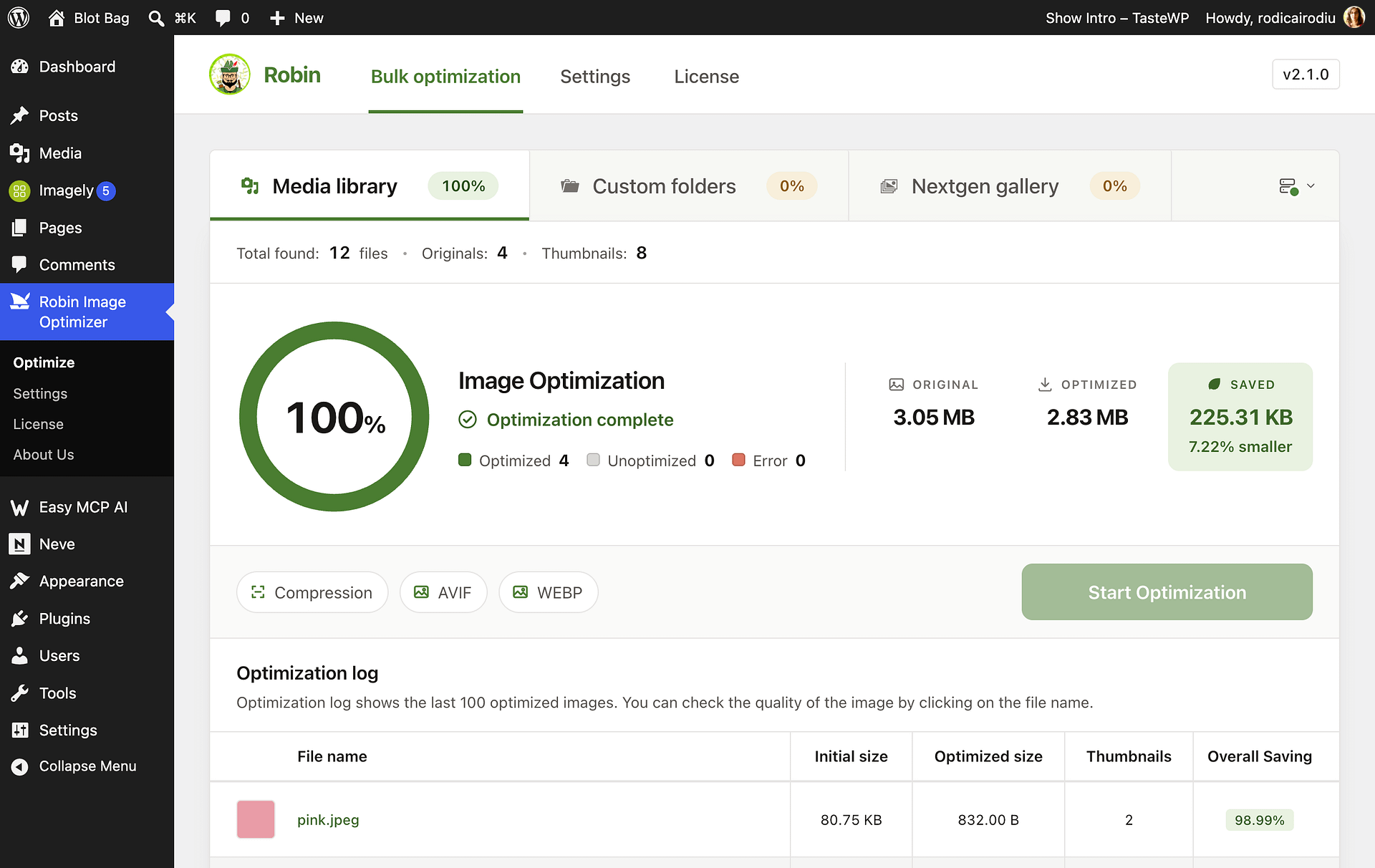
Robin processes compression and enabled format conversions together in one request for each source image. Thumbnail files are processed separately. If an image was optimized before WebP was enabled, Robin can create its missing WebP copy without restoring the original first.
Step 3: Process selected images from the Media Library
- Go to Media > Library and switch to list view.
- Select the image or images you want to process.
- Choose Optimize with Robin from Bulk actions, then click Apply.
- Robin queues the selected images using your saved settings, including WebP when Convert Images to WebP is enabled.
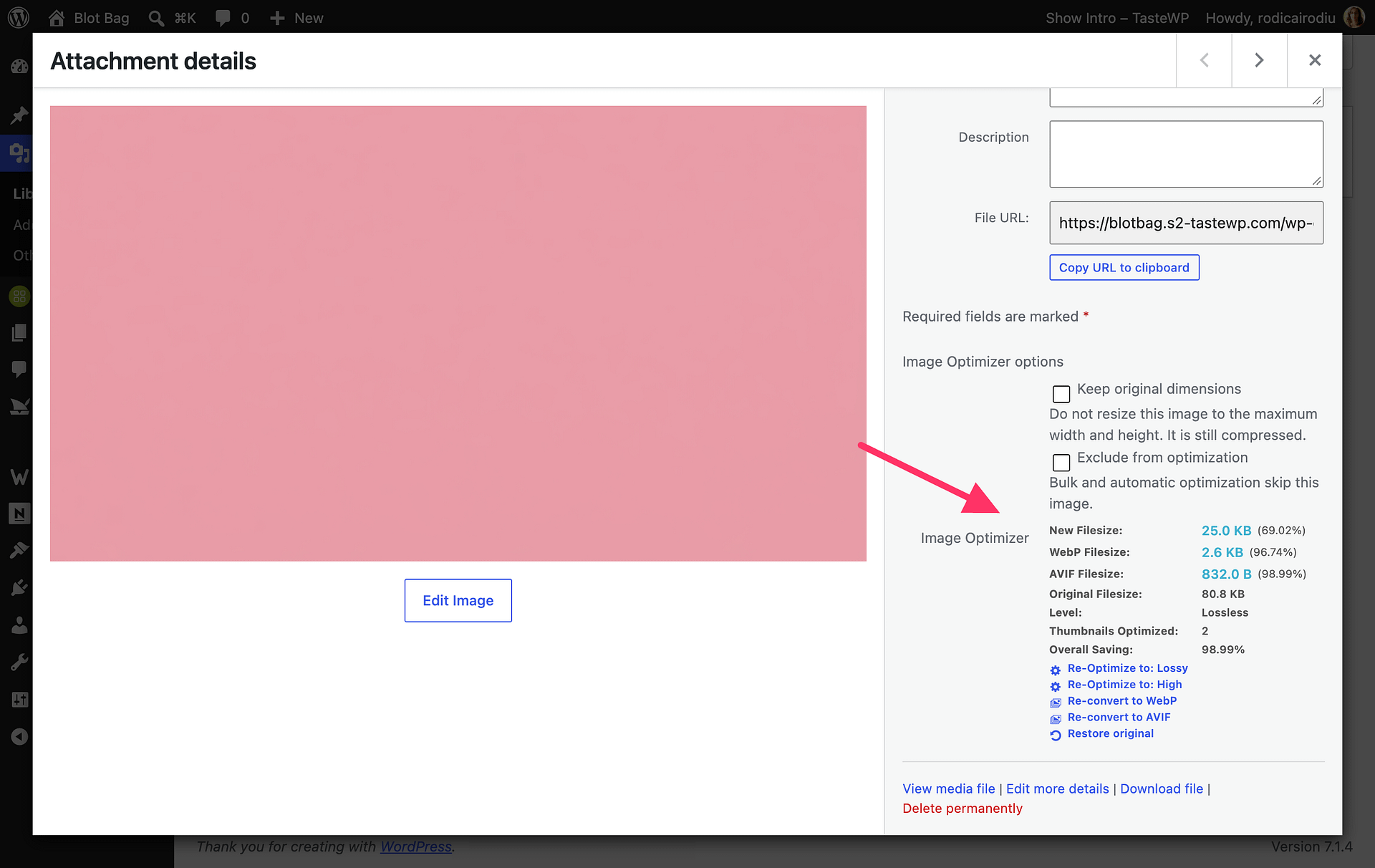
Robin creates WebP copies for the selected images when the setting is enabled and keeps them alongside the source images.
Verify WebP delivery
After conversion:
- Open the page on the front end where your images are present.
- In your browser's developer tools, open the Network panel and inspect the image request's
Content-Type. - Expect
image/webpwhen Robin kept a WebP copy and the delivery method selects it. If AVIF is enabled and selected by your delivery settings, the response can beimage/avif; the original image format is also a valid fallback.
Important notes
- WebP files are additional copies, but optimization can replace source JPEG or PNG files with compressed versions. Keep Backup images enabled if you want to restore the originals.
- Robin does not convert GIF images to WebP. It skips WebP when the converted file is not smaller than the optimized original; these are intentional skips, not errors.
- Additional image sizes usually come from your theme or other plugins
- You can restore original images anytime using Restore under Manage backups
Troubleshooting
If WebP images are not loading:
- Recheck the selected delivery method
- Clear all caches including CDN and browser cache
- Verify WebP support on your server
This ensures WebP images are generated and served correctly without affecting existing image URLs.