Integrate Hyve with Qdrant
Qdrant is a smart database designed for fast and efficient searching through large amounts of text and content. With Hyve’s integration, Qdrant lets you expand your Knowledge Base beyond the standard 500-chunk limit. Your only limit is the storage space of your Qdrant cluster, which can grow as your needs grow and as your plan allows.
If you want your WordPress AI chatbot to handle more content, answer more questions, and scale as your site grows, Qdrant gives you the flexibility to do that without hitting a hard limit. This makes it ideal for sites with lots of articles, documents, or custom data, ensuring your chatbot always has access to the information your visitors might need
In this article
Creating a Qdrant account
To create a free account, navigate to Qdrant's website and click the Get Started button.
Use the preferred method to sign up such as Google account, Github, or email addres.
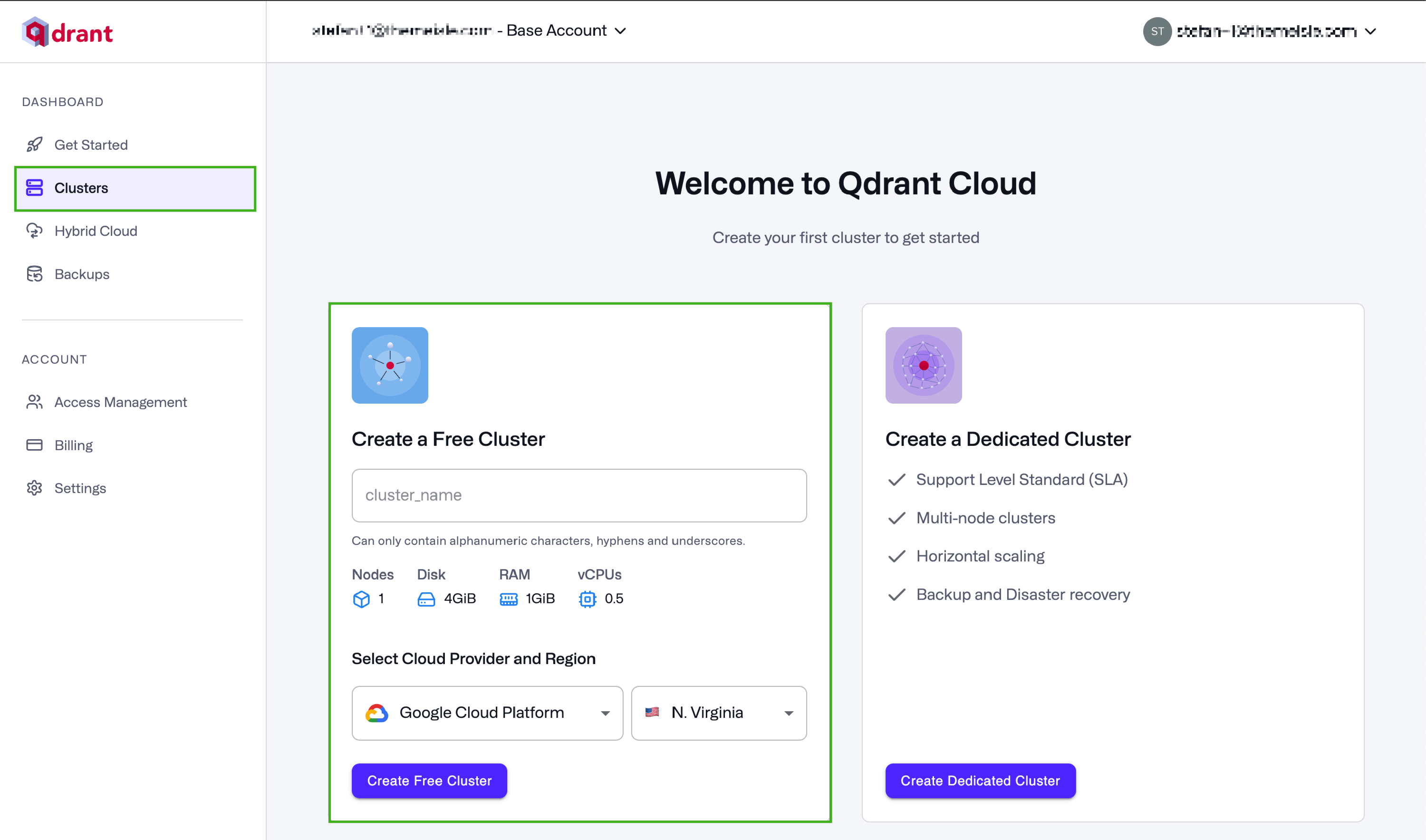
Once logged in, navigate to the Clusters page to create one - use any name you want.
Get your Qdrant API key and endpoint
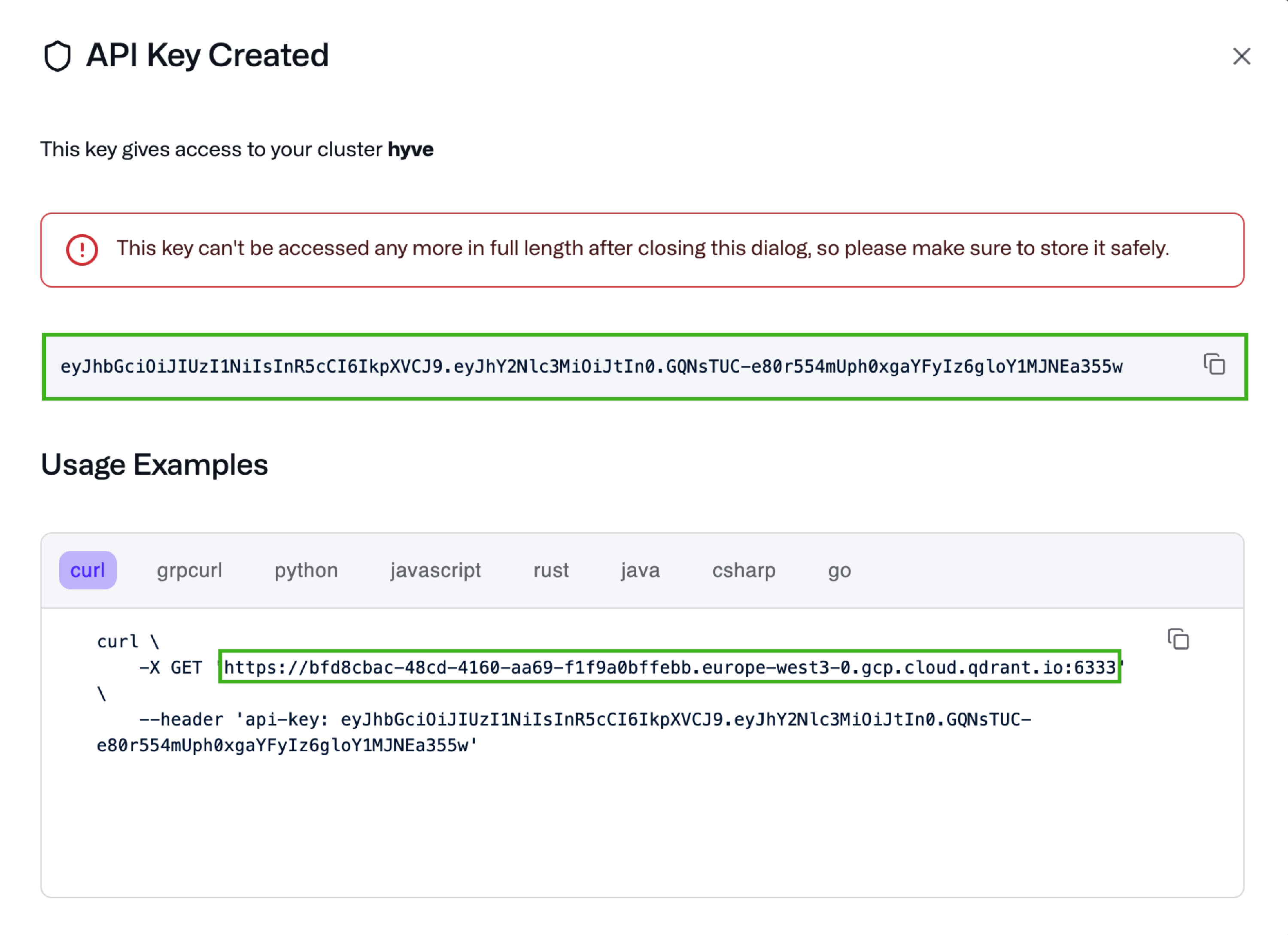
Once you have created your cluster, a pop-up should appear providing you with your API key and endpoint.
Make sure to save them as once the pop-up is closed, you can copy the API key anymore, but you can generate a new one.
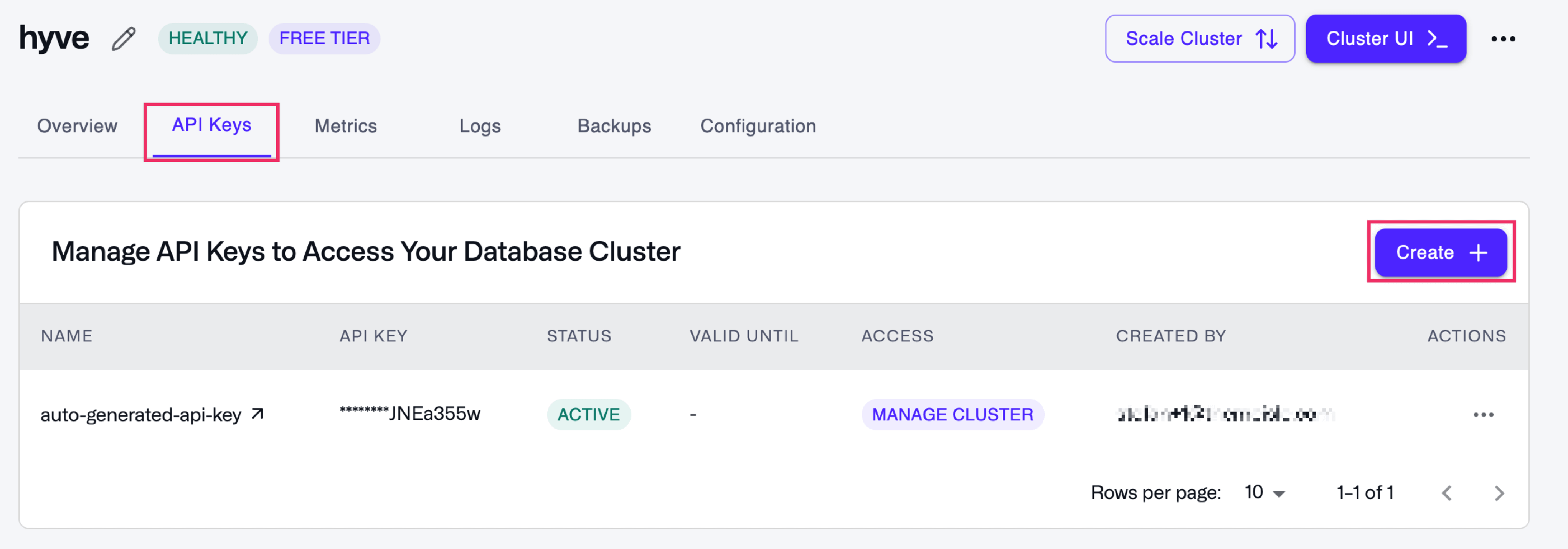
To create a new API Key, navigate to the API Keys tab on your cluster and choose Create.
Connecting Hyve with Qdrant
Qdrant is part of the self-hosted setup that uses your own OpenAI API key. It can't run at the same time as Hyve Connect, and the Qdrant tab is hidden while Hyve Connect is enabled. See Hyve Documentation for the difference between the two AI options.
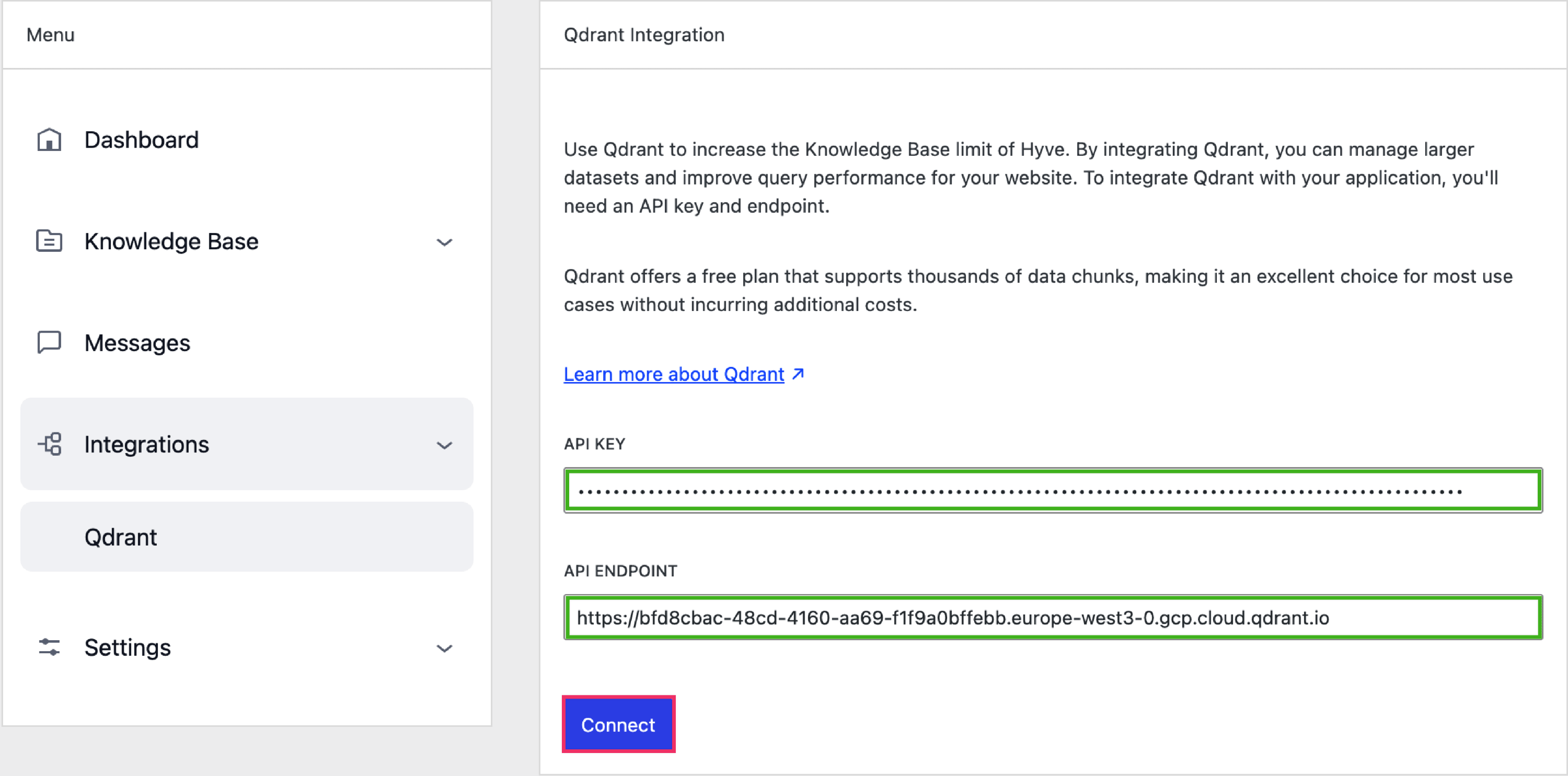
Once you have your Qdrant API key and endpoint, navigate to your website's Dashboard at:
Hyve > Settings > Integrations > Qdrant
and paste those.
For the API Endpoint, there is no need to enter any port at the end of the URL, like 6333.
Instead of
https://bfd8cbac-48cd-4160-aa69-f1f9a0bffebb.europe-west3-0.gcp.cloud.qdrant.io:6333You can use
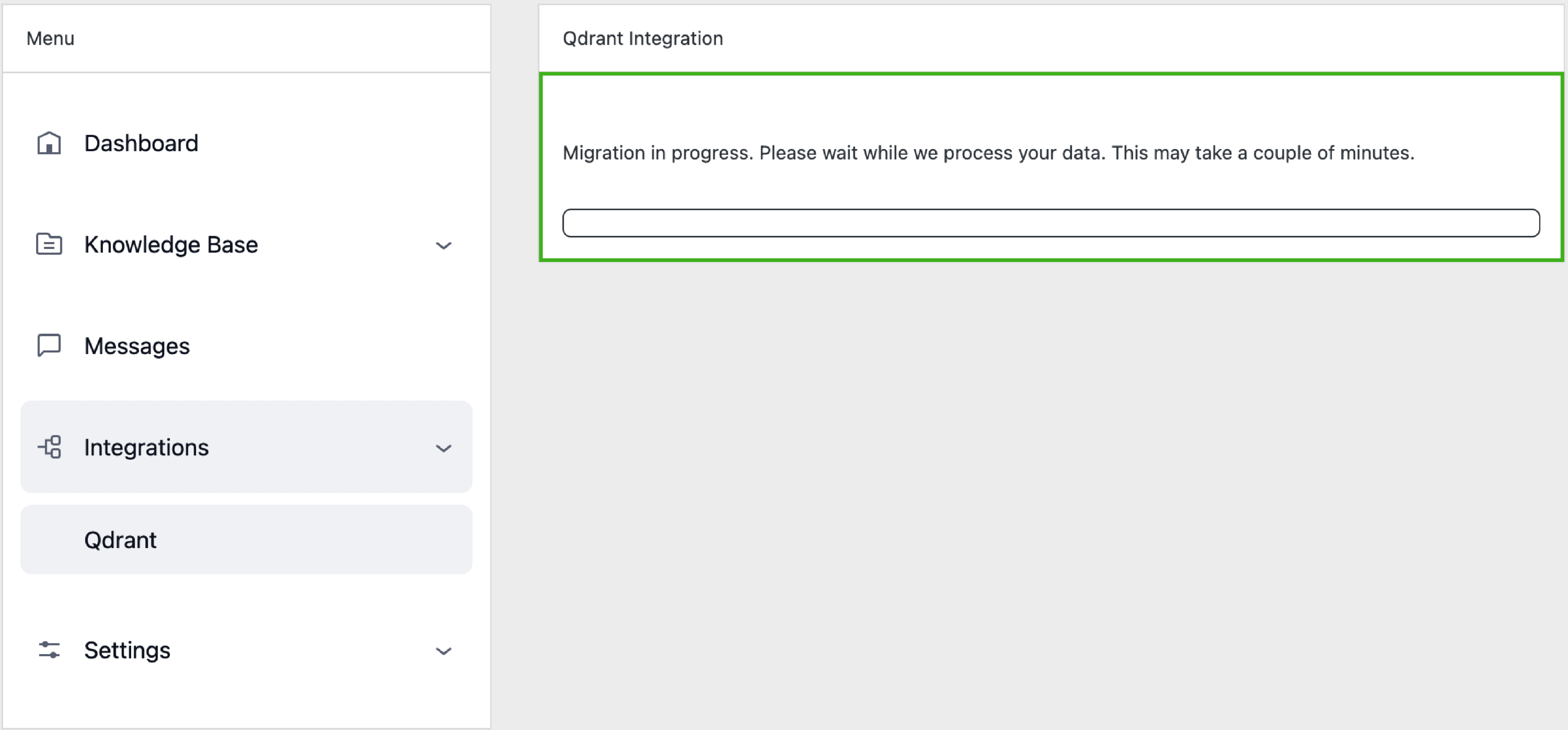
https://bfd8cbac-48cd-4160-aa69-f1f9a0bffebb.europe-west3-0.gcp.cloud.qdrant.ioClick Connect, and your Knowledge Base content will be migrated to Qdrant.
Disconnecting Qdrant
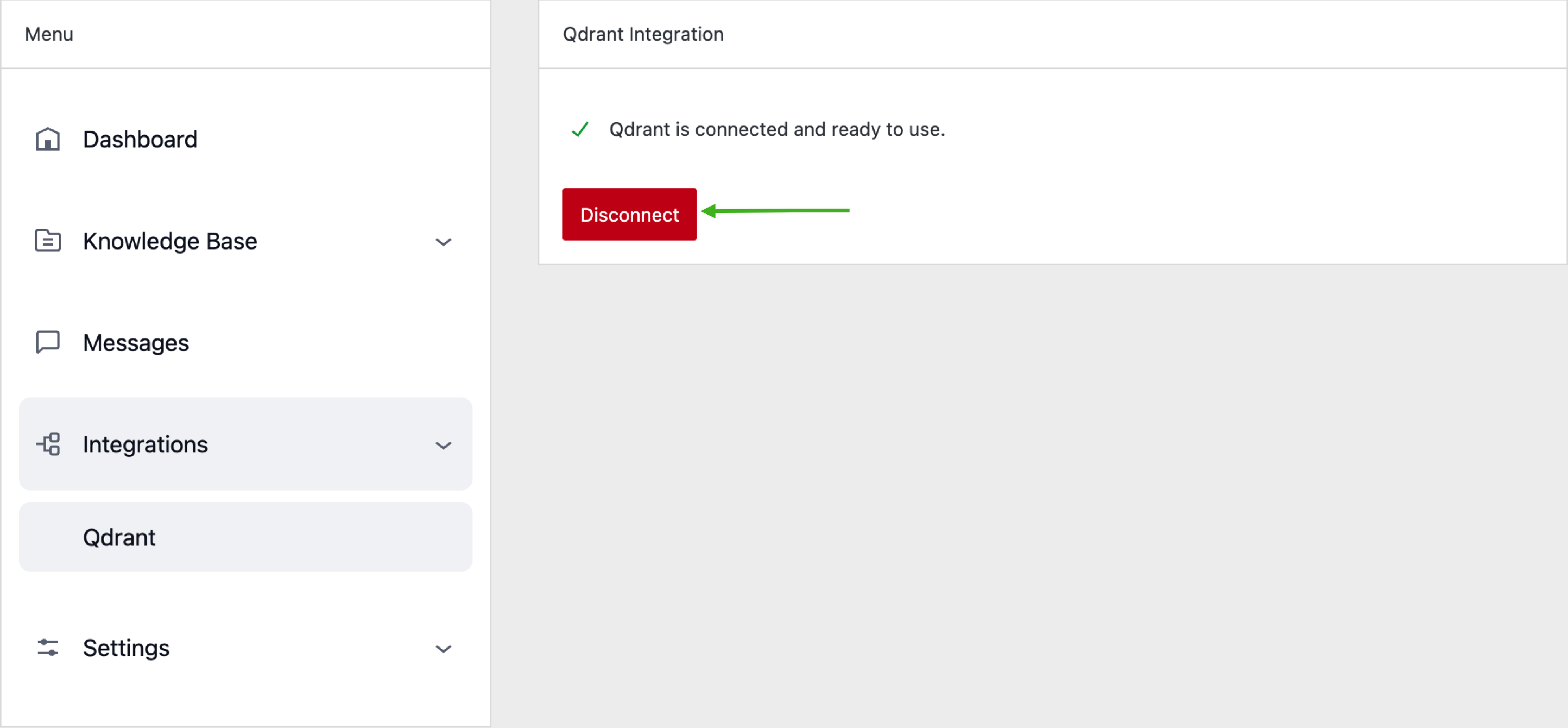
When you disconnect Qdrant, your sources are moved back into your WordPress website's storage. Because that storage is capped, only the content that fits within the standard limit is kept, and any content beyond it is removed. If your Knowledge Base grew larger than the limit while Qdrant was connected, you will need to add the sources that no longer fit again manually.