
Configure Hyve lead capture and webhooks
Hyve can show a contact form inside the chat, store every submission on your site, and send chat activity to an external URL as signed JSON events. This guide covers how to set up both, where submissions are stored, and how to verify that the events your endpoint receives really came from your site.
📝 Note: Lead capture and webhooks are available with Hyve Pro.
In this article
Set up lead capture
- Go to Hyve > Settings and open Chat > Leads.
- Turn on Collect leads.
- Choose when the form appears using the trigger options described below.
- In the Form fields section, add the fields you want to collect.
- In the Messages section, adjust the text shown with the form.
- Click Save changes.
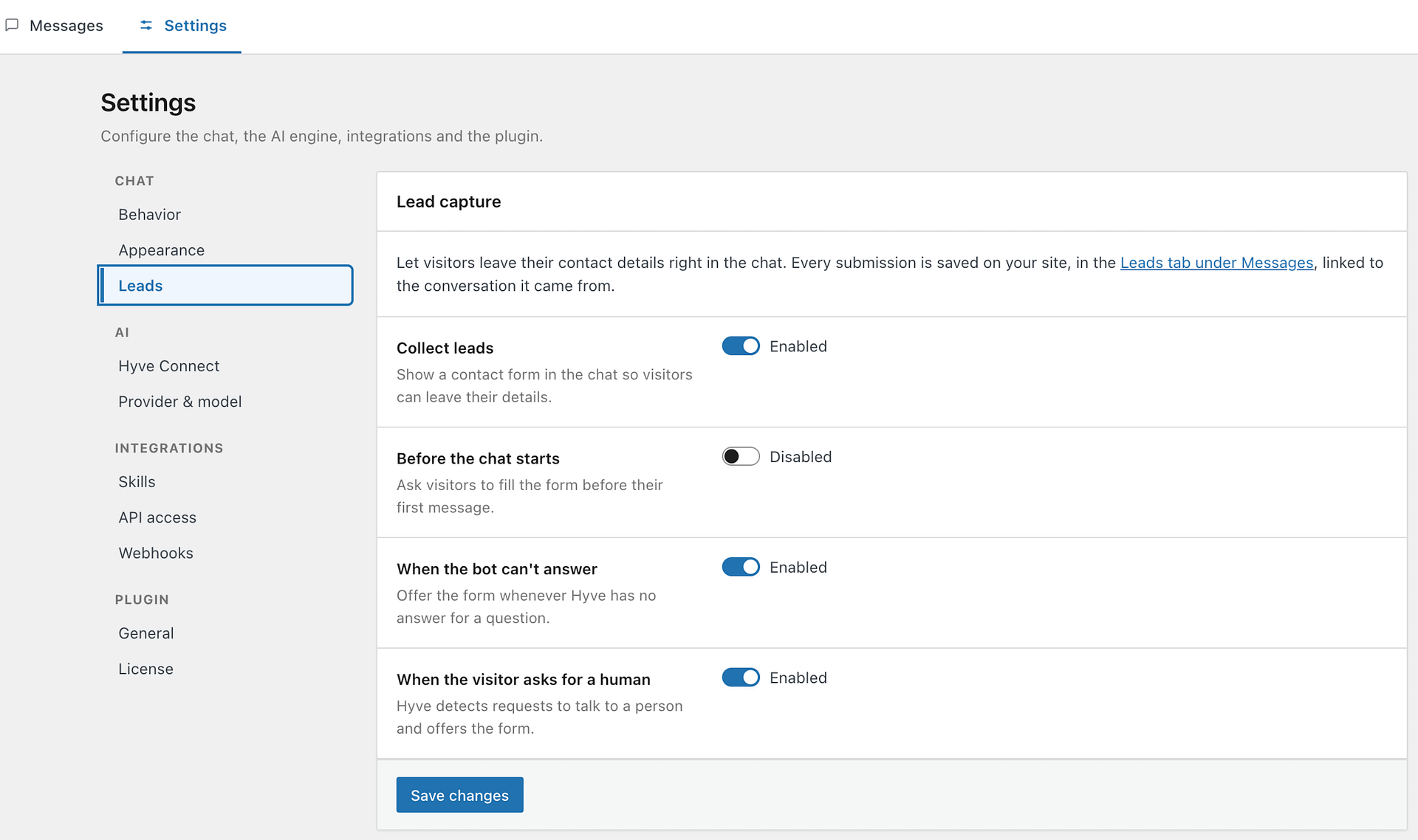
Choose when the form appears
Once Collect leads is on, three independent triggers become available. You can enable any combination of them.
- Before the chat starts asks visitors to fill in the form before they send their first message. When this is on, an extra Required to start chatting option appears. Leave that off to let visitors skip the form and chat anyway; turn it on to make the form mandatory.
- When the bot can't answer offers the form whenever Hyve has no answer for a question.
- When the visitor asks for a human offers the form when Hyve detects that the visitor wants to talk to a person.
💡 Tip: If you leave every trigger off, the form is never shown even though Collect leads is enabled.
Build the form
Each row in the Form fields table is one field on the form. For every field you set a Label, a Type, and whether it is Required. Use the arrow buttons to change the order of the fields, and Remove to delete one.
Five field types are available:
- Text — a single line of text.
- Email — a single line validated as an email address. A visitor who enters a malformed address gets an error and the form is not submitted.
- Phone — a single line for a phone number.
- Long text — a multi-line message box.
- Checkbox — a single tick box, useful for consent.
⚠️ Important: Include at least one Email or Phone field so you have a way to reply to the people who submit the form. Hyve shows a warning in the Form fields section until you add one.
A visitor cannot submit a completely empty form, and any field marked Required must be filled in before the form is accepted.
Customize the form text
The Messages section lets you replace the default wording shown around the form, such as the heading that appears at the top of it. Leave a field empty to keep Hyve's default text.
If you also need to translate the chat's built-in controls or validation messages, see Translate the Hyve chatbot interface.
Submission limits
Two protections apply to every submission, and neither is configurable:
- Five submissions per visitor every 15 minutes. The limit is counted per IP address, and a visitor who exceeds it sees "Too many submissions. Please try again later." until the window passes. People sharing one connection — an office network, or anything behind NAT — share the same allowance. On a site behind a proxy or CDN that does not pass the visitor's real IP address through to WordPress, every visitor counts against a single shared allowance instead.
- Submissions that look automated are discarded silently. If a request arrives with an extra
websitefield, Hyve accepts it, stores nothing, and still reports success, so bots cannot tell they were filtered. The chat's own form never sends that field, but a browser autofill or an API testing tool can add one.
Where submitted leads are stored
Every submission is saved on your own site. Go to Hyve > Messages and open the Leads tab to review them. Each lead records the values the visitor entered and the page the chat was open on, and is linked to the conversation it came from so you can read the full exchange next to the contact details.
Send chat events to a webhook
📝 Note: Hyve stores submitted leads under Hyve > Messages > Leads, but it does not send direct email notifications by itself. With Hyve Pro, you can send each lead to an automation service that accepts incoming webhooks and can send email.
- Go to Hyve > Settings and open Integrations > Webhooks.
- In Endpoint URL, enter the address that should receive the events. The Events checkboxes and Signing secret appear as soon as the field has a URL in it, so you do not need to save first.
- Under Events, tick the events you want to send.
- Copy the Signing secret and store it with your receiving application.
- Click Save changes.
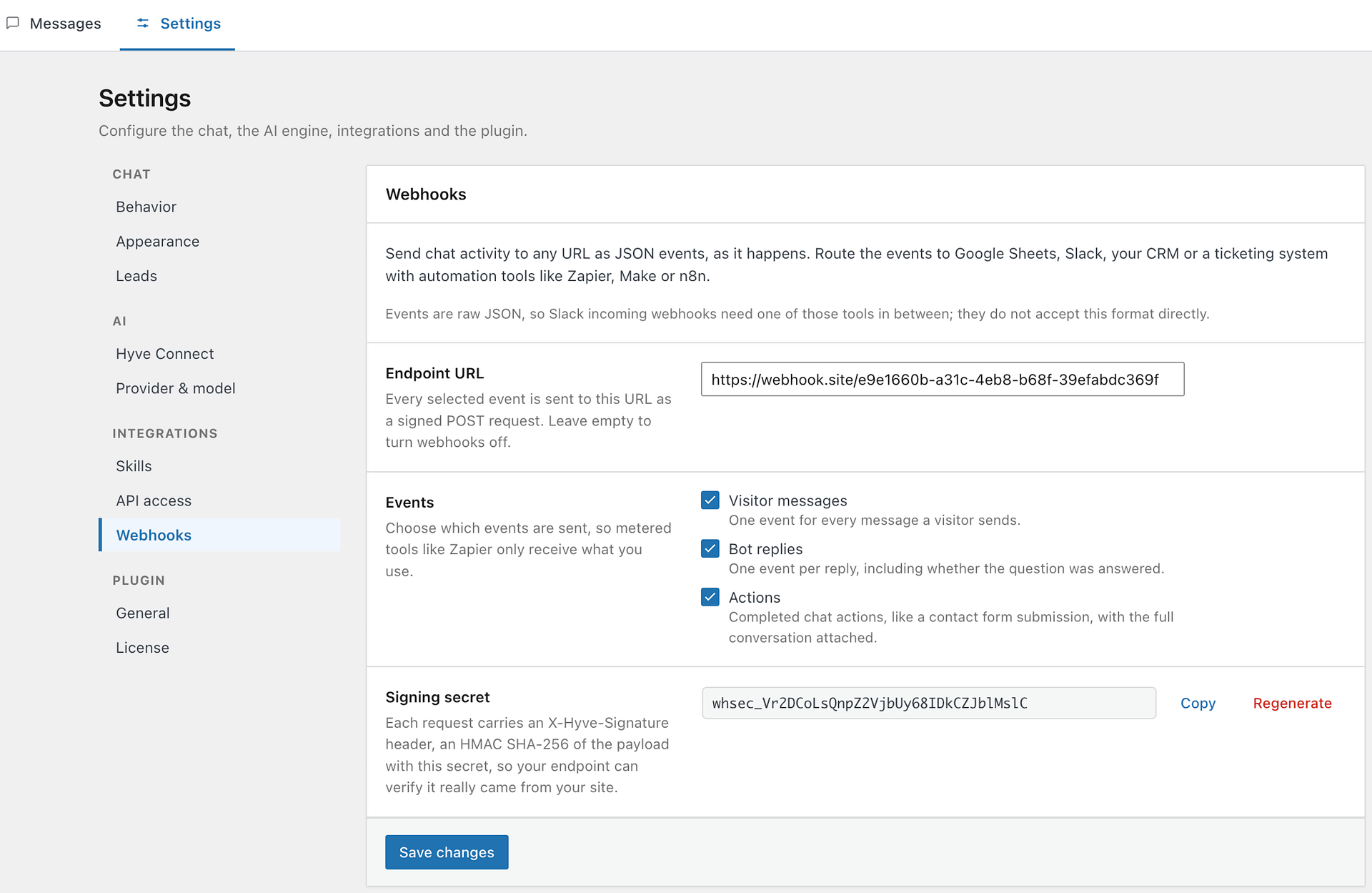
📝 Note: The Events checkboxes and the Signing secret only appear after an endpoint URL is present in the field. If you cannot see them, enter your URL first.
Use an https:// address so the events are encrypted in transit. To turn webhooks off again, clear the Endpoint URL field and save.
Choose which events to send
- Visitor messages sends one event for every message a visitor types.
- Bot replies sends one event per reply, including whether the question was answered.
- Actions sends completed chat actions, such as a contact form submission, with the full conversation attached.
Only the events you tick are sent. Leaving unused events off keeps the volume down if your receiving tool charges per task.
To deliver new leads by email, create a webhook-triggered automation in a service that can send email:
- Create an automation that starts when it receives a webhook, then copy the endpoint URL it provides.
- In WordPress, go to Hyve > Settings > Integrations > Webhooks and enter the URL in Endpoint URL.
- Under Events, select Actions, then click Save changes.
- Configure the automation to continue only when
data.typeequalscontact_form. - Add an email action, map the submitted fields from
data.fieldsinto the message, and choose the recipient. - Submit a test lead, confirm the email arrives, then enable the automation.
What the payload looks like
Every event is a POST request with a JSON body in the same shape. The event key holds the event name — user_message, bot_message, or action — and data holds the details for that event.
{
  "event": "action",
  "created_at": "2026-08-05T10:24:31+00:00",
  "site": "https://example.com",
  "thread_id": "thread_abc123",
  "record_id": 481,
  "data": {
    "type": "contact_form",
    "fields": [
      { "id": "field-1a2b3c4d", "label": "Email", "type": "email", "value": "visitor@example.com" }
    ],
    "page": "https://example.com/pricing/",
    "transcript": []
  }
}
What data contains depends on the event:
- For Visitor messages,
data.messageholds the text the visitor sent. - For Bot replies,
data.messageholds the reply anddata.successindicates whether Hyve found an answer. - For Actions,
data.typeidentifies the action. A contact form submission uses the typecontact_formand adds afieldsarray with the submitted values, thepagethe visitor was on, and atranscriptof the conversation.
⚠️ Important: Action events carry the full conversation transcript alongside the submitted contact details. Make sure the service you send events to is one you are comfortable storing that information.
Verify the signature
Each request carries an X-Hyve-Signature header that looks like sha256= followed by a long hexadecimal value. It is an HMAC SHA-256 of the request body, calculated with your signing secret.
To verify a request, calculate the same HMAC over the exact raw request body and compare it with the value after sha256=. Reading the body into an object and re-encoding it changes the bytes and produces a different result, so always use the raw payload as received.
$raw       = file_get_contents( 'php://input' );
$expected  = 'sha256=' . hash_hmac( 'sha256', $raw, $secret );
$signature = $_SERVER['HTTP_X_HYVE_SIGNATURE'] ?? '';

if ( ! hash_equals( $expected, $signature ) ) {
    // Reject the request.
}
If the values do not match, treat the request as untrusted and discard it.
Regenerate the signing secret
Use Regenerate next to the Signing secret if the secret has been exposed. Hyve asks you to confirm, because the change takes effect immediately.
❗ Important: The old secret stops working as soon as you regenerate. Any endpoint that checks signatures rejects your events until you update it with the new secret.
Delivery limitations
Hyve queues events during the visitor's request and sends them after the reply is already on its way, so a slow endpoint never delays the chat. Two consequences are worth planning around:
- There are no retries. If your endpoint is down or returns an error, that event is lost. Hyve does not queue it for a second attempt.
- Events are raw JSON. Slack incoming webhooks and similar services expect their own message format and will not accept Hyve's payload directly. Point the endpoint at an automation tool such as Zapier, Make, or n8n and let it reshape the event before forwarding it.
Troubleshooting
No events arrive at my endpoint. Confirm the endpoint URL is saved, that at least one event is ticked, and that your Hyve Pro license is active. Also check that the URL is publicly reachable — Hyve cannot deliver to an address that is only available inside your own network.
Signature checks always fail. Make sure you are hashing the raw request body rather than a re-encoded version of it, that you are comparing against the part after sha256=, and that your stored secret matches the one currently shown in Integrations > Webhooks.
The contact form never appears in the chat. Check that Collect leads is on, that at least one trigger is enabled, and that the form has at least one field.
A submission reported success but no lead appears. Three causes look identical from the chat window. If you were testing from a Hyve admin screen, the preview never stores leads — submit from the front end instead. If the request included a website field, it was treated as automated and discarded. Otherwise check that Collect leads is still on, since a disabled form rejects submissions.
The form stops accepting submissions while I am testing. You have reached the limit of five submissions per 15 minutes for your IP address. Wait for the window to pass, or test from a different connection.