
Configure proactive chat invites in Hyve
Proactive invites let Hyve show a short prompt next to the closed chat button so visitors start a conversation sooner.
📝 Note: Proactive invites are available with Hyve Pro.
In this article
Set up the proactive invite
- Go to Hyve > Settings > Chat > Behavior.
- Find Proactive message.
- In Show it when, choose one trigger:
- Disabled
- Time on page
- Exit intent (desktop only)
- Scroll depth
- If you choose Time on page, set Seconds on page (0 to 600).
- If you choose Scroll depth, set Scroll percentage (1 to 100).
- Enter your text in Invite message.
- Click Save changes.
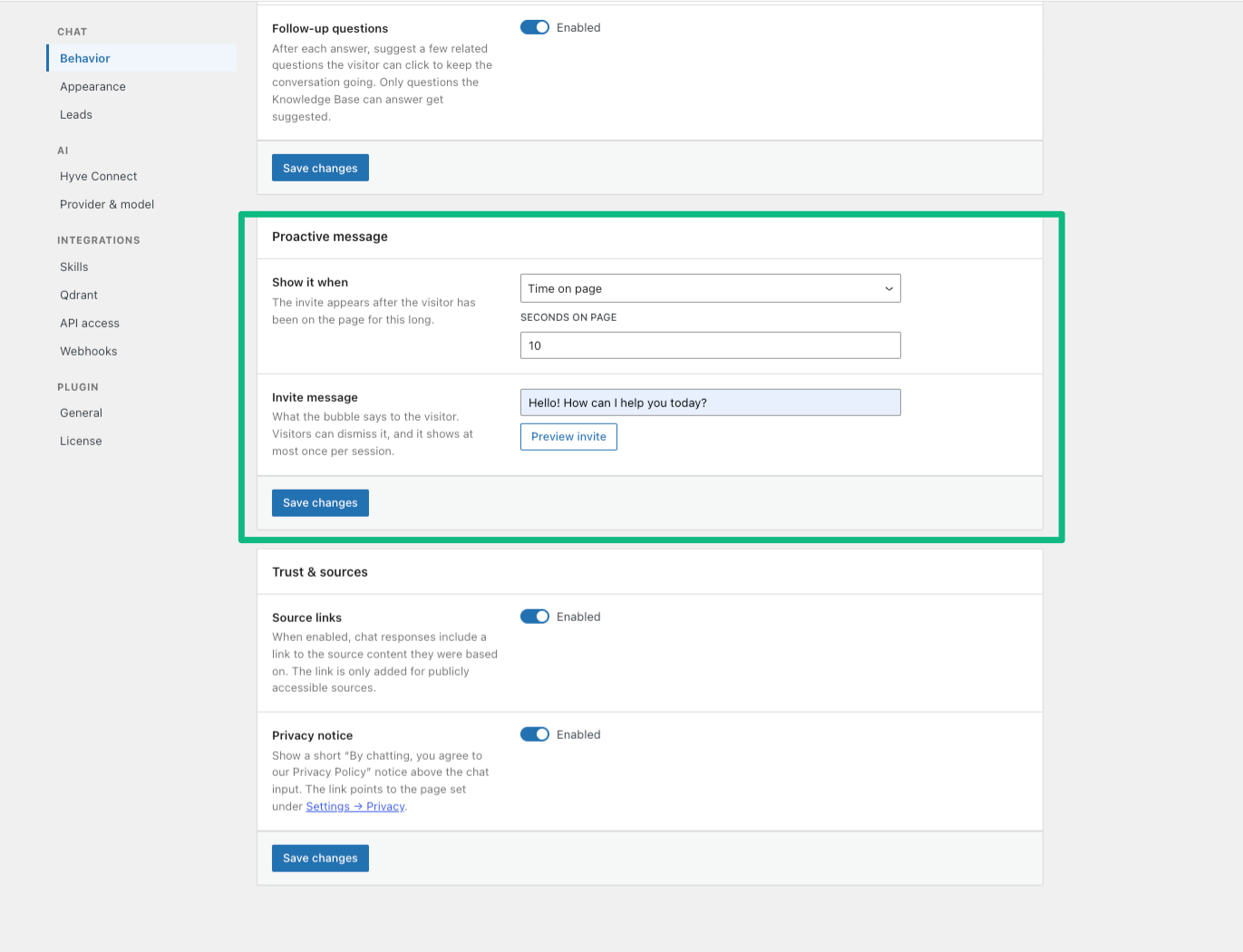
Trigger examples
Example 1: Time on page for sales pages
Use Time on page when you want to wait before showing the invite.
- Show it when:
Time on page - Seconds on page:
20 - Invite message:
Need help choosing the right plan?
This works well on pricing or product pages where visitors usually read for a few seconds before deciding.
Example 2: Exit intent for desktop visitors
Use Exit intent when you want to catch visitors who are about to leave.
- Show it when:
Exit intent - Invite message:
Before you go, want a quick answer?
Because this trigger is desktop-only, pair it with another trigger if mobile traffic is important for your site.
Example 3: Scroll depth for long content
Use Scroll depth for long pages where scrolling shows engagement.
- Show it when:
Scroll depth - Scroll percentage:
60 - Invite message:
Looking for something specific on this page?
This is useful for long blog posts, documentation pages, and comparison pages.
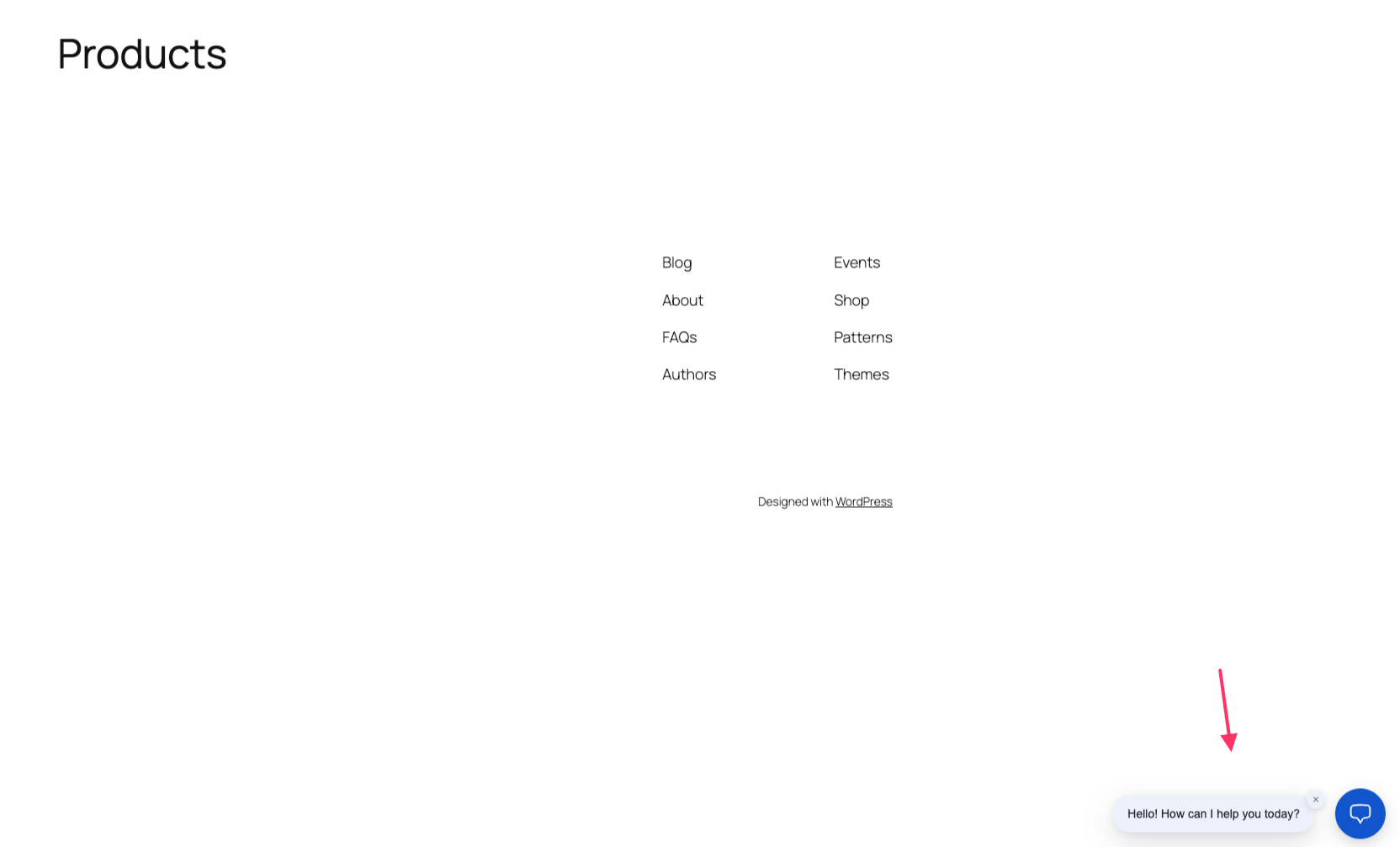
How the invite behaves for visitors
- Visitors can dismiss the invite bubble.
- The invite appears at most once per browser session.
If you test repeatedly on the same browser tab and it no longer appears, start a new browser session and test again.