
Manage Hyve with AI assistants
When the WordPress Abilities API is available, Hyve Lite exposes administration abilities through the REST API. An authenticated AI integration can use these abilities to inspect your Knowledge Base and change supported chatbot settings.
These administration abilities are separate from visitor-facing Hyve Skills and the bearer-token semantic-search endpoint described under Integrations.
In this article
Requirements
Latest version of Hyve and WordPress 6.9 or later. Hyve's abilities are available only when the WordPress Abilities API is available.
You also need a compatible connector, such as Easy MCP AI, and an AI client connected to your WordPress site. For setup instructions, see Getting Started with Easy MCP AI.
Connect your AI client and enable Hyve's abilities
In your WordPress dashboard, open Easy MCP AI > Dashboard. In the Connect your AI client area, choose your AI client and follow the on-screen steps to connect it to your site. If you use another compatible connector, follow its connection instructions.
Open Easy MCP AI > Tools, then select Abilities.
All abilities are off by default. In the Hyve group, enable all available abilities.
Click Save changes to make them available to connected clients.
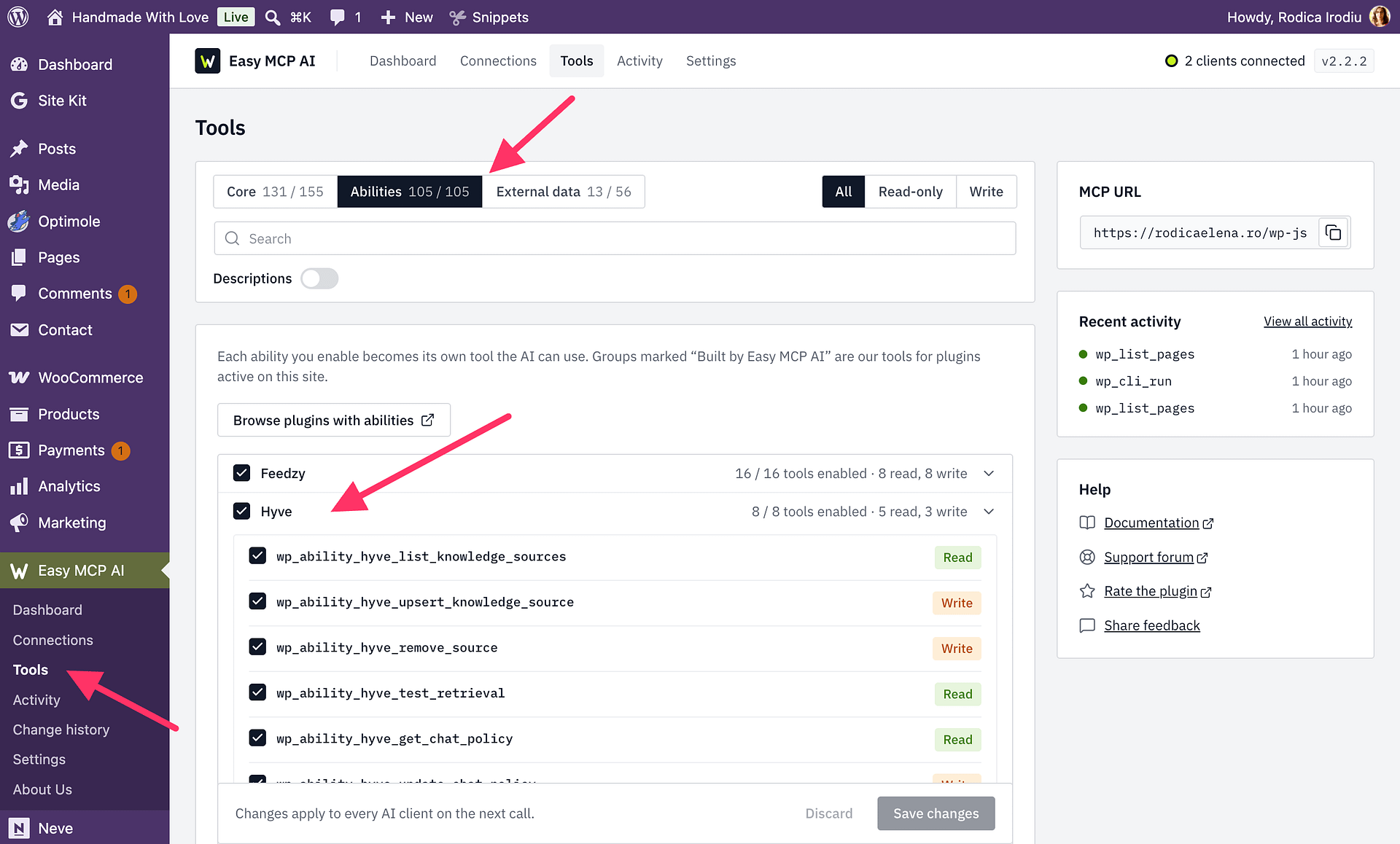
Available abilities
| Ability | Purpose |
|---|---|
hyve/list-knowledge-sources | List Knowledge Base sources and their indexing status, including the status of an import when you provide its job_id. |
hyve/upsert-knowledge-source | Add or refresh a source. Supported types are post, url, document, sitemap, and manual. |
hyve/remove-source | Remove a source from the Knowledge Base. |
hyve/test-retrieval | Find matching sources and return chunk diagnostics for a question without generating a chatbot answer. |
hyve/get-chat-policy | Read supported chatbot settings without exposing credentials or administrative settings. |
hyve/update-chat-policy | Change supported chatbot settings supplied in the request. |
hyve/list-leads | Read captured leads, which can include personal information. |
hyve/list-unanswered-questions | Read unanswered visitor questions, ordered by frequency. |
Example requests
To change the welcome message, call hyve/update-chat-policy with this settings object:
{"settings":{"welcome_message":"Hi! Ask me anything about our services."}}Only the setting you provide changes; other settings remain unchanged. Call hyve/get-chat-policy afterward to read the updated policy.
To add a WordPress post or page to the Knowledge Base, call hyve/upsert-knowledge-source with its ID:
{"type":"post","ref":"123"}Replace 123 with the post or page ID. To reprocess an existing source, provide its source_id, matching type, and reindex: true:
{"source_id":"<source-id>","type":"post","reindex":true}Imports can run asynchronously. If an upsert response includes a job_id, pass it to hyve/list-knowledge-sources while the import state is working. Continue checking until the state is completed, failed, or cancelled; a successful save response does not mean indexing has finished.
Hyve Lite and Pro
Hyve Lite supports basic WordPress source operations and basic chatbot settings. Importing URLs, documents, sitemaps, or manual text requires an activated Hyve Pro license. Reading leads and unanswered questions, and changing Pro-only settings, also requires an activated license.
Permissions and privacy
Management actions require an authenticated WordPress user with the manage_options capability. Reading captured leads requires hyve_read_messages and an activated Hyve Pro license.
Lead privacy: Leads can contain personal information. Give access only to AI integrations and WordPress accounts you trust to receive that data.
Removing a WordPress source removes it from the Knowledge Base but leaves the original post or page on your site. Removing an imported or manual knowledge entry permanently deletes that entry, so confirm which source you are removing.
Chat-policy abilities do not expose or change API keys, the AI connection mode, webhook configuration, telemetry, or the post-row-action preference. Unsupported settings updates are rejected.
Retrieval testing requires self-hosted mode with a connected OpenAI API key. It uses OpenAI's moderation and embeddings APIs, which may incur usage charges. With Hyve Connect active, the ability returns hyve_retrieval_unavailable.