
Mapping WooCommerce Products
WP Landing Kit allows you to create a microsite for your WooCommerce products and bind the internal checkout/cart pages to the domain that you are using.
In this article
How to enable this
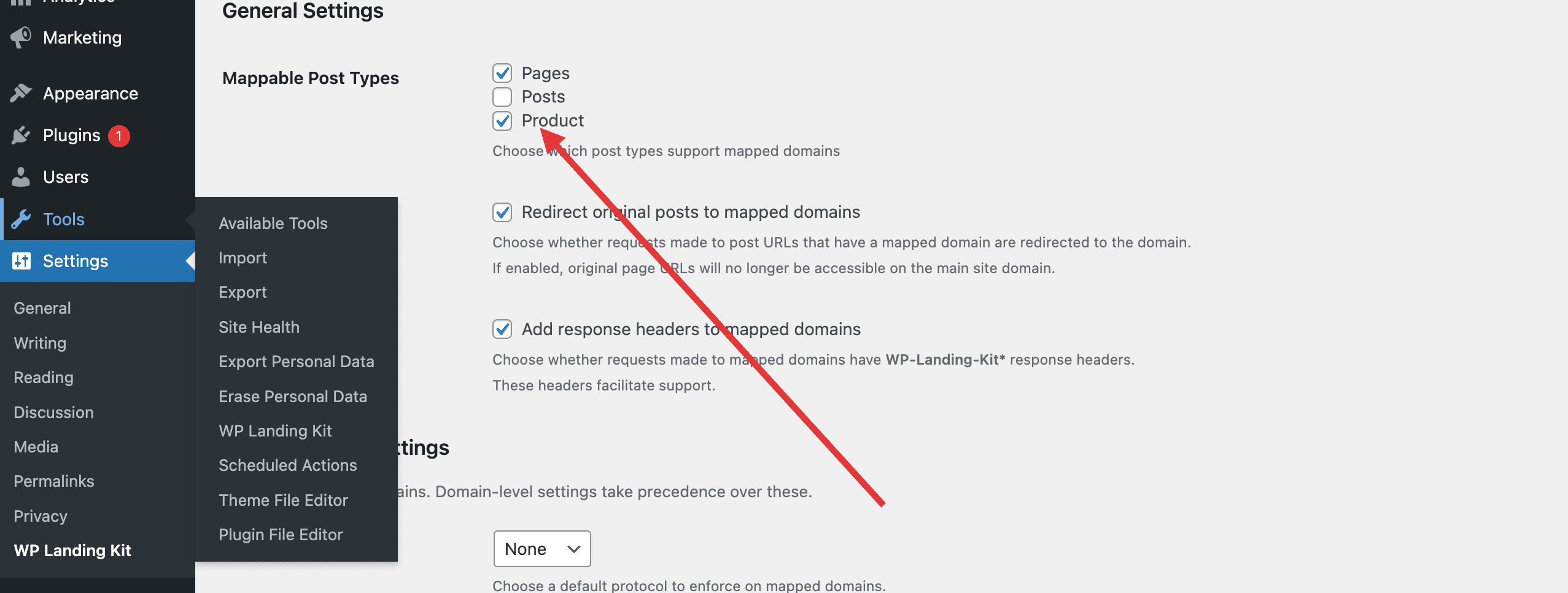
- Enable Product post type as a Mappable post type in WP Landing Kit → Settings
- Add a new domain and select the Single Product mapping and enable the mapping of internal WooCommerce pages to the new domain.
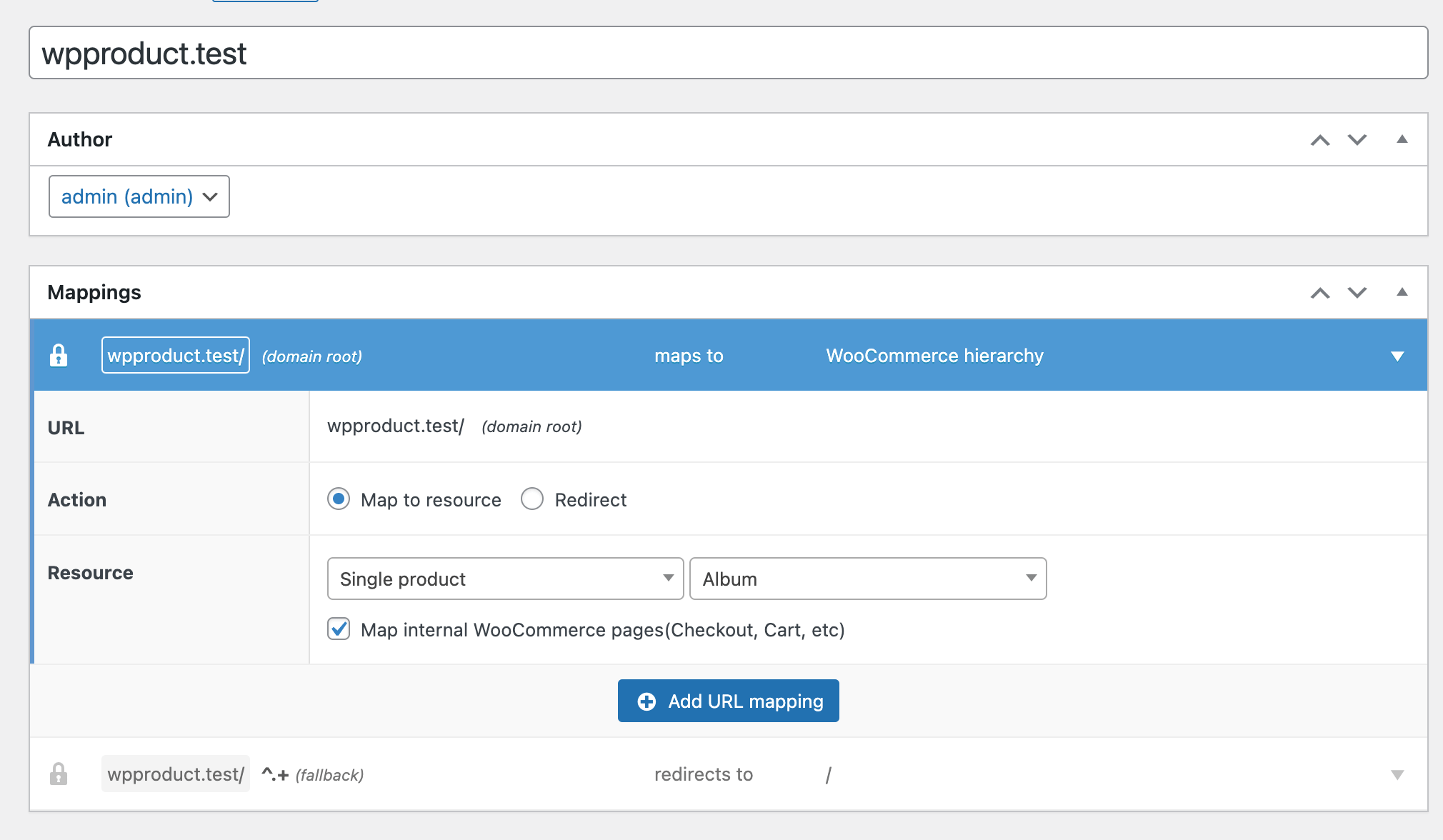
⚠️ Important: The Map internal WooCommerce pages feature only works correctly when your domain is mapped to the root path (e.g., yourdomain.com). If you are using a sub-path mapping (e.g., yourdomain.com/shop), WooCommerce will generate cart and checkout URLs without the sub-path prefix, causing those pages to redirect to the homepage. See Limitations with sub-path mappings below for the workaround.
Limitations with sub-path mappings
When a domain is mapped with a sub-path (for example, yourdomain.com/woocommerce), enabling Map internal WooCommerce pages does not work as expected. WooCommerce generates URLs for the cart and checkout pages without the sub-path prefix, so visitors are redirected to the homepage instead of reaching those pages on the mapped domain.
Why this happens
WooCommerce builds its internal page URLs (cart, checkout, account) based on the WordPress page slugs, not the mapped domain path. When WP Landing Kit maps a domain with a sub-path, the prefix is not automatically added to WooCommerce's generated URLs. As a result, requests to the cart or checkout page land outside the mapped path and fall back to the homepage.
Fix: switch to root domain mapping
The recommended fix is to remove the sub-path and map the domain at the root level instead.
- In your WordPress admin, go to WP Landing Kit → All Domains and open the domain mapping you want to update.
- Remove the sub-path from the domain field so the mapping points to the root domain (e.g., change
yourdomain.com/woocommercetoyourdomain.com). - Save the mapping. The Map internal WooCommerce pages option will now correctly route the cart and checkout pages through the mapped domain.
Alternative: manually map cart and checkout pages
If switching to a root domain mapping is not possible, you can map the cart and checkout pages manually instead of relying on the Map internal WooCommerce pages toggle.
- Leave the Map internal WooCommerce pages checkbox unchecked.
- Create a separate domain mapping for each WooCommerce page you need (cart, checkout, account) and point each one to the corresponding WordPress page.
- Save each mapping.
📝 Note: Manual mappings give you full control over which WooCommerce pages are available on the mapped domain and work regardless of whether you are using a root or sub-path mapping.
Troubleshooting cart and checkout redirects
Symptom: After enabling Map internal WooCommerce pages, clicking the cart or checkout button redirects the user to the homepage instead of the expected page.
Cause: This almost always means the domain is mapped with a sub-path. WooCommerce generates cart and checkout URLs without the sub-path, so the URLs fall outside the mapped path and the visitor is sent to the homepage.
Steps to resolve:
- Check your domain mapping in WP Landing Kit → All Domains. If the domain includes a path segment (e.g.,
/shop,/woocommerce, or any slug after the domain name), that is the cause. - Switch to a root domain mapping by removing the sub-path, as described in Fix: switch to root domain mapping above.
- If you must keep the sub-path, uncheck Map internal WooCommerce pages and add manual mappings for the cart and checkout pages instead, as described in Alternative: manually map cart and checkout pages above.
- Clear any server or plugin caches after making changes and test the cart and checkout flow again.