
OpenRouter Setup Guide
Setting up your OpenRouter API connection gives you access to 450+ AI models from providers like Anthropic (Claude), Google (Gemini), Meta (Llama), and many more. This guide will walk you through getting your API key from OpenRouter and connecting it to your WordPress site.
Pro Feature: OpenRouter support is available in FreshRank AI Pro. FreshRank Agent and OpenAI are available in both the free and Pro versions.
In this article
What You'll Need
Before you begin, make sure you have:
- An OpenRouter account (you can create one at openrouter.ai)
- Administrator access to your WordPress site
- FreshRank AI Pro (OpenRouter is a Pro-only feature)
- Credits added to your OpenRouter account (required for API access)
Step 1: Get Your OpenRouter API Key
First, you'll need to create an API key in your OpenRouter account.
- Log in to OpenRouter
- Go to openrouter.ai
- Sign in with your OpenRouter account credentials
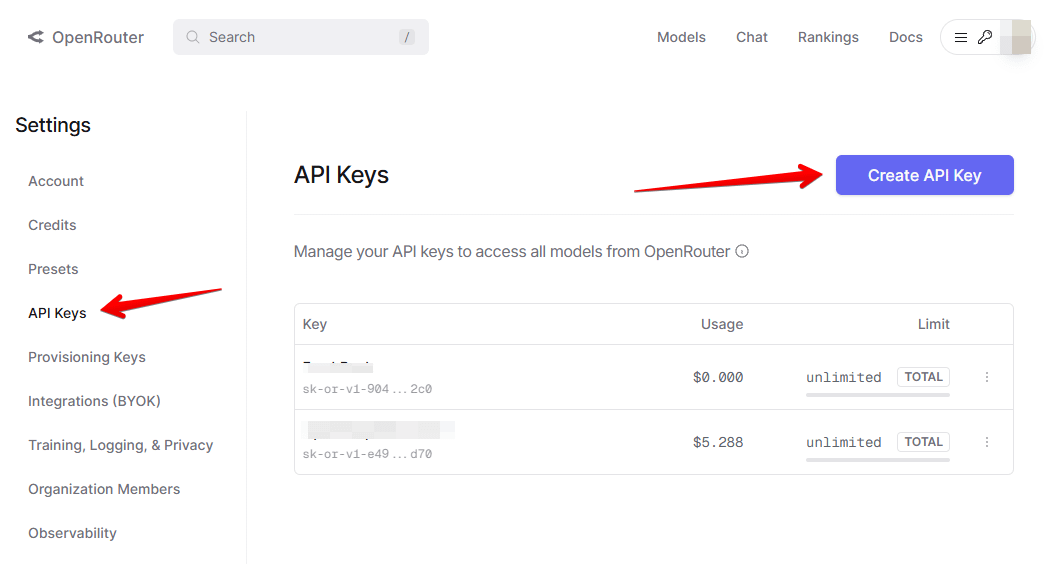
- Navigate to API Keys
- Create a New API Key
- Click the "Create API Key" button
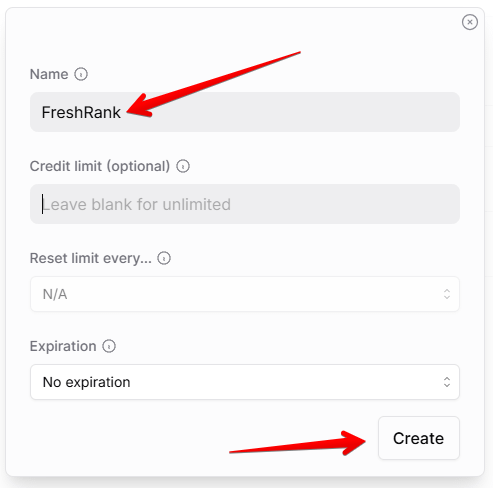
- Give your key a recognizable name (e.g., "FreshRank")
- Click "Create"
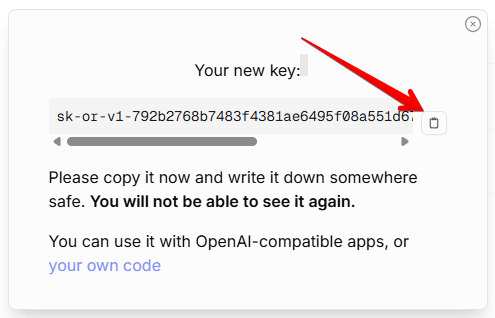
- Copy Your API Key
- OpenRouter will display your new API key
- Click the copy button to copy the key to your clipboard
- Important: Store this key somewhere safe for future reference
⚠️ Warning: Never share your API key publicly or commit it to version control. Anyone with your key can make API calls that will be charged to your account.
Step 2: Add Your API Key to FreshRank
Now that you have your API key, let's connect it to FreshRank AI.
- Open FreshRank Settings
- In your WordPress admin panel, go to FreshRank AI → Settings
- You'll land on the Settings tab by default
- Locate the AI Configuration Card
- On the Settings page, find the AI Configuration card (it's the first card on the left)
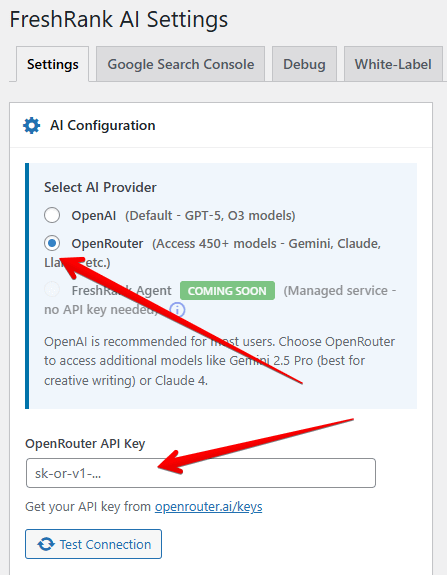
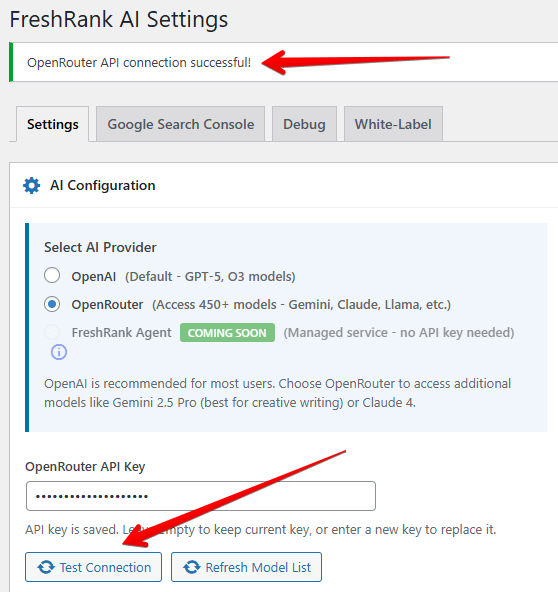
- Select OpenRouter as Your Provider
- Click on the Provider dropdown at the top of the card
- Select OpenRouter
- The card will update to show OpenRouter-specific settings
- Enter Your API Key
- Paste your OpenRouter API key into the API Key field
- Don't worry - your key will be encrypted and stored securely in your database
- Select Your AI Models
- Use the Analysis Model dropdown to choose which model to use for content analysis
- Use the Content Rewrite Model dropdown to choose which model to use for draft generation
- You can select different models for each task or use the same model for both
- Models are displayed with popularity rankings to help you choose
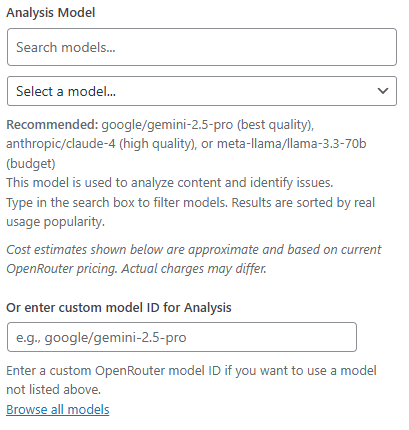
💡 Tip: If you don't see the model list populated, refresh the Settings page after entering your API key. The plugin needs to fetch the available models from OpenRouter.
- Save Your Settings
- Click the "Save Changes" button at the bottom of the page
- You'll see a confirmation message when your settings are saved
- Test Your Connection
- Click the "Test Connection" button
- If successful, you'll see a green confirmation message
- If there's an error, see the Troubleshooting section below
Using Custom Model IDs
If you want to use a newly released model that hasn't appeared in the dropdown yet:
- Find the Model ID
- Visit openrouter.ai/models
- Find your desired model
- Copy the model ID (e.g., "anthropic/claude-3-sonnet")
- Enter Custom IDs in FreshRank
- In the AI Configuration card, look for Custom Model ID fields
- Enter the analysis model ID in the first field
- Enter the writing model ID in the second field
- These will override the dropdown selections
What Happens Next?
Once your OpenRouter API is connected:
- Analysis Ready: You can now analyze your blog posts using your chosen OpenRouter models
- Draft Generation: FreshRank will use your selected writing model to generate content updates
- Model Flexibility: You can switch models at any time without losing data
Your API key will be used every time you:
- Run an analysis on a blog post (uses Analysis Model)
- Generate a draft update for a post (uses Content Rewrite Model)
- Use the bulk analysis features
Troubleshooting
For common connection errors, see:
- How to Fix Invalid API Key Error (HTTP 401) When Connecting OpenRouter to FreshRank
- How to Fix OpenRouter Model List Not Loading in FreshRank
- How to Fix OpenRouter Rate Limit Exceeded (HTTP 429) in FreshRank
- How to Fix Test Connection Button Fails for OpenRouter in FreshRank
- Why OpenRouter Requests Are Slower Than Direct API Connections in FreshRank
Security Best Practices
To keep your API key secure:
✅ Do:
- Store your API key only in the FreshRank settings (it's encrypted in your database)
- Use a unique API key for each WordPress site
- Regularly monitor your OpenRouter usage for unexpected activity
- Revoke and regenerate your key if you suspect it's been compromised
- Set up spending limits in your OpenRouter account
❌ Don't:
- Share your API key in support forums or emails
- Store your API key in plain text files or spreadsheets
- Use the same key across multiple sites or applications
- Commit your API key to GitHub or other version control systems
Monitoring Your API Usage
To keep track of your OpenRouter costs:
- Visit openrouter.ai/activity
- View detailed breakdowns by model and date
- See your current credit balance
- Set up spending limits to prevent unexpected charges
Next Steps
Now that your OpenRouter API is connected, you're ready to:
- Configure Content Update Filters to control what gets updated
- Connect Google Search Console (optional but recommended for better prioritization)
- Analyze your first post and see what FreshRank finds with your chosen models