
Dashboard Overview
The FreshRank dashboard is your command center for managing content updates. This guide explains the main areas and how to use them.
In this article
Accessing the Dashboard
Location: WordPress Admin → FreshRank AI → Dashboard
This is where you'll spend most of your time analyzing posts, reviewing results, and managing drafts.
Dashboard Layout
The dashboard is organized into four main areas:
- Stats Sidebar (right side)
- Bulk Actions
- Filters
- Article List (center table)
- Per-Post Actions (right column of table)
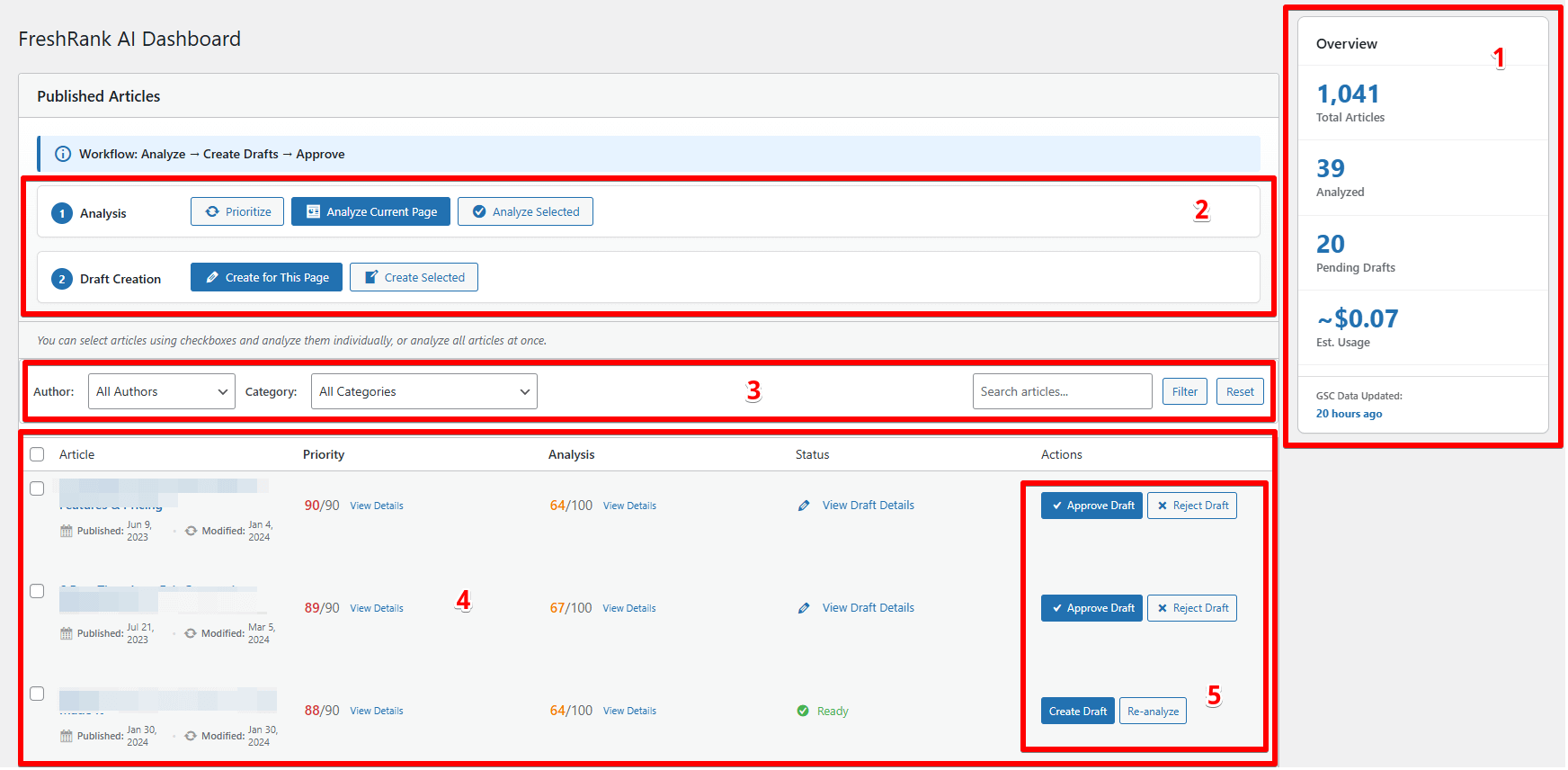
1. Stats Sidebar
What it shows:
- Total Articles: Number of posts tracked by FreshRank
- Articles Analyzed: Posts with completed analysis
- Articles with Drafts: Posts that have pending drafts
- Estimated Usage: Token usage summary
- GSC Data Updated: Last time Google Search Console data refreshed (if connected)
Why it's useful:
- Quick overview of your progress
- Track how many posts need attention
- Monitor token usage
- Verify GSC data is current
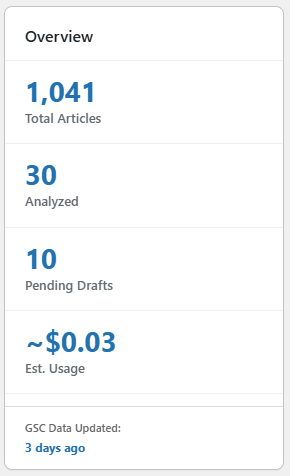
2. Bulk Actions Bar
Available Actions
Prioritize (only visible when GSC connected)
- Fetches latest Google Search Console data
- Updates priority scores for all posts
- Takes 5-10 minutes to complete
- Use when: GSC data seems stale or after connecting GSC
Analyze Current Page
- Starts analysis for all posts on current page
- Only analyzes posts showing in filtered view
- Does NOT analyze all posts site-wide
- Use when: Refreshing multiple posts at once
Analyze Selected
- Analyzes only posts you've checked via checkboxes
- Selective control over which posts to analyze
- Use when: Want to analyze specific posts
Create for This Page
- Creates drafts for all analyzed posts on current page
- Only works on posts with completed analysis
- Skips posts that already have drafts
- Use when: Batch creating updates
Create Selected
- Creates drafts only for checked posts
- Must have completed analysis
- Use when: Selective draft creation
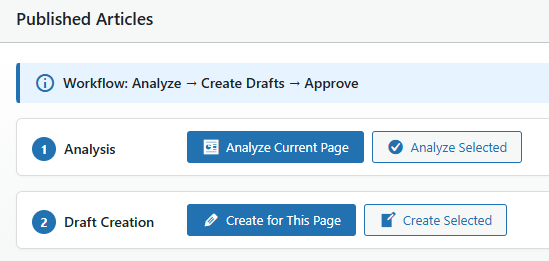
Pro Feature: Bulk analysis and bulk draft creation are available in FreshRank Pro. Free version users can analyze and create drafts one post at a time.
3. Filters Section
Available filters include:
Author
- Dropdown: Filter by post author
- Shows only posts by selected author
Category
- Dropdown: Filter by post category
- Shows only posts in selected category
Search
- Text field: Search posts by title or content
- Finds posts containing search terms
Filter Button
- Click to apply selected filters
- Updates article list instantly
Reset Button
- Clears all active filters
- Returns to full article list
Why filters are useful:
- Focus on specific content types
- Work on one category at a time
- Find specific posts quickly
- Organize bulk operations by author/category
4. Article List (Main Table)
The article list shows all posts being managed by FreshRank.
Table Columns
Checkbox (far left)
- Select individual posts for bulk actions
- Check multiple posts to analyze or create drafts together
Article
- Post title (clickable - opens post in WordPress editor)
- Published date: When post was first published
- Modified date: When post was last updated
Priority Score (if GSC connected)
- Number from 0-90
- Higher score = more urgent update needed
- Based on: content age, traffic decline, traffic potential
- Click column header to sort by priority
- Posts without GSC data show low/no score
- Click “View Details” to see the priority score breakdown and GSC data for that article
Analysis
- Total issue count: Number of issues found
- Click "View Details" to see full analysis
- Shows "-" if post not yet analyzed
Status
- Current state of the post in FreshRank workflow
- Color-coded badges for quick scanning
Status Types:
- Pending (gray): Not analyzed yet
- Analyzing (blue): Analysis in progress
- Ready (green): Analysis complete, ready for draft
- View Draft Details (blue): Draft created, awaiting review
- Error (red): Analysis or draft failed
- Approved (gray): Draft was approved, post updated
Actions (far right)
- Context-specific buttons based on post status
- Changes depending on what's available for that post
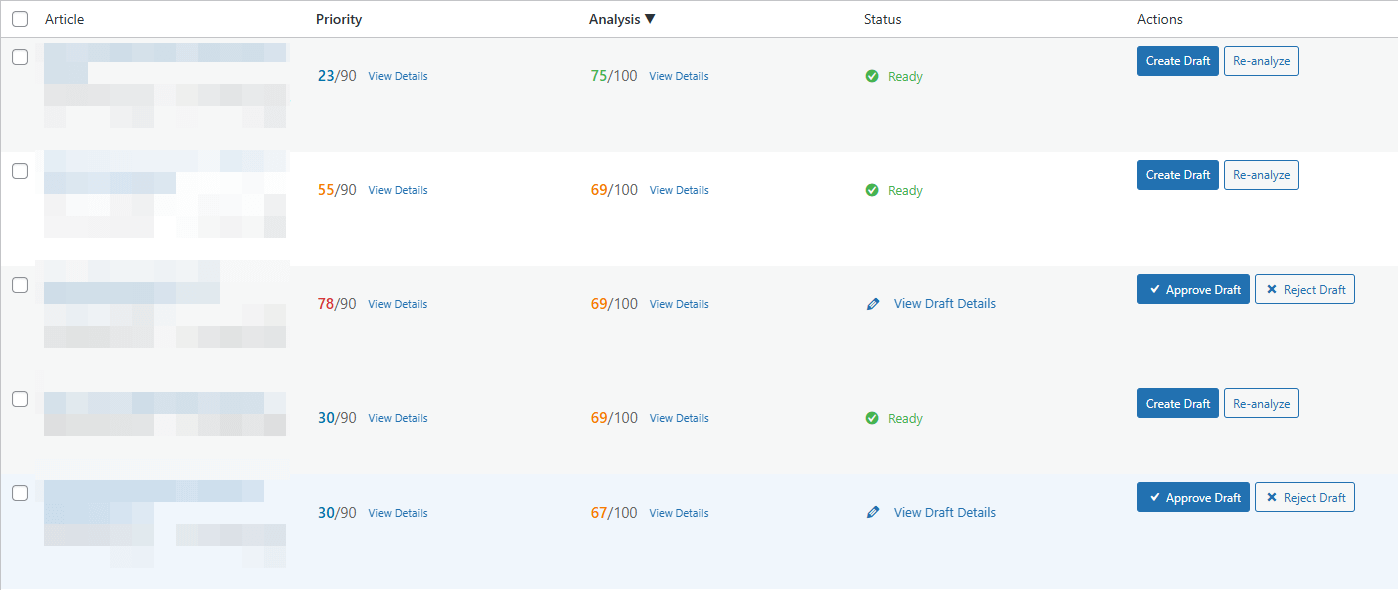
5. Per-Post Actions
Location: Actions column (far right) of article list
Actions available depend on the post's current status:
For Unanalyzed Posts
"Analyze" button
- Starts AI analysis for this post
- Changes status to "Analyzing"
- Takes 30 seconds to 15 minutes depending on model and settings
For Analyzed Posts (No Draft)
"View Details" link (in Analysis column)
- Opens full analysis results page
- Shows all issues found across 5 categories
- See severity levels and recommendations
"Re-analyze" button
- Runs fresh analysis on the post
- Overwrites previous analysis
- Use when: Post changed or want to re-check
"Create Draft" button
- Generates AI-powered updated version
- Uses current Content Update Filters
- Takes 1-10 minutes depending on settings
- Creates draft post in WordPress
For Posts with Drafts
"View Draft Details" link (in Status column)
- Opens draft comparison page
- See what changes were made
- Preview the draft
"Approve Draft" button
- ⚠️ Immediate action - no undo!
- Replaces live post with draft content
- Deletes draft post
- Resets analysis data
"Reject Draft" button
- Deletes the draft
- Keeps original post unchanged
- Preserves analysis data (can create new draft)
"Re-analyze" button (still available)
- Can re-analyze even with existing draft
- Useful if you want fresh analysis before approving