
Use Sparks with AI Assistants
Sparks exposes supported store settings and actions through the WordPress Abilities API. A compatible, authenticated AI connector can make these abilities available to your assistant.
In this article
Requirements
- Sparks for WooCommerce must be installed and active, and your site must run WordPress 6.9 or later to provide the WordPress Abilities API. This API registers actions that compatible connectors can discover and make available to AI assistants.
- Connect an AI assistant to your site through a compatible, authenticated AI or MCP (Model Context Protocol) connector. Easy MCP AI is one option; see Getting Started with Easy MCP AI for setup instructions. Sparks does not connect an assistant by itself.
- Use a WordPress account with permission to perform the requested action. Each ability checks the connected account's capabilities (WordPress permissions).
- On sites where Sparks licensing is managed by Themeisle, activate a valid Sparks license before enabling modules. If you installed Sparks through the WooCommerce.com marketplace, manage licensing through WooCommerce.com instead. Operations that manage a module's data require the relevant Sparks module to be active. For example, activate Product Tabs Manager for product-tab operations, Custom Thank You Pages for thank-you-page assignments, and Variation Swatches for swatch changes.
To activate the modules you need, open WooCommerce > Sparks. If WooCommerce is not a top-level menu on your site, open Settings > Sparks instead. When using Neve, open Neve > Sparks. Confirm that your license is active with its licensing provider, then activate the relevant modules.
Connect your AI client and enable Sparks's abilities
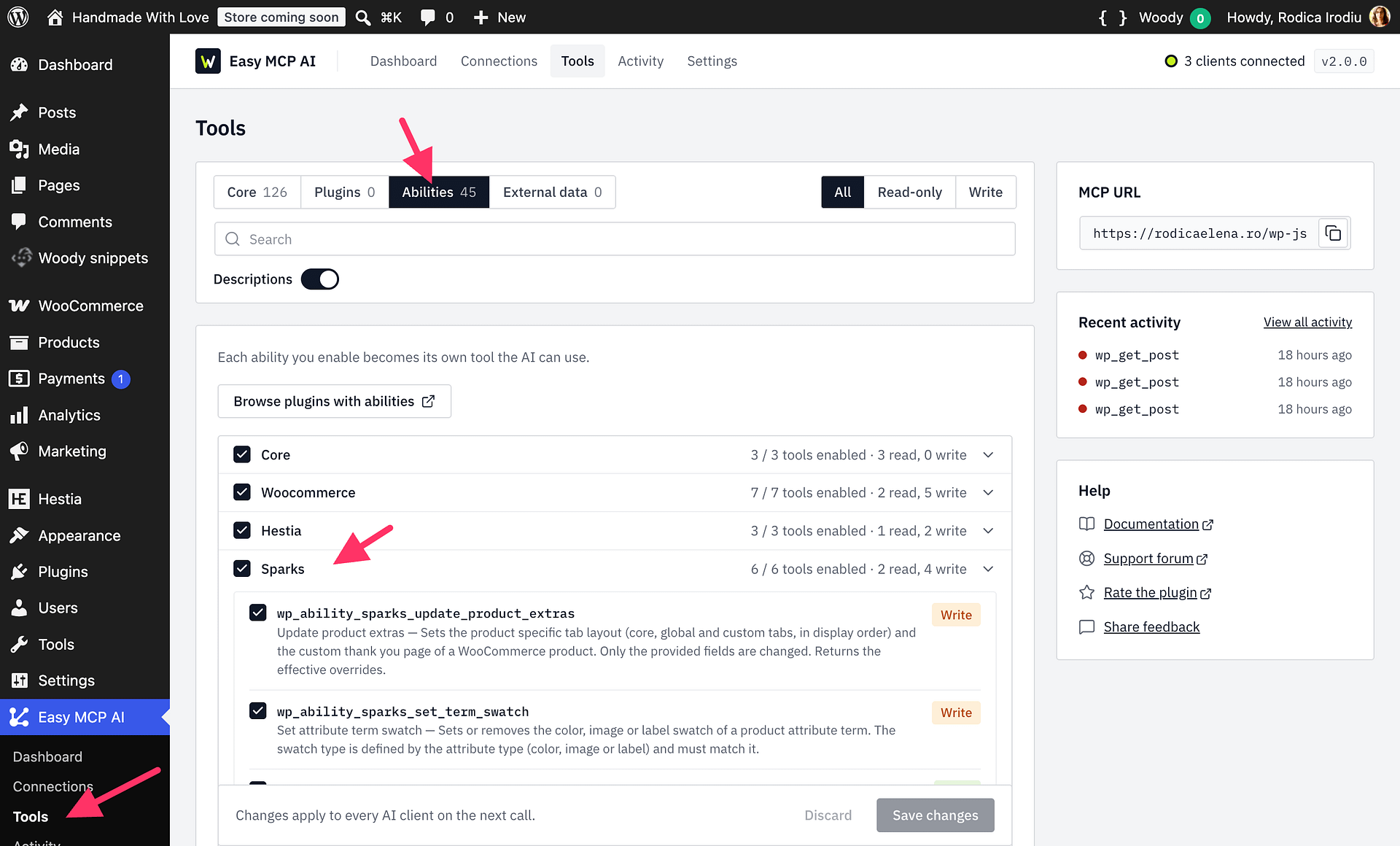
With Easy MCP AI, enable Sparks abilities before using them:
- In your WordPress dashboard, open Easy MCP AI > Tools, then select Abilities.
- Find the Sparks group and enable the abilities you want to make available.
- Click Save changes. The selected abilities become available to connected clients on their next call.
If you use a different connector, follow its instructions to enable the Sparks abilities it discovers.
Available abilities
| Ability | Purpose |
|---|---|
sparks/get-settings | Reads dashboard-managed modules, their enabled states, current setting values, and defaults. |
sparks/update-settings | Enables or disables dashboard-managed modules and updates supported settings using their expected value types. |
sparks/list-global-tabs | Lists global product tabs, their order and visibility, and the product categories they apply to. |
sparks/upsert-global-tab | Creates or updates a global product tab. For built-in WooCommerce tabs, you can change only visibility and order. |
sparks/update-product-extras | Sets a product-specific tab layout and assigns or removes that product's custom thank-you page. |
sparks/set-term-swatch | Sets or removes a color, image, or label swatch for a global product attribute term. |
Permissions and safe use
Every request uses the permissions of the WordPress account connected to your assistant. Settings abilities require the same permission used to manage those settings in Sparks. Product, tab, category, and attribute-term abilities check the corresponding WordPress permissions to edit, create, publish, or assign those items. Connecting an assistant does not give the account extra permissions.
sparks/get-settings and sparks/list-global-tabs are read-only. The other four abilities can change settings or store data.
To reduce the chance of an unintended change:
- Ask your assistant to inspect the current settings or tabs with the relevant read-only ability before changing anything.
- Name the exact module, product, tab, category, or attribute term you want to change, and describe the intended result.
- Ask the assistant to explain the change it plans to make. Review the details and confirm before asking it to make the change.
- After changing dashboard settings or global product tabs, ask your assistant to use the corresponding read-only ability again so you can review the saved result.
Example prompts
- “Show me which Sparks modules are enabled and list their current settings and defaults.”
- “Enable the Wishlist and Variation Swatches modules.”
- “List my global product tabs, including their order, visibility, and categories.”
- “Create a global Shipping & Returns tab that applies to every product.”
- “Assign my published custom thank-you page to the Starter Kit product.”
- “Set the Color attribute term Red to use
#ff0000as its swatch.”