
Hyve - Settings Reference
Hyve is an AI-powered chatbot that turns your WordPress content into interactive conversations with your site visitors. You can find all Hyve settings by navigating to the Hyve menu item in your WordPress admin sidebar.
In this article
Dashboard
The Dashboard is the first screen you see when you open Hyve. It shows usage statistics and provides quick access to other areas of the plugin.
Setup checklist
The Dashboard opens with a setup checklist covering the steps needed before the chat can answer visitors: connecting the AI, adding Knowledge Base content, and choosing where the chat appears. On Hyve Pro, activating the license is the first step and the others stay locked until it is done.
Usage statistics
Charts and counters showing how much the chat is being used and how large the Knowledge Base is.
Recent conversations
A short list of the latest conversations, with a link through to the full history on the Messages screen.
Chat visibility
Where the chatbot appears is controlled by the visibility setting in Hyve > Settings > Chat > Behavior, and the Dashboard shows the mode you currently use. You can show the chat on all pages, only on selected content, everywhere except selected content, or not show it automatically at all and place it yourself with a Hyve block or the [hyve] shortcode. The chatbot will not appear on the frontend unless you have also entered an OpenAI API key and added at least one piece of content to the Knowledge Base.
Knowledge Base
The Knowledge Base is where you manage the content that powers the chatbot's responses. Content is broken into chunks and stored as embeddings so the chatbot can search for relevant answers. Without Qdrant connected, the Knowledge Base has a limit of 500 chunks.
Knowledge Base
This is the main view where you can browse, add, and remove content from the chatbot's data source. You can add WordPress posts and pages individually or in bulk, including private and password-protected ones, which are labelled with their visibility. Each piece of content goes through a moderation check before being added.
Anything in the Knowledge Base can be used to answer any visitor, so treat adding restricted content as making it public.
Needs attention
Lists Knowledge Base entries that need you to act. This covers posts or pages whose content has changed since they were last processed and should be re-processed, and content that was flagged by the moderation system. If you believe a flag is a false positive, you can review the content and override the moderation decision to add it to the Knowledge Base anyway.
FAQ
Tracks questions that users ask the chatbot which it was unable to answer. This helps you identify gaps in your Knowledge Base so you can add content to cover those topics. This feature is available with Hyve Pro.
Data Sources
You can add content to the Knowledge Base from several sources. WordPress posts and pages are available in the free version. The following additional sources are available with Hyve Pro:
- Custom Data lets you manually write and add information that does not exist as a WordPress post or page, such as FAQs or policy details.
- Website URL lets you enter a URL and crawl its content to add to the Knowledge Base, useful for importing content from external sites or pages not managed by WordPress.
- Sitemap lets you provide a sitemap URL to crawl and import multiple pages at once, making it easy to add large amounts of content in a single operation.
- Documents lets you upload PDF, DOCX, TXT, Markdown, or CSV files. Uploads are scanned for sensitive personal data and you are asked to confirm before an affected file is imported.
Private and password-protected content
Hyve can index posts that are private or password-protected. Such items are labelled as restricted in the Knowledge Base list so you can tell them apart from public content.
❗ Important: Once content is in the Knowledge Base, the chatbot can use it to answer any visitor, whether or not that visitor could open the original post. Restricted content never gets a source link in the chat, but its text can still appear in an answer. Only add private or password-protected content if you are comfortable with it being repeated to the public.
Messages
Conversations
Displays a history of all conversations between the chatbot and your site visitors. You can browse conversation threads, view individual messages, and delete threads you no longer need.
In the free version, you can view the most recent conversations but loading additional message history and exporting messages require Hyve Pro.
Who can access Messages
Access to this screen is controlled by two custom capabilities:
hyve_read_messages— open the Messages screen and read conversations.hyve_manage_messages— delete conversations and export them.
Administrators receive both automatically. To give another role access, assign the capabilities to that role with a role-editor plugin or WP_Role::add_cap(). Hyve does not save the capabilities to roles itself, so nothing is left behind when you uninstall.
Leads
This panel is available with Hyve Pro.
Lists the contact details visitors submitted through the in-chat contact form, each one linked to the conversation it came from. See Configure Hyve lead capture and webhooks for how to enable the form and choose which fields it collects.
Settings
The Settings screen is grouped into Chat, AI, Integrations, and Plugin.
Chat > Behavior
Display mode
Controls where the chat appears on your site, through the Where should Hyve appear? card. Show on all pages shows it everywhere, Only on selected content shows it only on pages matching your rules, Everywhere except selected content shows it everywhere apart from those pages, and Don't show automatically places it only where you add a block or shortcode.
The two selective modes take a Content URLs list, where each rule pairs a path with an operator: contains matches any address that includes the path, so /shop/ covers a whole section, while matches applies to one exact path. The mode takes effect as soon as any rule in the list matches the current page.
An inline block or shortcode always takes precedence over this setting, so a page with one shows the chat inline regardless of the display mode.
Welcome Message
The greeting message displayed to visitors when they first open the chatbot. Use this to set the tone for the conversation and let visitors know what the chatbot can help with. If left empty, the chatbot displays a default greeting.
Default Message
The fallback message the chatbot returns when it cannot find a relevant answer in the Knowledge Base. Use this to guide visitors toward other support channels or suggest they rephrase their question. If left empty, the chatbot uses a built-in default response.
Page awareness
This section is available with Hyve Pro.
Found in the Conversation card and enabled by default. When enabled, the page a visitor is chatting from is taken into account in the answer, so a question such as "how much does this cost?" is answered from that page even when the page is not in the Knowledge Base.
Pages already in the Knowledge Base are answered from their stored content. Pages that are not are read from the published page, which picks up output from page builders and product templates. Only pages on your own site are used, private and password-protected posts are skipped, and only the beginning of a long page is read. Content read from a page outside the Knowledge Base is cached for about a day and refreshes when the post is edited.
Without an active license the setting has no effect, whatever the toggle shows.
Suggested Questions
Up to three pre-written questions displayed in the chat window to help visitors start a conversation. These appear as clickable prompts, making it easier for visitors to engage with the chatbot without having to think of a question. This feature is available with Hyve Pro.
Proactive message
This section is available with Hyve Pro.
Shows a small bubble next to the closed chat button, inviting the visitor to start a conversation. Pick a trigger under Show it when:
- Disabled — no invite is shown.
- Time on page — the invite appears after the visitor has been on the page for the number of Seconds on page you set, from 0 to 600.
- Exit intent — the invite appears when the pointer moves toward the top of the page, as if the visitor were about to close the tab. Desktop only.
- Scroll depth — the invite appears once the visitor has scrolled past the Scroll percentage you set, from 1 to 100.
Once a trigger is active, use Invite message to write the text shown in the bubble.
Source links
When enabled, answers include numbered links to the pages they were drawn from. Private and password-protected sources are never linked, because the page behind the link is not publicly reachable.
Privacy notice
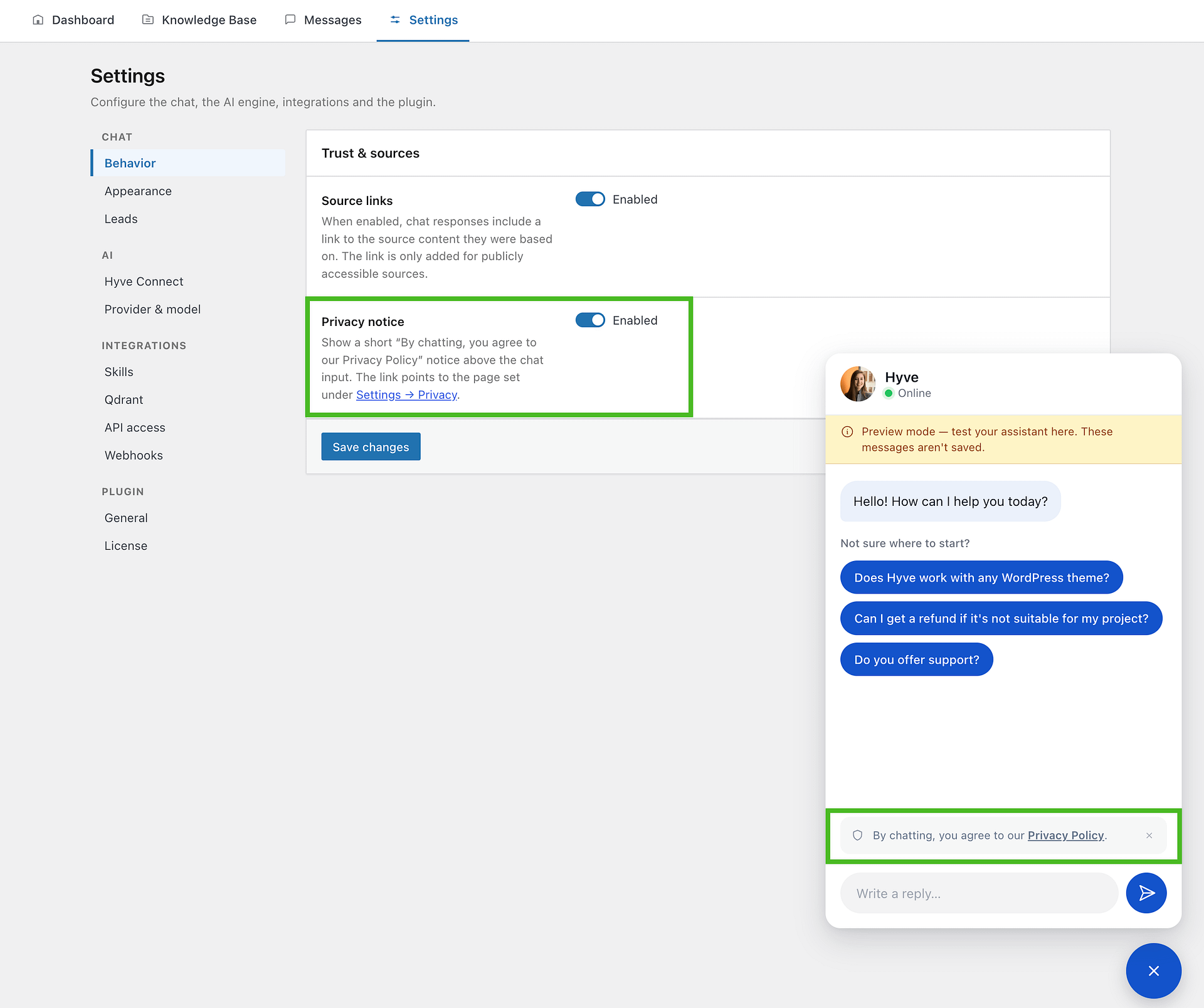
Found in the Trust & sources panel and disabled by default. When you enable it, a short notice appears above the chat input telling visitors that by chatting they agree to your privacy policy.
The notice links to the page selected under WordPress > Settings > Privacy. If no privacy policy page is selected there, the notice does not appear on your site at all, and Hyve shows a warning next to the setting — so check Settings > Privacy first if you enable the toggle and the notice never shows up.
Visitors can dismiss the notice, and it also disappears once they send their first message. Either way it does not come back for that visitor in the same browser.
📝 Note: The notice is a disclosure shown before the conversation starts. It does not record or store each visitor's agreement, so if your site needs a documented record of consent, plan for that separately.
Hyve also adds suggested wording to WordPress's own privacy policy guide. To review it, go to WordPress > Settings > Privacy, open the Policy Guide tab, and find the Hyve section. The suggested text explains that visitor messages are stored on your WordPress site so you can review the chat history, and it lists the services that process those messages. The wording changes to match how Hyve is set up:
- With the hosted Hyve Connect service active, it describes messages and indexed page content being sent to and stored by Hyve Connect.
- With your own OpenAI API key, it describes messages being sent to OpenAI instead. Qdrant is mentioned only when you have Qdrant connected.
⚠️ Important: The suggested wording is a starting point, not a finished privacy policy. Review it and adapt it to your own legal requirements before publishing.
Sound
Plays a sound when a chatbot message arrives, including the welcome message when the chat opens, and when a proactive invite appears. Visitors can mute it for themselves from the menu inside the chat window; that preference is stored in their own browser and does not change this setting.
Chat > Appearance
The assistant name, launcher icon, custom icon image, and colors require Hyve Pro. Position and Timestamps are active in the free version.
Changes apply to the live preview chat bubble in the corner of the settings screen as you make them, before you save.
Assistant name
The name shown for the chatbot in the chat window.
Position
Sets which side of the screen the floating chat button and chat window appear on. The options are Left and Right, and the default is Right. To move the widget higher or lower instead, see How to move Hyve chat widget to a different position.
Timestamps
Whether each message shows the time it was sent.
Launcher icon
Choose the icon style for the chatbot's floating button.
Custom icon image
Uses an image from the Media Library for the floating chat button and the avatar in the chat header, instead of one of the built-in icons. Requires Hyve Pro.
Colors
Set the colors of the chat window background, the assistant's message bubbles, the visitor's message bubbles, and the floating icon button. A live preview shows the result as you change them.
Chat > Leads
Lists the contact details visitors submitted through the in-chat lead form, with the conversation each one came from. This feature is available with Hyve Pro.
AI > Hyve Connect
Turns on the hosted AI service, so Hyve answers without an OpenAI API key of your own. Hyve Connect cannot run at the same time as a self-hosted API key, or at the same time as Qdrant. Turning it on syncs your Knowledge Base to the service; disconnecting lets you choose whether to import that content back or clear it.
AI > Provider & model
This tab is where you connect your own OpenAI account instead of using Hyve Connect.
OpenAI API Key
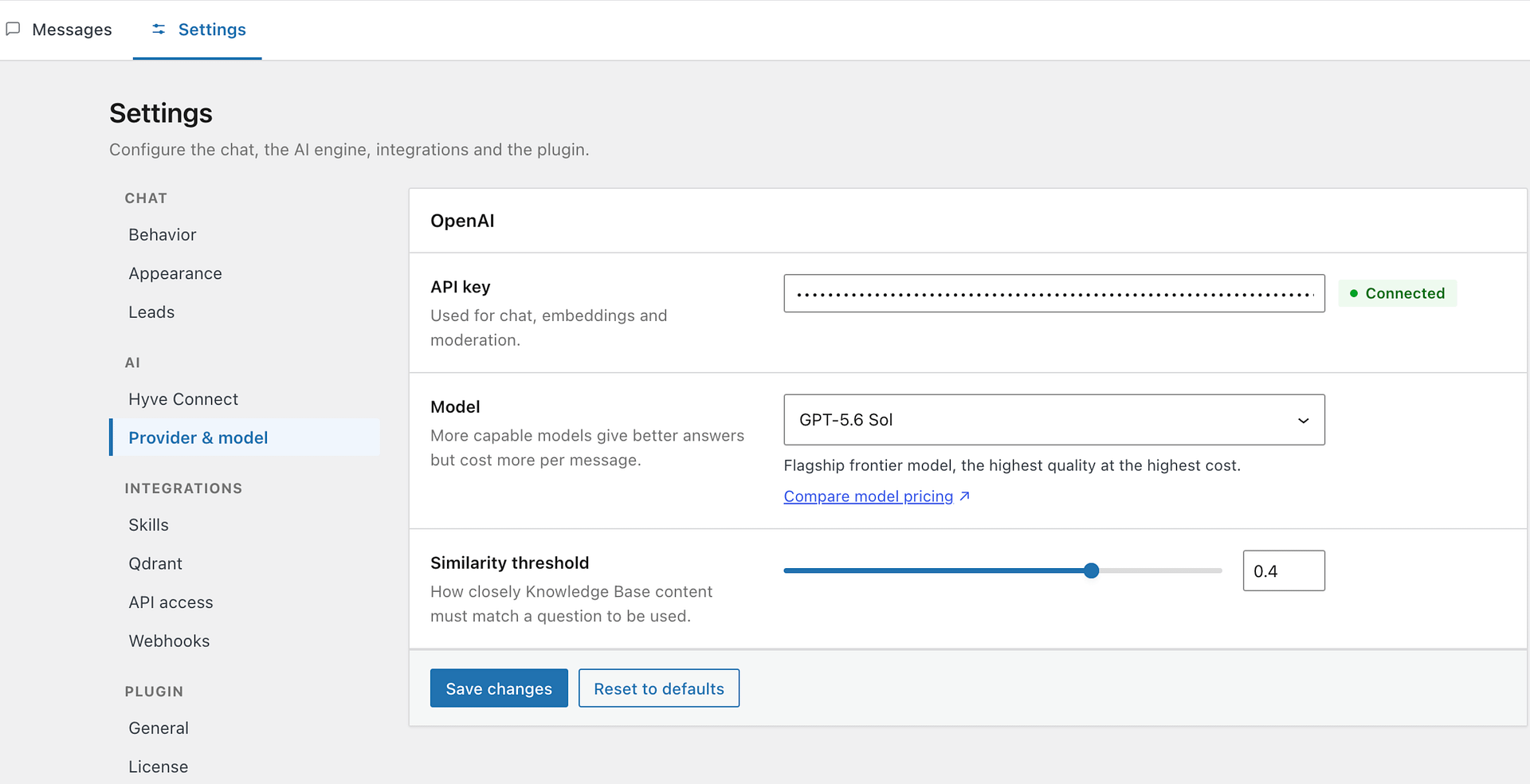
Your OpenAI API key, used for chat, embeddings, and moderation when you are not using Hyve Connect. You can get an API key from OpenAI's platform. The key is stored encrypted. Usage of the chatbot and content processing counts against your OpenAI account's API usage and billing.
Model
Choose the AI model that powers the chatbot's responses. More capable models produce higher-quality answers but cost more per message on your OpenAI account. The available options are:
- GPT-5.6 Sol is the flagship frontier model, giving the highest quality at the highest cost.
- GPT-5.6 Terra is the newest mini-tier model, balancing intelligence and cost.
- GPT-5.6 Luna is the newest cost-optimized model, built for high-volume chats.
- GPT-5.5 is the most capable reasoning model. It thinks before answering, so replies are slower and cost more.
- GPT-5.4 is the most capable standard model, best for complex questions.
- GPT-5.4 mini is a newer model with a strong balance of quality and cost.
- GPT-5.4 nano is fast and low cost. This is the default model and the recommended choice for most chats.
- GPT-5 is a reasoning model with strong quality at a lower cost than GPT-5.5.
- GPT-4.1 is capable and proven, good for detailed answers.
- GPT-4.1 mini is faster and cheaper than GPT-4.1, a solid all-rounder.
- GPT-4.1 nano is ultra-fast and very low cost, best for lightweight chats.
- GPT-4o is a smart, cost-effective general-purpose model.
- GPT-4o mini is the fastest and most affordable option, suitable for most chats.
📝 Note: Hyve lists only models that support the structured response format it needs to build answers. GPT-3.5 models do not support that format, so they are not offered. If your site was previously set to a GPT-3.5 model, Hyve uses GPT-5.4 nano for its requests instead, so the chatbot keeps working without any action from you.
Similarity threshold
Controls the minimum similarity score Knowledge Base content must reach before Hyve can use it. The value ranges from -1 to 1, with a default of 0.25.
The threshold acts as a noise floor rather than the only relevance check. Hyve discards chunks below it, then favors chunks that score close to the strongest match for that question. The model finally decides whether the retrieved text contains enough information to answer. Raise the threshold for stricter matching, or lower it if Hyve misses valid answers that exist in the Knowledge Base.
API key status
A status chip next to the OpenAI API key field shows the state of the key:
- Connected means a key is saved and Hyve has no record of a problem with it. Hyve does not test the key at the moment you save it, so this chip means "no known problem" rather than "checked and working".
- Not connected means a saved key was rejected for a reason you need to act on, such as an incorrect key, a failed authentication, a deactivated account, an organization that is deactivated or no longer found, billing that is not active, missing key permissions, or no remaining credit. Temporary failures such as rate limits do not change this chip.
- Unsaved means you have changed the key field but have not saved it yet. Click Save to apply it.
When Hyve records one of these problems, a notice appears at the top of any Hyve admin screen with the service name, the error message and its code, and the time of the failure. After you fix the cause, send a test message in the chat. The notice clears as soon as a request succeeds.
Integrations > Qdrant
Qdrant is an external vector database service that removes the 500-chunk Knowledge Base limit and can improve search performance for large datasets.
API Key
The API key from your Qdrant Cloud account. You need this along with the API Endpoint to connect Hyve to your Qdrant instance. You can obtain this from the Qdrant Cloud dashboard.
API Endpoint
The URL of your Qdrant instance. Enter the full endpoint URL provided by Qdrant Cloud. Once both the API Key and API Endpoint are saved, Hyve attempts to connect and begins migrating your existing Knowledge Base data to Qdrant. If you later disconnect Qdrant, all data stored in Qdrant for this site is deleted and any Knowledge Base entries exceeding the 500-chunk limit are removed.
Integrations > API access
This tab is available with Hyve Pro.
API access lets external services search your Knowledge Base through a secure REST API endpoint using semantic search powered by Retrieval-Augmented Generation and embeddings. You can integrate automation tools like Zapier or n8n to perform intelligent content searches from outside your WordPress site.
📝 Note: This is not the same as Hyve Connect. Hyve Connect is the hosted AI service under Settings > AI; API access is about letting your own tools query the Knowledge Base. On earlier versions of Hyve this tab was itself named Hyve Connect, so older notes and bookmarks may point here.
Access Tokens
Manage the API tokens that authorize external services to search your Knowledge Base. You can generate new tokens, reveal or hide token values, copy tokens to the clipboard, and delete tokens you no longer need. Each token grants bearer-style access to the search endpoint. Deleting a token immediately revokes access for any application using it. This feature is available with Hyve Pro.
Integrations > Skills
This tab is available with Hyve Pro, once an AI provider is connected.
Skills let the chat call read-only functions that your active plugins expose, so it can answer with live data instead of only the text stored in the Knowledge Base. With WooCommerce, for example, this covers product and order lookups. See Use Hyve Skills for WooCommerce product and order answers for the full setup.
Enable Skills
Allows the chatbot to call the abilities selected below during a chat. Skills requires a WordPress version that includes the Abilities API, because it is built on it. The abilities Hyve provides for WooCommerce are allowed as soon as you enable Skills; abilities registered by other plugins stay off until you select them.
Integrations > Webhooks
This tab is available with Hyve Pro.
Send chat events to an external URL so other tools can react to them. You set an endpoint URL, choose which events to send (visitor messages, bot replies, and actions), and use the signing secret to verify that incoming requests came from your site. The secret can be regenerated at any time, which immediately invalidates the previous one. See Configure Hyve lead capture and webhooks for the event payloads, signature verification, and delivery limitations.
Plugin > General
"Add to Hyve" row action
When enabled, an "Add to Hyve" button appears in the row actions beneath each post and page in your WordPress posts and pages lists. This gives you a quick way to add individual pieces of content to the Knowledge Base without navigating to the Hyve settings. Disable this if you find the extra action clutters your posts list or if you prefer to manage the Knowledge Base exclusively from within the Hyve interface.
Telemetry
Sends anonymous usage data to help improve the plugin. It records which plugin options you use, and never your conversations, Knowledge Base, FAQ, or any private content.
Plugin > License
This tab appears in Hyve Pro only.
Enter your license key from your Themeisle purchase history to receive plugin updates for Hyve Pro. Once activated, the license status and expiration date are displayed. If the license expires, you can renew it to continue receiving updates and support. You can also deactivate the license if you want to transfer it to a different site.
If Hyve Connect is using this license, disconnect it before deactivating the license.
Moderation
Knowledge Base content is checked against OpenAI's moderation system while it is processed. There is no moderation screen in the Hyve settings — the sensitivity is set in code, so most sites never need to change it. If legitimate content is being flagged, a developer can adjust the thresholds with the hyve_moderation_threshold filter.
Each category takes a value from 0 to 100. A lower value means stricter filtering, where content is flagged more easily. A higher value means more lenient filtering, allowing more content through.
| Category | Default | What it filters |
|---|---|---|
hate | 70 | Content that expresses, incites, or promotes hate based on race, gender, ethnicity, religion, nationality, sexual orientation, disability status, or caste. |
hate/threatening | 60 | Hateful content that also includes violence or serious harm towards a targeted group based on those protected characteristics. Stricter than hate, because hate combined with threats is more severe. |
harassment | 70 | Content that expresses, incites, or promotes harassing language towards any target. |
harassment/threatening | 60 | Harassment that also includes violence or serious harm towards any target. |
self-harm | 50 | Content that promotes, encourages, or depicts acts of self-harm, such as suicide, cutting, and eating disorders. |
self-harm/intent | 50 | Content where the speaker expresses that they are engaging or intend to engage in acts of self-harm. |
self-harm/instructions | 50 | Content that encourages acts of self-harm or gives instructions on how to carry them out. |
sexual | 80 | Content meant to arouse sexual excitement or that promotes sexual services, excluding sex education and wellness content. More lenient than most categories to reduce false positives on educational or health content. |
sexual/minors | 50 | Sexual content that includes an individual under 18 years old. Stricter than sexual given the severity of this category. |
violence | 70 | Content that depicts death, violence, or physical injury. |
violence/graphic | 80 | Content that depicts death, violence, or physical injury in graphic detail. |
add_filter(
	'hyve_moderation_threshold',
	function ( $thresholds ) {
		$thresholds['violence'] = 85;

		return $thresholds;
	}
);
For individual items that were wrongly flagged, you do not need the filter — use Review under Knowledge Base > Needs attention to override the decision for that item only.
Troubleshooting
"Hyve encryption keys have changed"
Hyve stores your API key, Qdrant credentials, and access tokens encrypted. If the encryption key on your site changes — most often after a migration, a restore from backup, or a change to your wp-config.php salts — Hyve can no longer read those saved values and shows an error notice in the admin.
To recover:
- Go to Settings > AI > Provider & model and re-enter your OpenAI API key, or turn on Hyve Connect under Settings > AI > Hyve Connect.
- If you use Qdrant, go to Settings > Integrations > Qdrant and re-enter the API Key and API Endpoint.
- If you use API access, go to Settings > Integrations > API access, delete the old tokens, generate new ones, and update any external service that used them.
The notice disappears once the affected settings have been saved again.