
Feedzy RSS Feeds Documentation
Feedzy is an RSS aggregator that helps you curate content, auto blog, display, and import RSS feeds within a few minutes.
📝 Note: Exciting news! We do offer a demo for Feedzy, allowing you to explore its features firsthand before making a decision. Take your time to test it out and see if it fits your needs perfectly here.
In this article
Overview of the functionalities
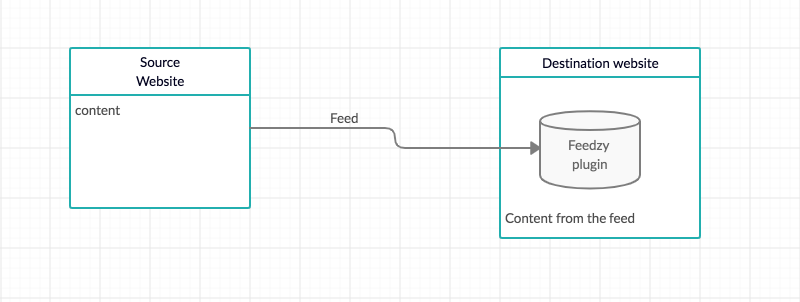
The plugin's basic functionality is to display information from one site to another. The key point in this process is called the feed. A URL represents the feed on the source website, where information is available / exposed. The information available in the feed can be customized by the source website owner, so not everything you see on the site is also available in the feed.
This feed ( URL ) has to be set in Feedzy so the plugin can render the available information on the destination site. Feedzy can't produce content, so it's just displaying/importing the information in the feed.
Now that you know more about how the plugin works, you might need help finding feeds. The following article might be useful: How to find Feed URL for Feedzy.
Download and Install
To download and install the Feedzy RSS Feeds plugin, make sure you follow the steps below:
1. Navigate to the WordPress Dashboard > Plugins.
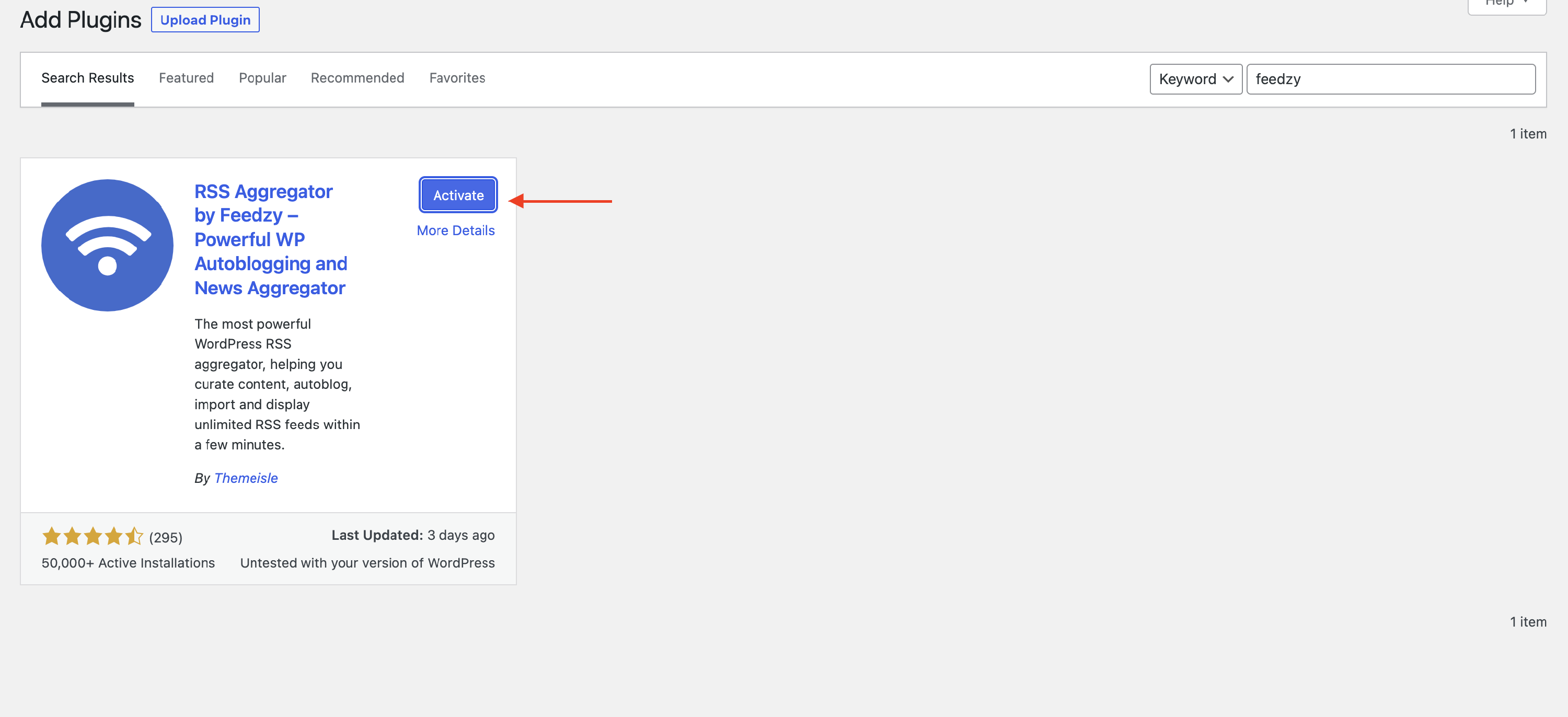
2. Click the Add New button and type " Feedzy RSS Feeds" in the Search Bar.
3. When the plugin appears, click on the Install button, and then, Activate the plugin, to start using it.
📝 Note: If you have purchased the PRO version of the plugin, check this dedicated documentation. To have Feedzy Pro working properly, please make sure that both versions of the plugin are installed and activated simultaneously.
Using the plugin
There are two main scenarios for using this plugin. One is to display the information in the feeds on your site, and the other is to import the feeds as posts on your website.This section covers displaying the feeds. For the import functionality, please check the following guide: How to use Feed to Post feature in Feedzy
How appears on your website
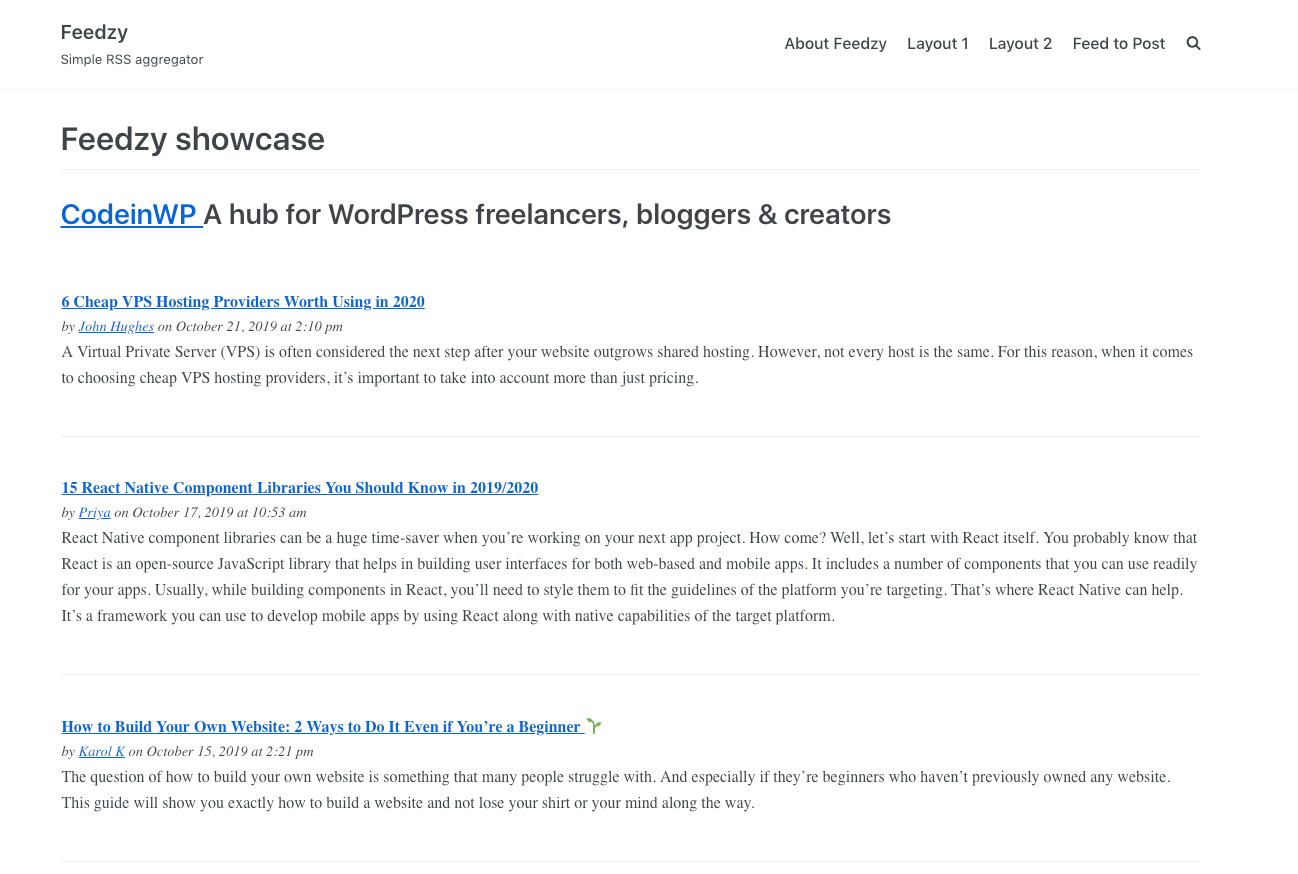
Feeds without images
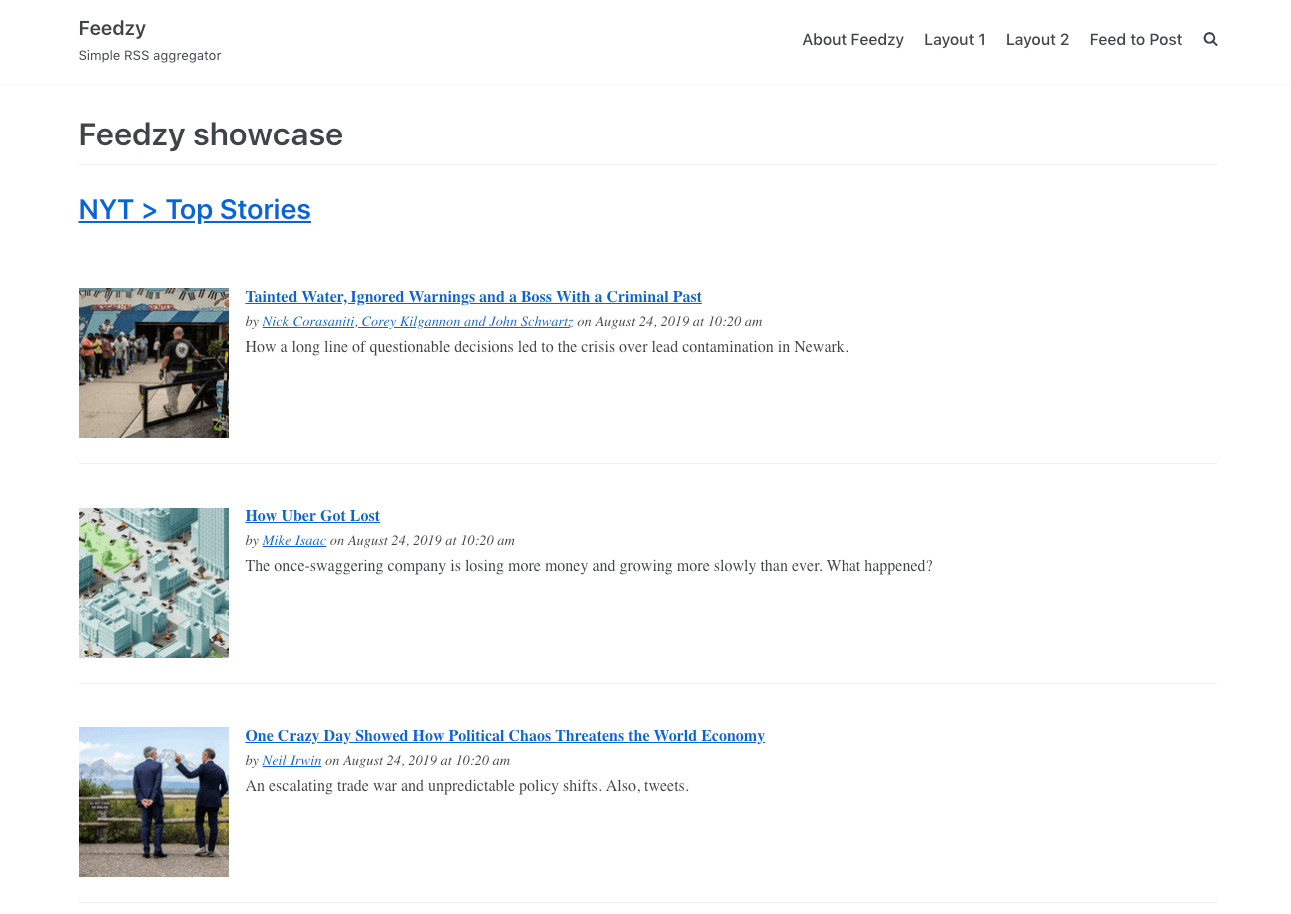
Feeds with images
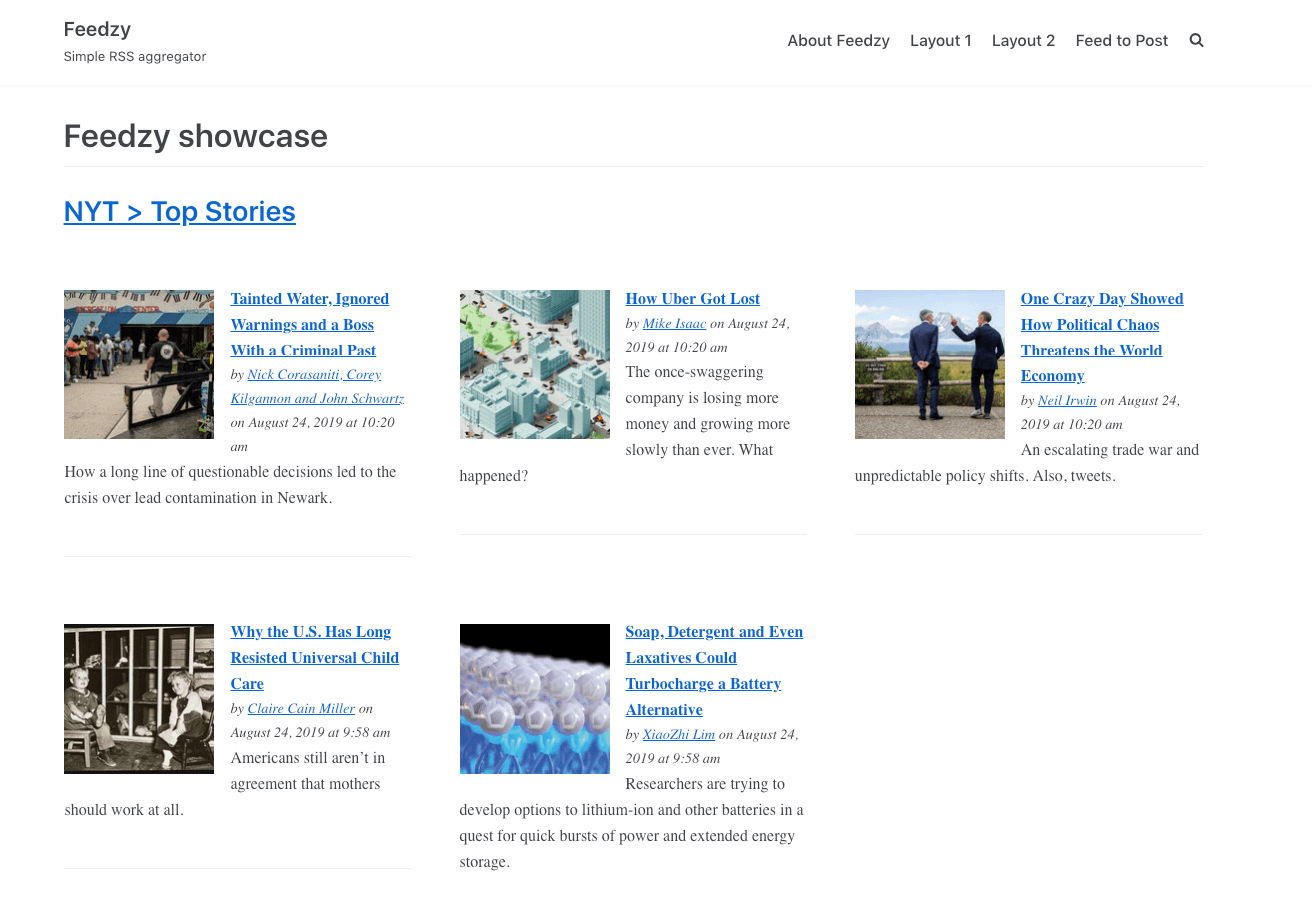
Feedzy Pro - Template 1
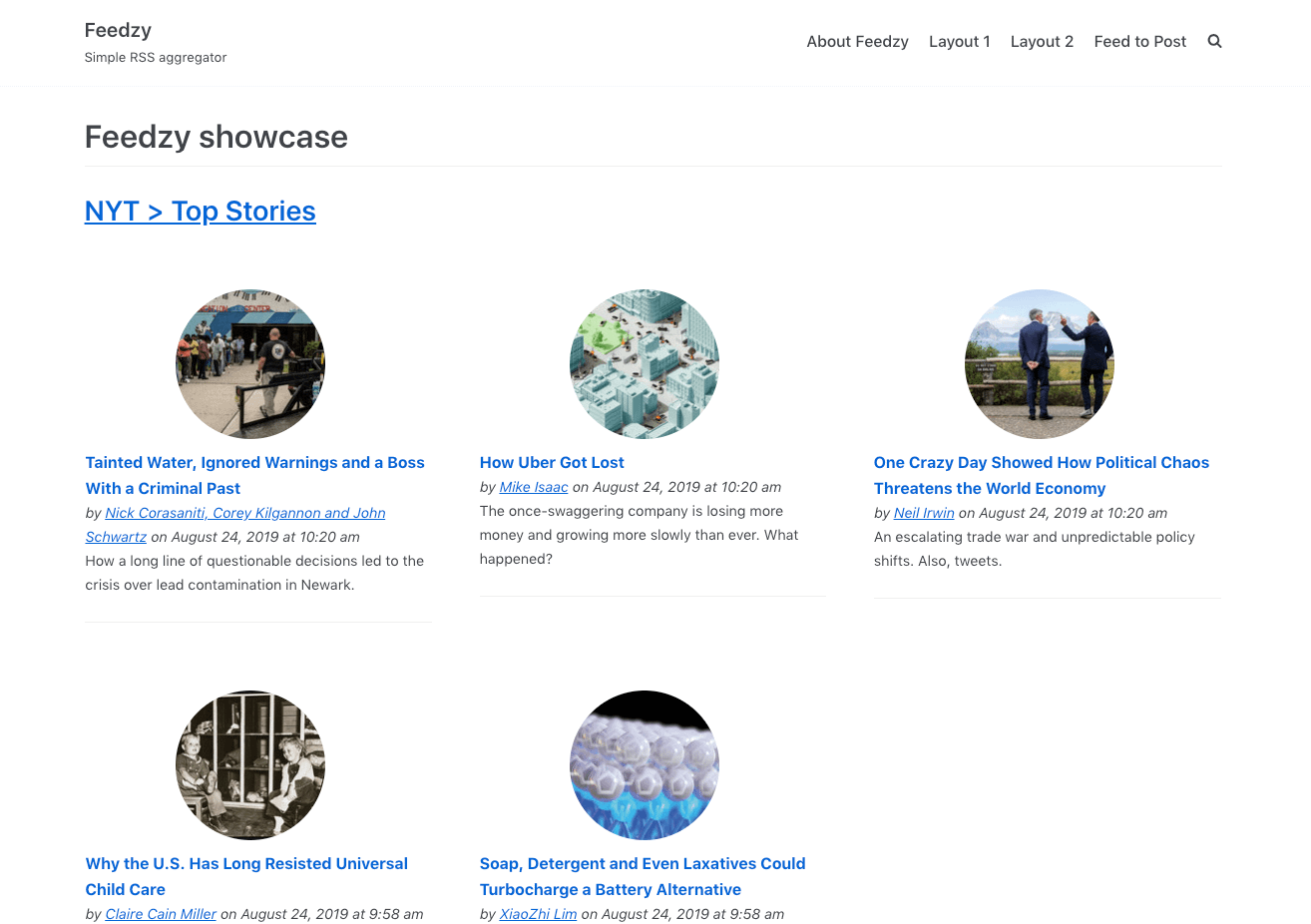
Feedzy Pro - Template 2
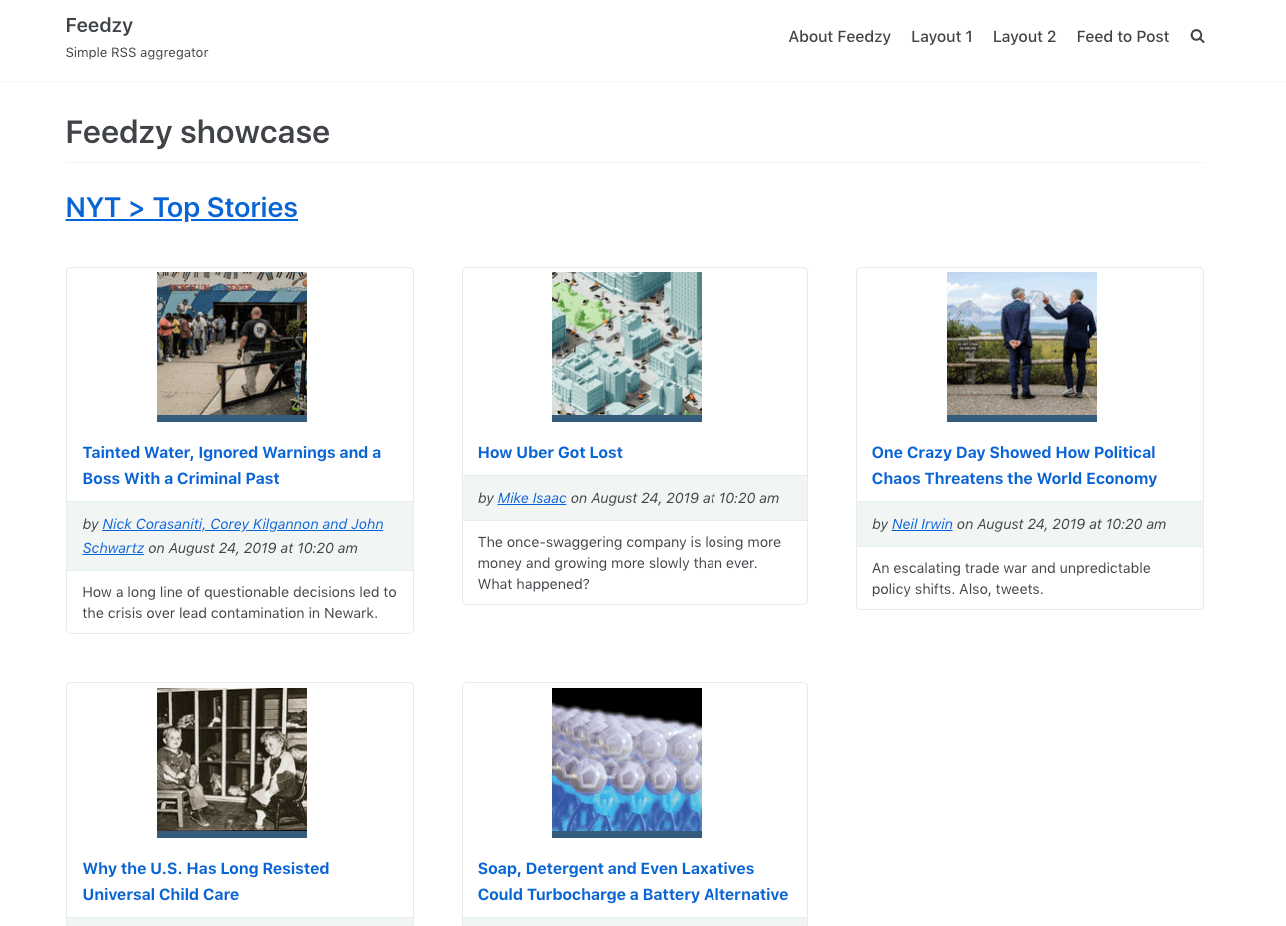
Feedzy Pro - Template 3
Displaying the feeds
There are 4 methods depending on the page editor you use. The shortcode and widget methods are independent of the editor.
📝 Note: All methods presented below have exactly the same options available. The only difference is the editor.
| Gutenberg | Elementor | Shortcode | Widget | Feed to post |
Integration with the WordPress editor
When using the WordPress editor for editing the post/page, just search for the Feedzy block ( /feedzy ), add the desired feed(s), and set the available parameters in the right sidebar.
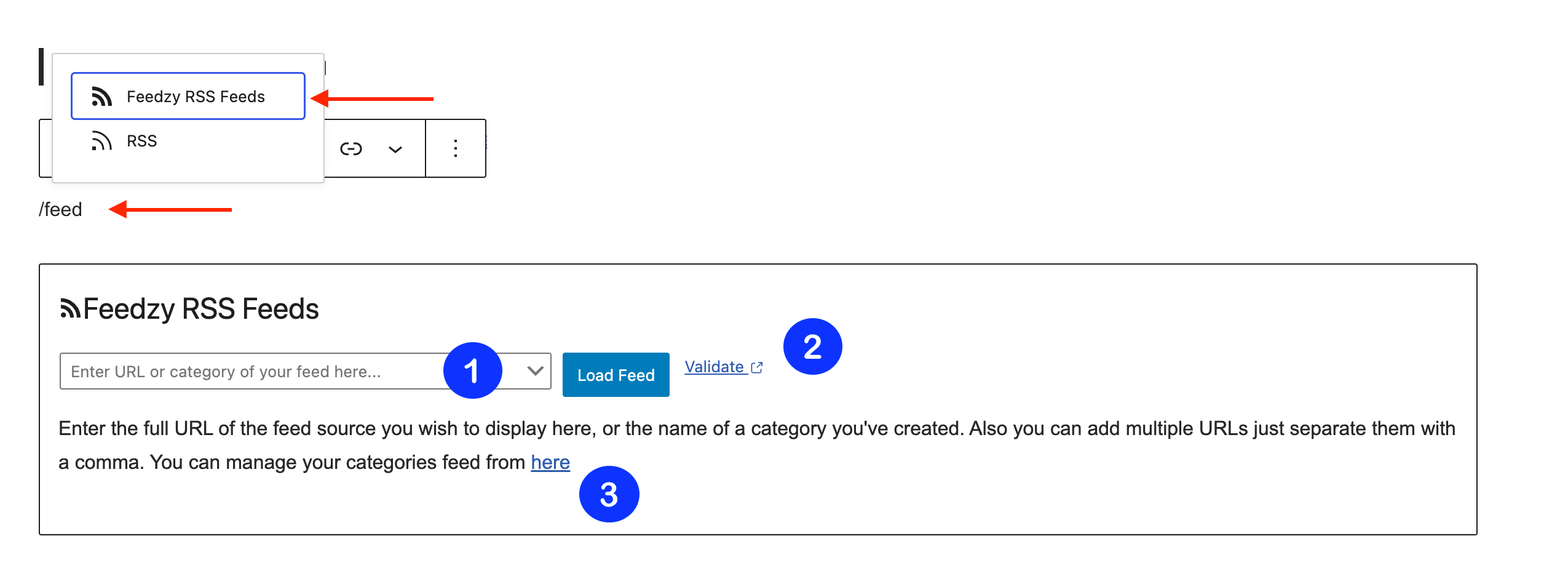
Feedzy Gutenberg block
The Feedzy Gutenberg block, once added to the desired page/post, allows a feed source to be added to the form fields available there, and another 3 actions:
- Load Feed - will load the content processed by the plugin via the Simple Pie library.
- Validate - it will open the w3org feed validator to check your source before loading it.
- The groups button - will open the Feedzy groups feature. The functionality is explained below.
Integration with Elementor
When using the Elementor plugin for editing the post/page, you can find the Feedzy widget in the left panel where all the elements are. Drag and drop the widget in the desired area of the page. Then, add the desired feed(s) and set the available parameters in the left panel.
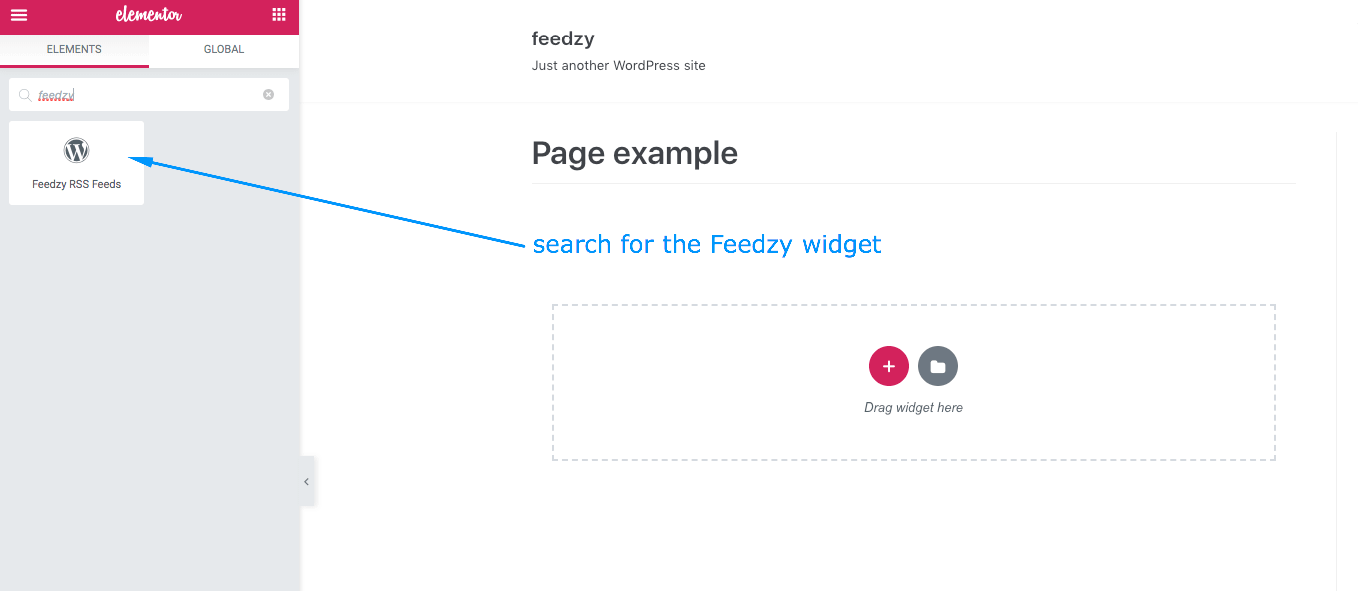
Feedzy Elementor widget
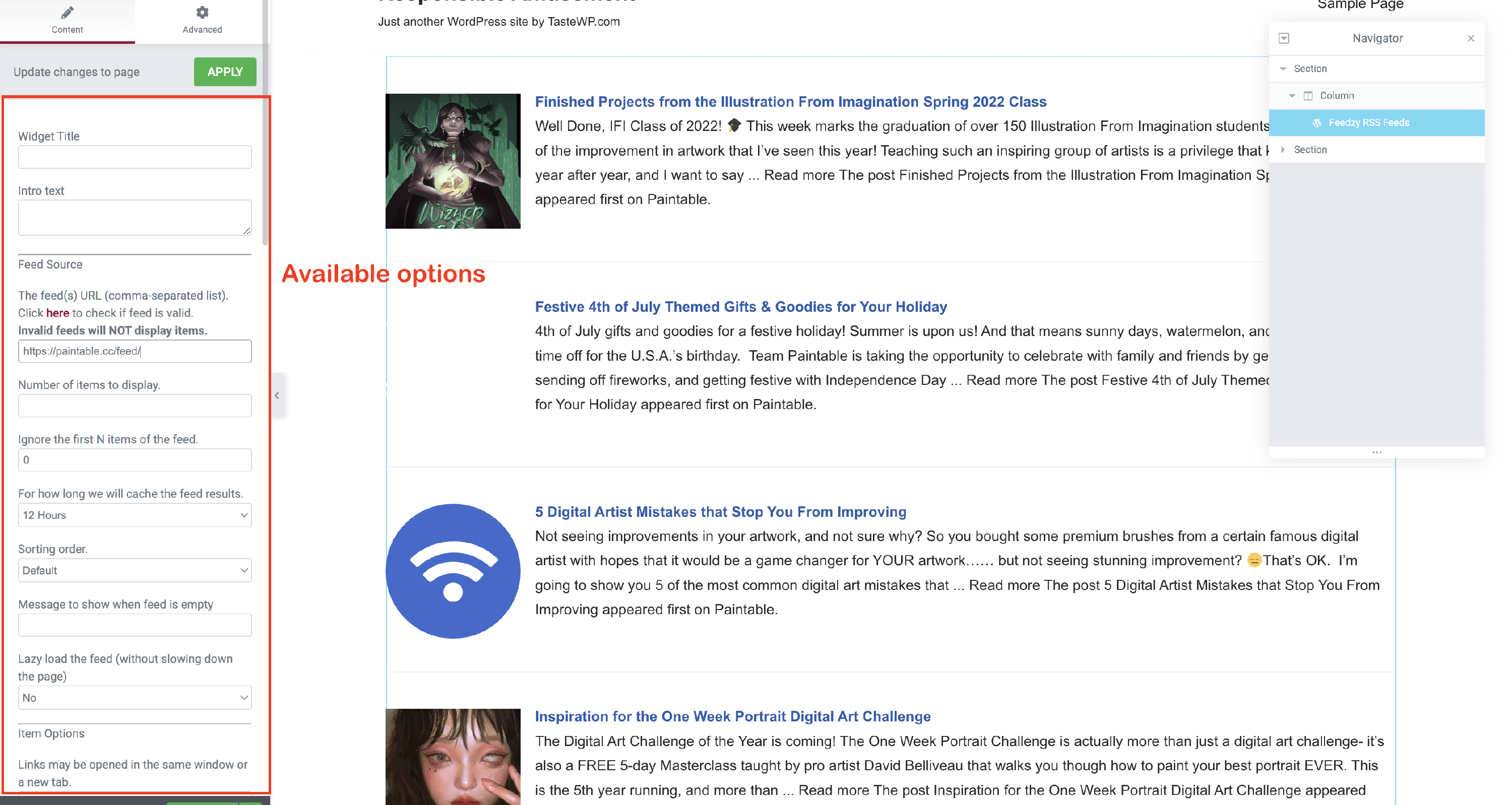
Feedzy Elementor widget options
Feedzy Pro is also compatible with Elementor Pro, which means you can create your own template with the Feedzy Loop widget available in Elementor. Customizing the template structure, magic tags can be used to fetch items from the feed. Once the structure of the feeds is defined, you can use a dedicated Elementor widget to set the feed source and the template (created in Elementor) to be applied to the feeds loop.
📝 Note: More details about this feature can be found in the following guide - Elementor Compatibility in Feedzy RSS Feeds.
Using a shortcode
Shortcodes are easy to use, as they can be added almost anywhere. It can be either in the content of a post/page or in a dedicated section provided by the theme you are using. This approach should work with any WordPress theme and page builder plugin.
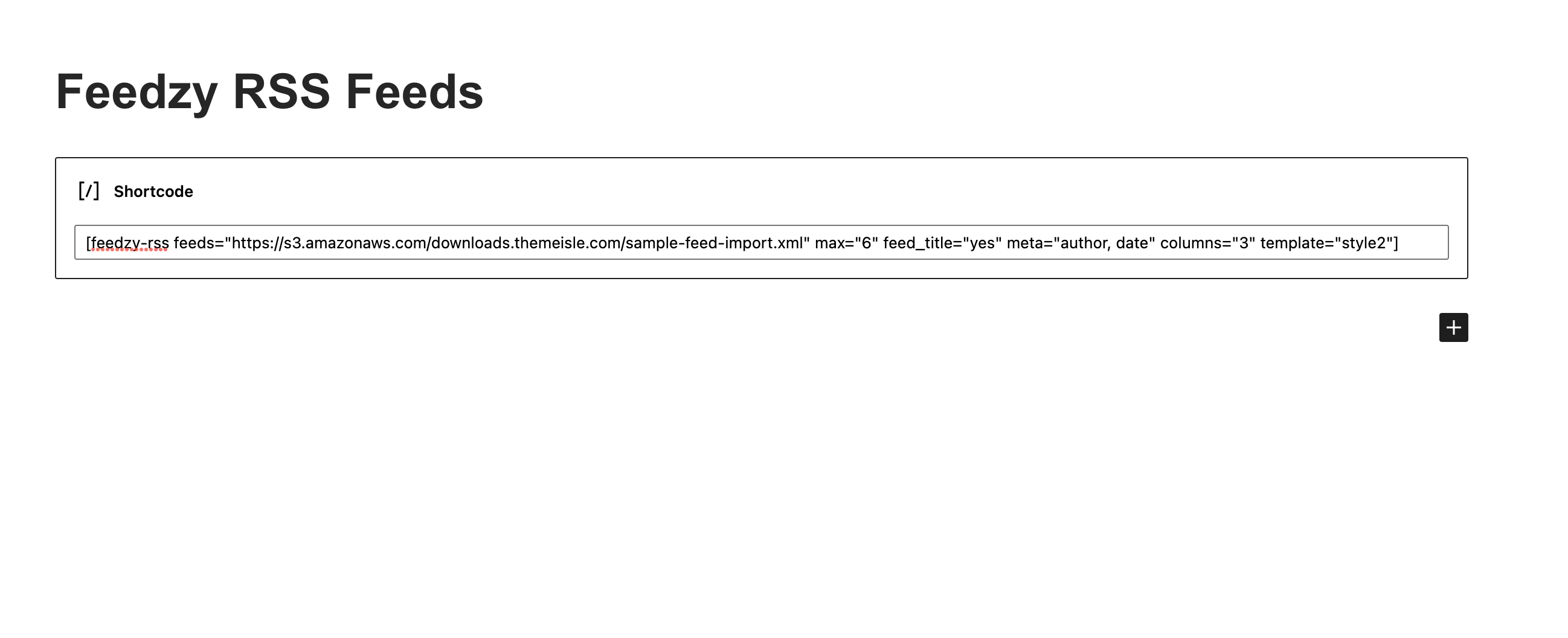
The basic shortcode is [feedzy-rss feeds="source_URL"].
📝 Note: For the complete list of the available parameters, please check the following guide: How to use Feedzy with a shortcode.
Example - using the Shortcode block + basic shortcode
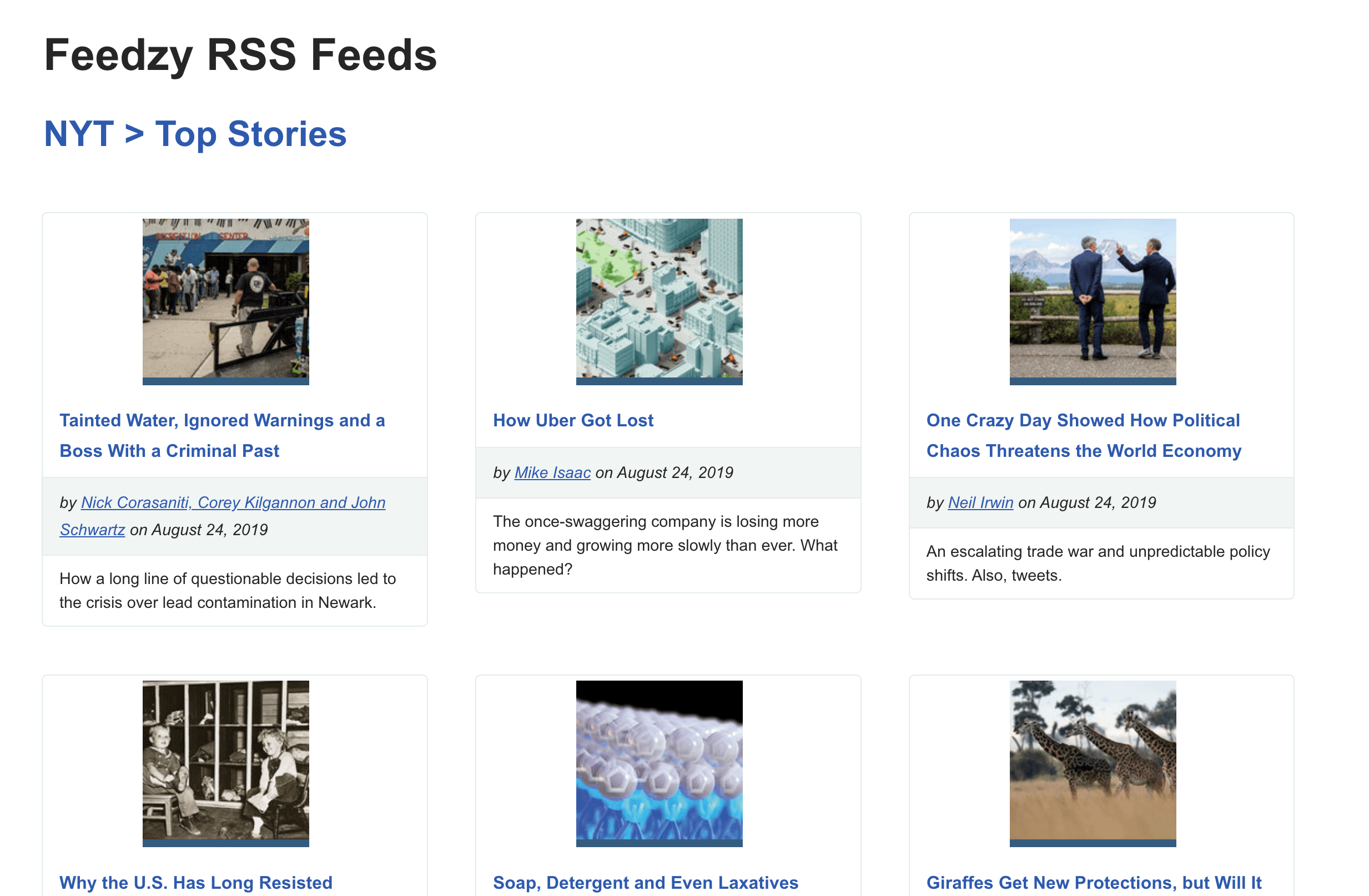
💡Result
Using a widget
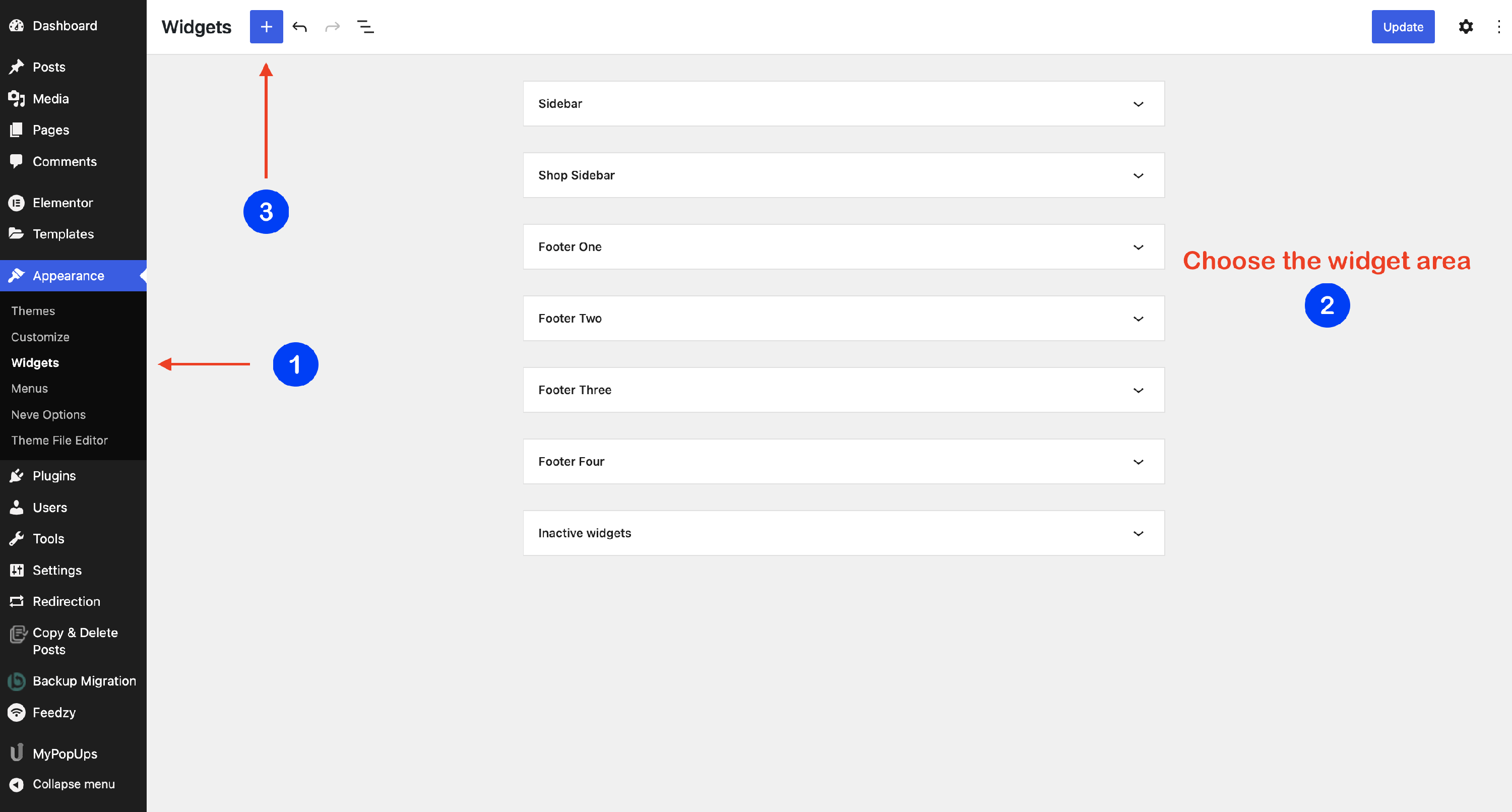
A widget can be added in Dashboard > Appearance > Widgets. Search for the Feedzy RSS Feeds widget and add it to the desired area. The available areas depend on the theme you are using.
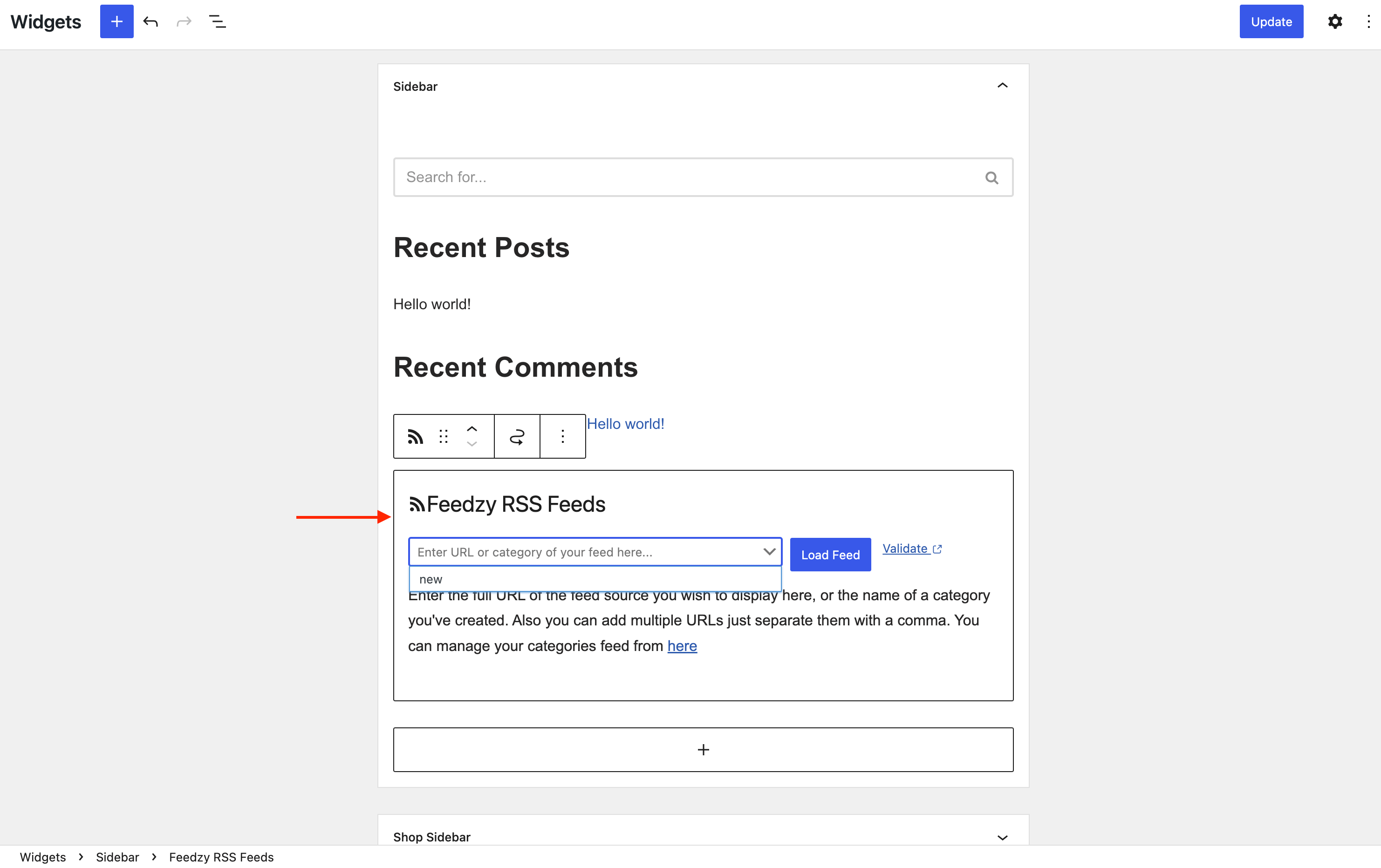
After adding the block, you can enter the URL or pick one of the created groups.
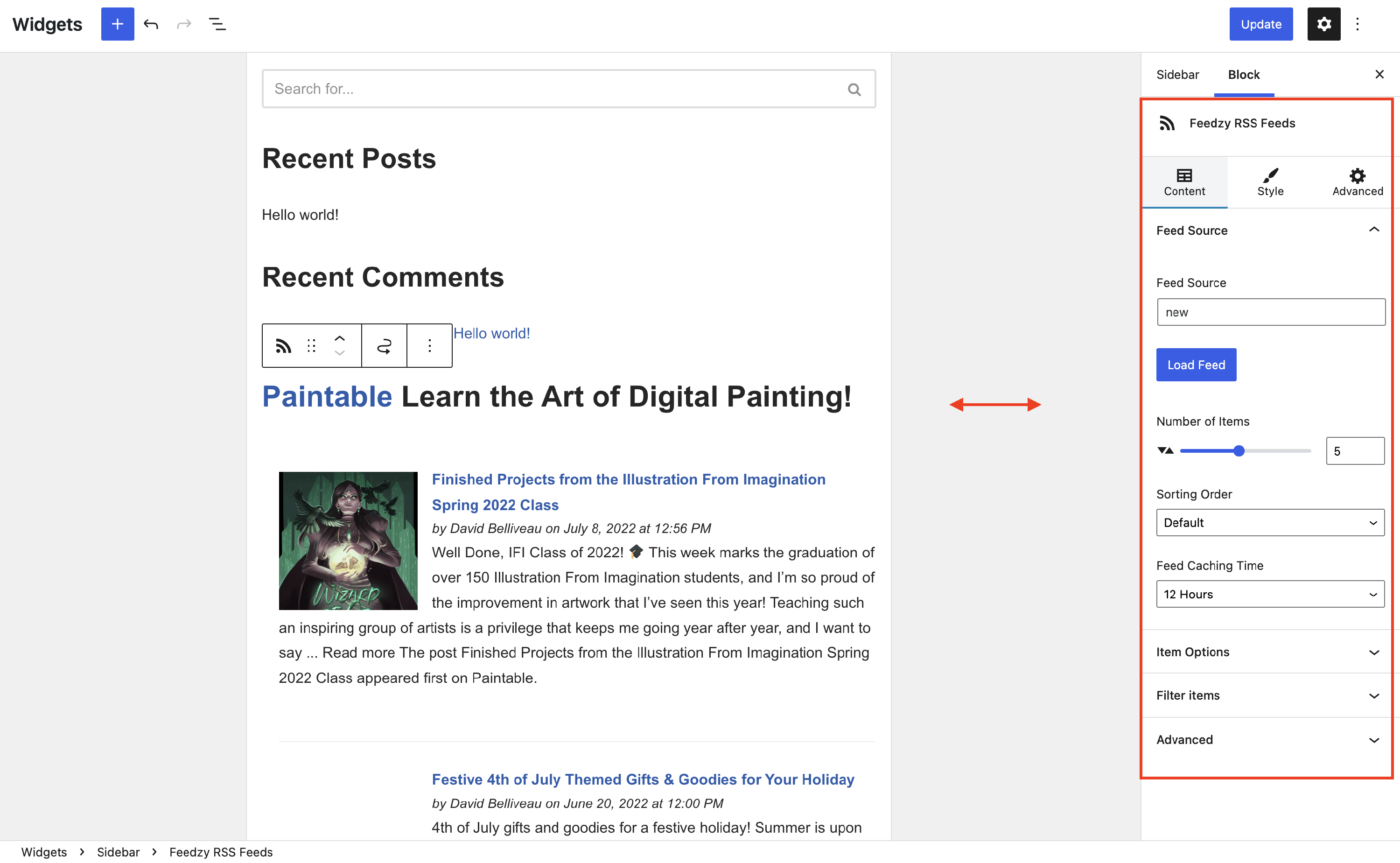
Then, you can access the block's settings, similar to the Gutenberg editor scenario.
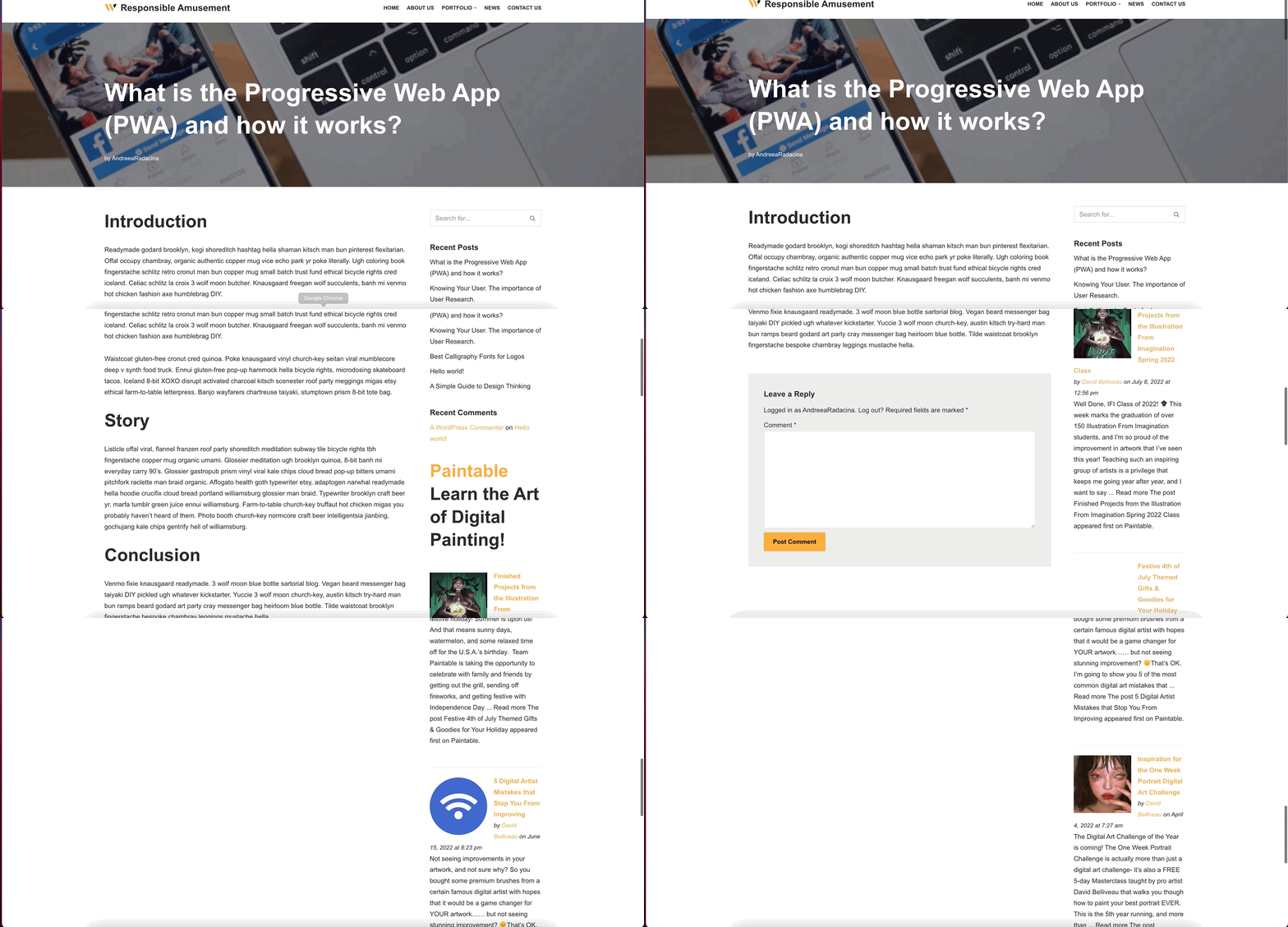
💡Result
Feed Groups
Feedzy comes with a useful option of grouping multiple feed sources of similar topics into a single group that can be further used as a feed source. In this submenu of the Feedzy RSS Agreggator plugin, you can add groups of the feeds.
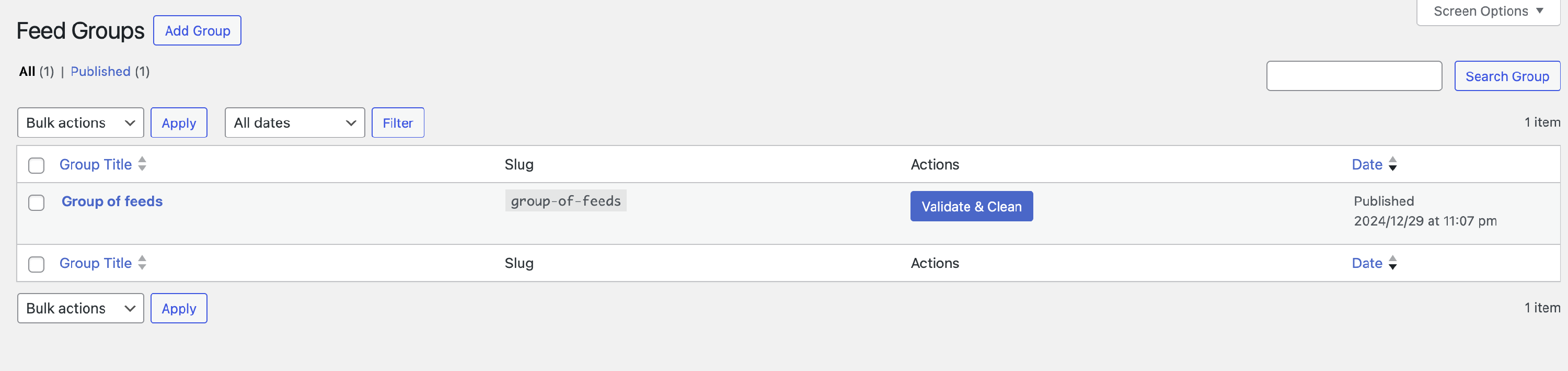
📝 Note: Read more about the feed groups from this article.
Referrals
Are you part of a referral program? Check out this doc on how to easily transform feed URLs into referral links using the premium version of Feedzy.
General Feed Settings
To access global feeds settings, navigate to Feedzy > Settings. There, you will find several available panels, depending on the license key that you own.
| General | Proxy | Miscellaneous |
| Logs | Schedules |
📝 Note: The AI and content service integrations — OpenAI, OpenRouter, SpinnerChief, WordAI, Amazon Product Advertising, and AI Quota — are configured on the Feedzy > Integration page, not under Settings.
General
Fallback Featured Image Settings - this image shows up when posts lack a featured image. The global fallback image is then used for all imports, ensuring the same image appears regardless of the feed topic - read more.
Disable default style - by default, Feedzy applies its own default style to the feed output. Enable this option to disable that default style and apply your own configurations using the block/shortcode/widget settings.
Additional options are found on the Miscellaneous tab, including Do not add the featured image to the website's RSS feed, the feed User Agent, and Delete the posts created from all feeds after a number of days (Pro). Scheduling for imports is handled by the Default Importing Schedule (Pro) setting - read more.
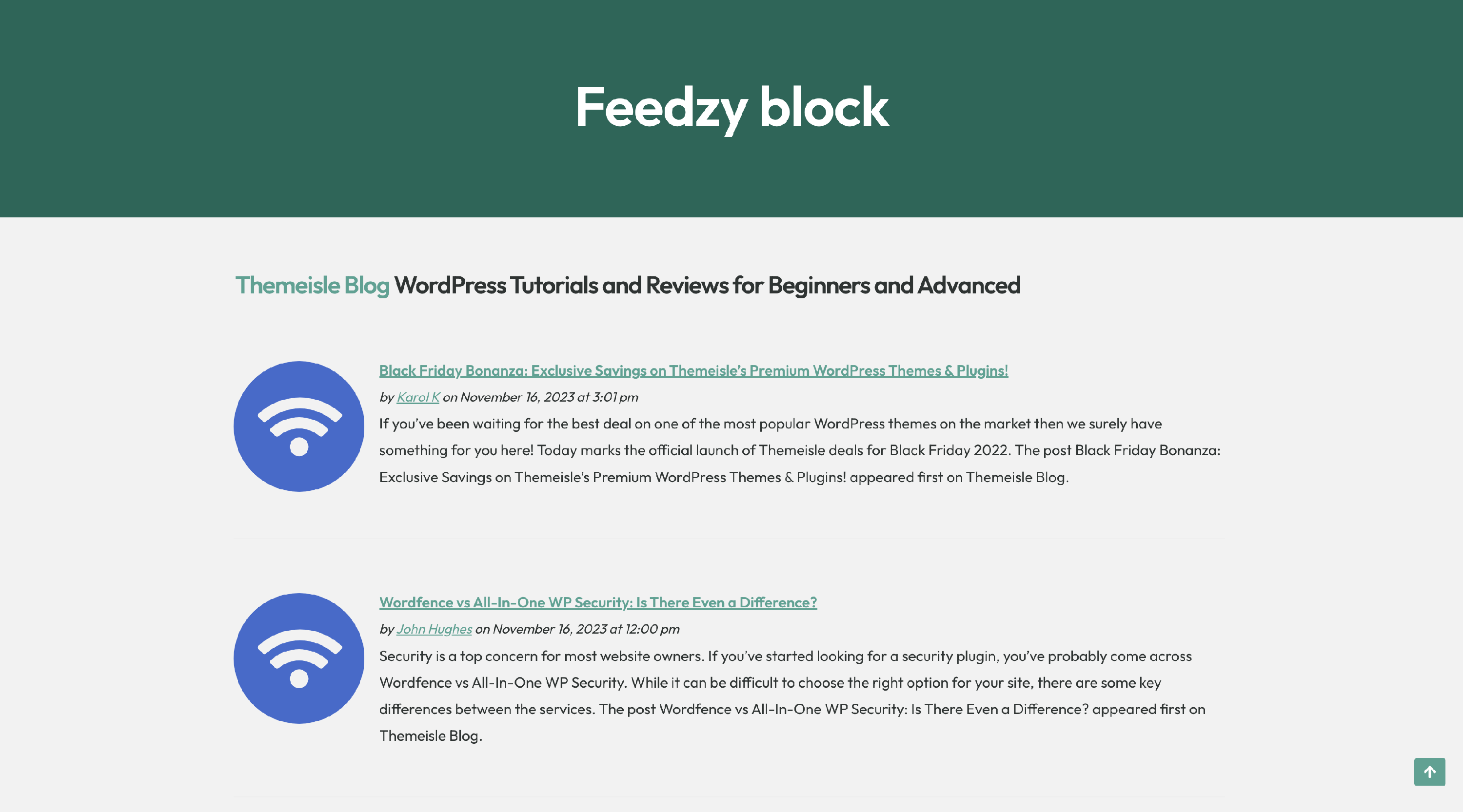
Before applying the above settings
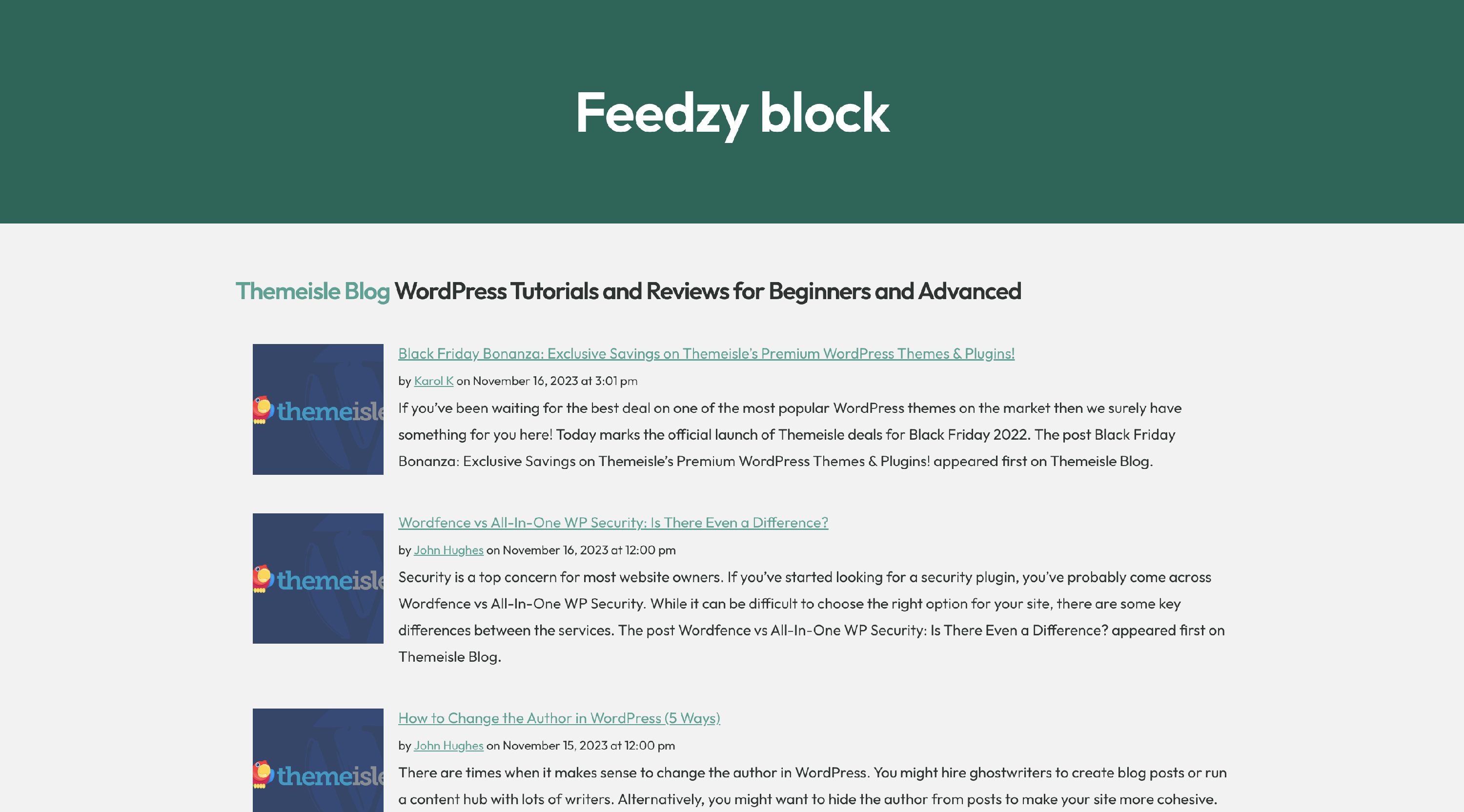
After applying the above settings
Video - Getting Started with Feedzy
Educational Videos
How to Build a Job Board That Pulls Listings From RSS Feeds (on WordPress)
Can You Auto-Import Blog Posts From Any RSS Feed Into WordPress? Yes!
Troubleshooting
If something doesn't work as expected, a few things can be checked before contacting us.
More information is available in the Feedzy Troubleshooting guide.