
How to convert images to AVIF in Robin Image Optimizer
This article explains how to convert images to AVIF format using the Robin Image Optimizer plugin. It covers settings configuration, bulk conversion, and converting a single image from the Media Library.
Overview
Robin Image Optimizer converts images to AVIF directly on your server. All optimized and converted images remain on your hosting environment. The plugin does not use cloud-based optimization.
Note: AVIF feature is a pro feature and can only we used with the pro version of Robin Image Optimizer. To Unlock AVIF please upgrade to any pro plan and learn how to activate your license key from this guide.
Before you start
Make sure the following requirements are met:
- Robin Image Optimizer is installed and activated
- Your server supports AVIF image generation
- Image backups are enabled if you want the option to restore originals
Step 1: Configure AVIF settings
- Go to WordPress Dashboard > Robin Image Optimizer > Settings
- Under Compression mode, choose your preferred option. Lossless is recommended if you want no visible quality change
- Make sure Backup images is enabled.
- Under Image Format Conversion, select AVIF.
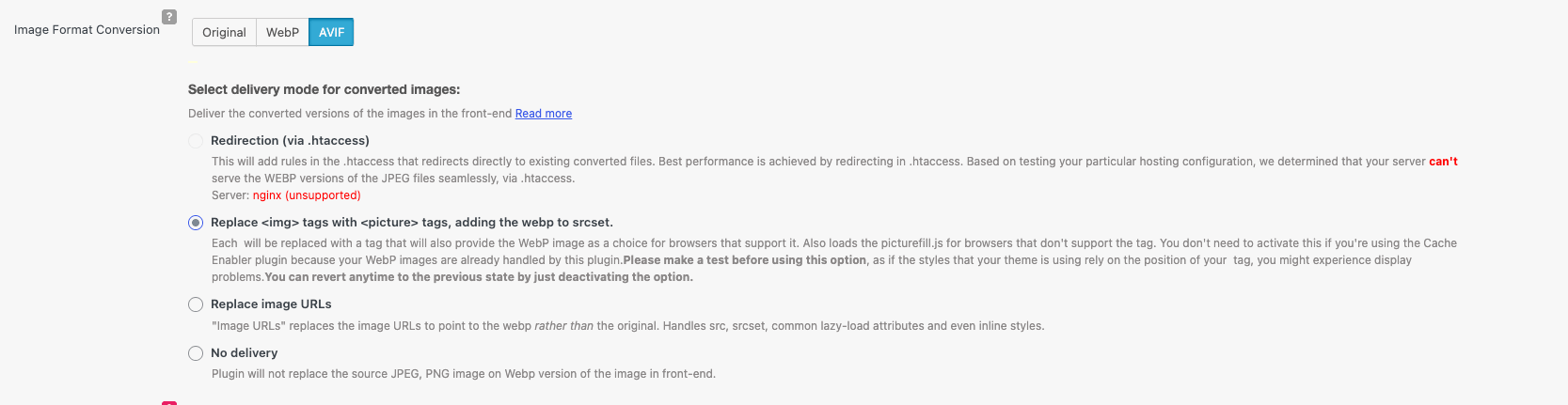
Choose a AVIF delivery method
Select how AVIF images should be delivered on the front end:
Replace
tags with
<picture>tagRecommended if your server does not support .htaccess redirects
Redirection via .htaccess
Recommended for Apache servers with AVIF support enabled
Save the settings once done.
Step 2: Bulk convert images to AVIF
- Go to Robin Image Optimizer > Bulk Optimization
- Select the Media Library tab
- Click Convert to AVIF
- Monitor progress from the dashboard
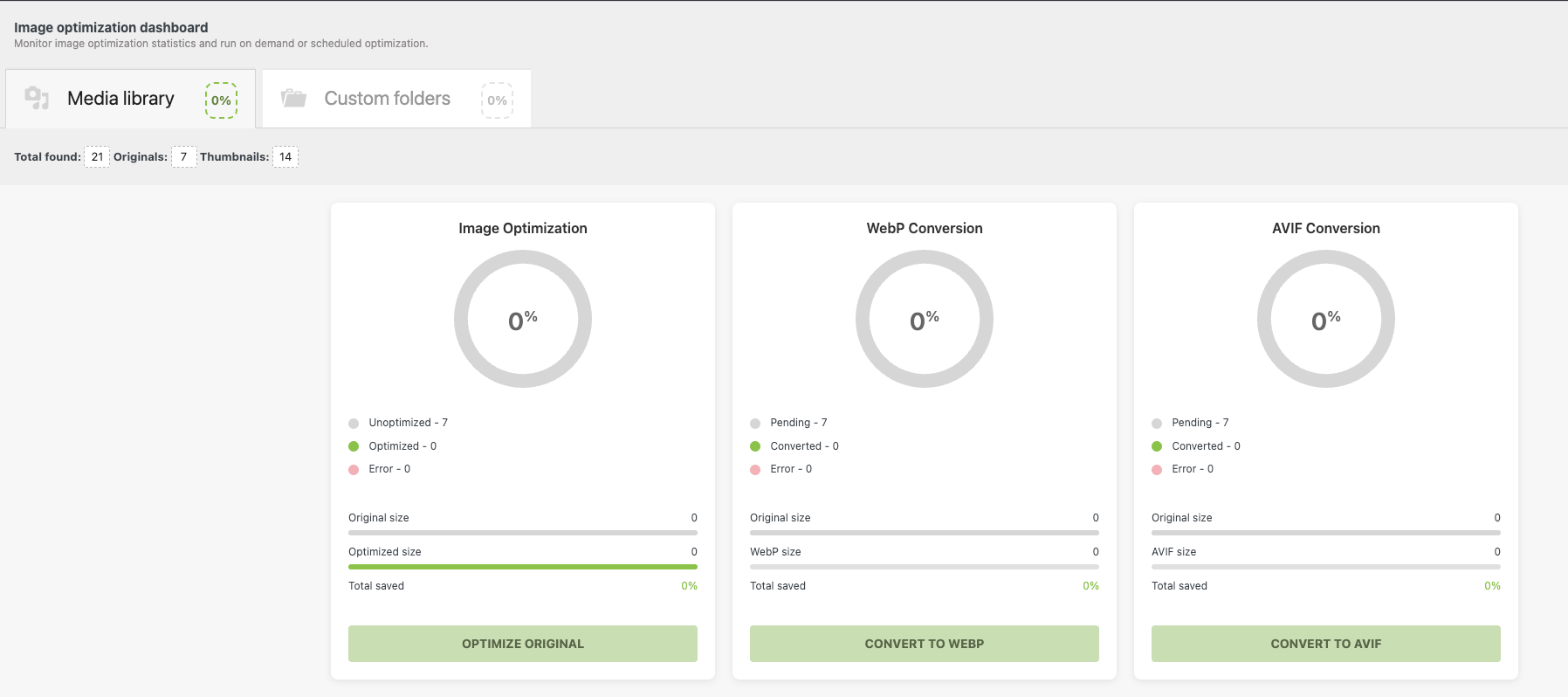
The dashboard displays pending images, converted images, and overall savings.
Step 3: Convert a single image to AVIF
- Go to Media > Library
- Click the image you want to convert
- In the attachment details panel, find the Image Optimizer section
- Click Convert to AVIF
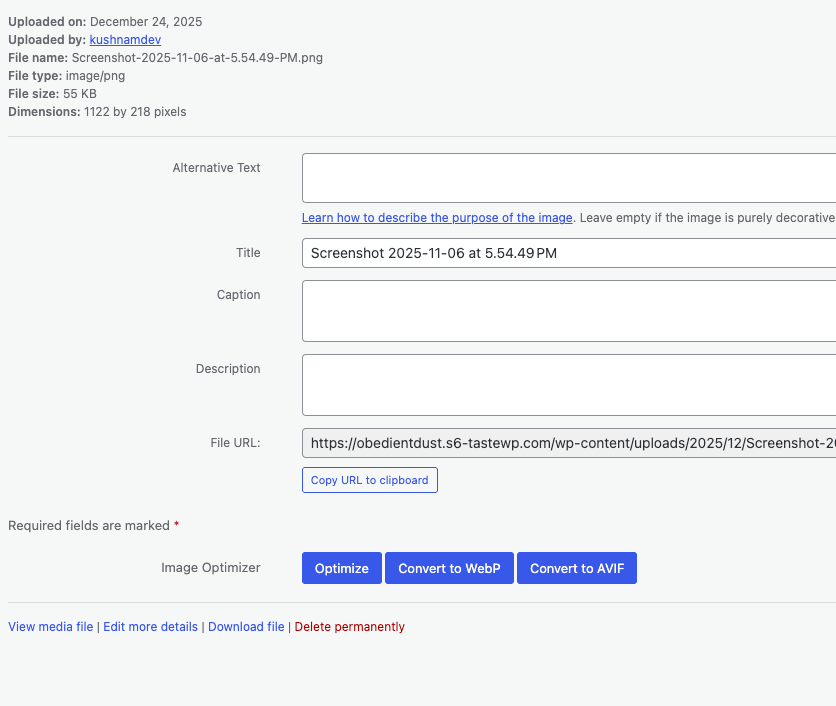
The AVIF version will be generated and served on the front end based on your delivery settings.
Verify AVIF delivery
After conversion:
- Open the page on the front end where your images are present.
- Inspect the image using browser developer tool - Network log
- Confirm the image is served as image/AVIF
Important notes
- Original images are not replaced or deleted
- Additional image sizes usually come from your theme or other plugins
- You can restore original images anytime using Restore under Manage backups
Troubleshooting
If AVIF images are not loading:
- Recheck the selected delivery method
- Clear all caches including CDN and browser cache
- Verify AVIF support on your server
This ensures AVIF images are generated and served correctly without affecting existing image URLs.