
Creating and Managing API Tokens in Easy MCP AI
Easy MCP AI uses API tokens to authenticate AI clients that connect to your WordPress site with a manual configuration. Each token is tied to a WordPress user, can be limited to specific tools, and can be set to expire. You stay in control of exactly what a connected AI is allowed to do.
In this article
When You Need a Token
You only need an API token for clients you connect manually, by pasting a configuration file or an Authorization header.
Clients that support OAuth (such as Claude.ai, Claude Desktop, Cursor, or ChatGPT) don't need a token at all: you point them at your MCP endpoint URL, log in to WordPress once, and the plugin manages credentials automatically.
If you haven't installed the plugin yet, start with the Getting Started guide.
How to Create a Token
- In your WordPress dashboard, go to Easy MCP AI > API Token & OAuth and open the API Token tab.
- Click Create New Token.
- Fill in the token details (explained below) and click Create Token.
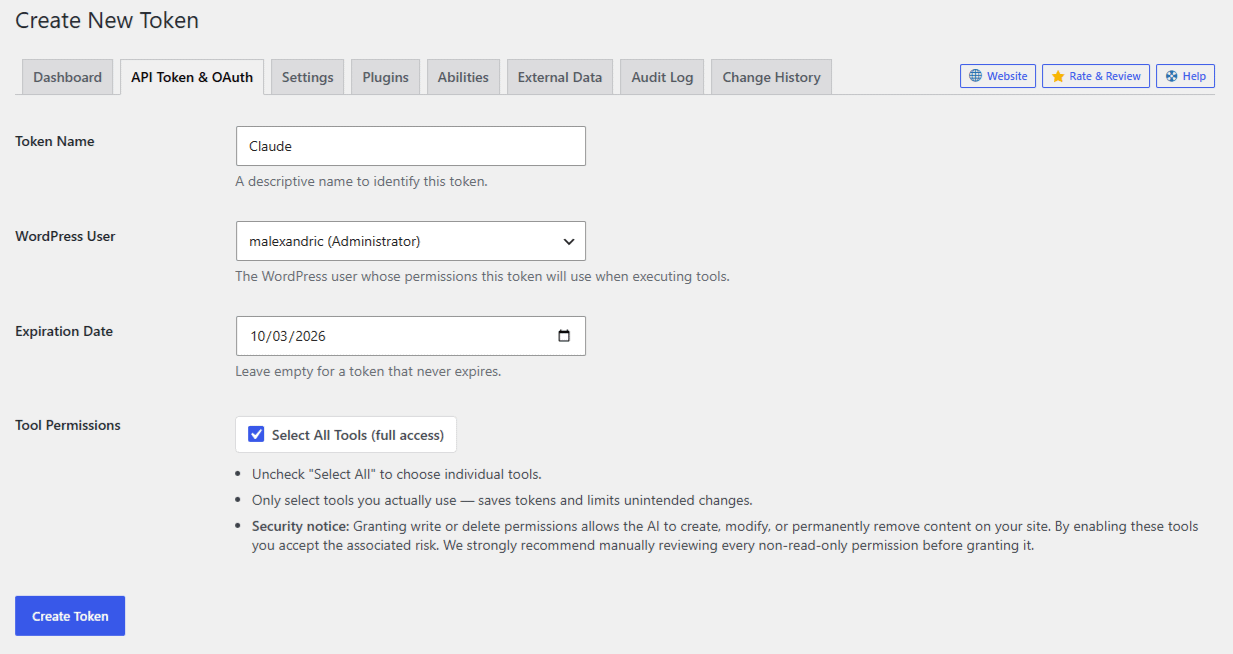
Your new token is displayed only once, right after creation. It looks like wpmcp_a1b2c3…. Copy it immediately and store it somewhere safe. Only its SHA-256 hash is saved in the database, so it can never be shown again. If you lose it, revoke it and create a new one.
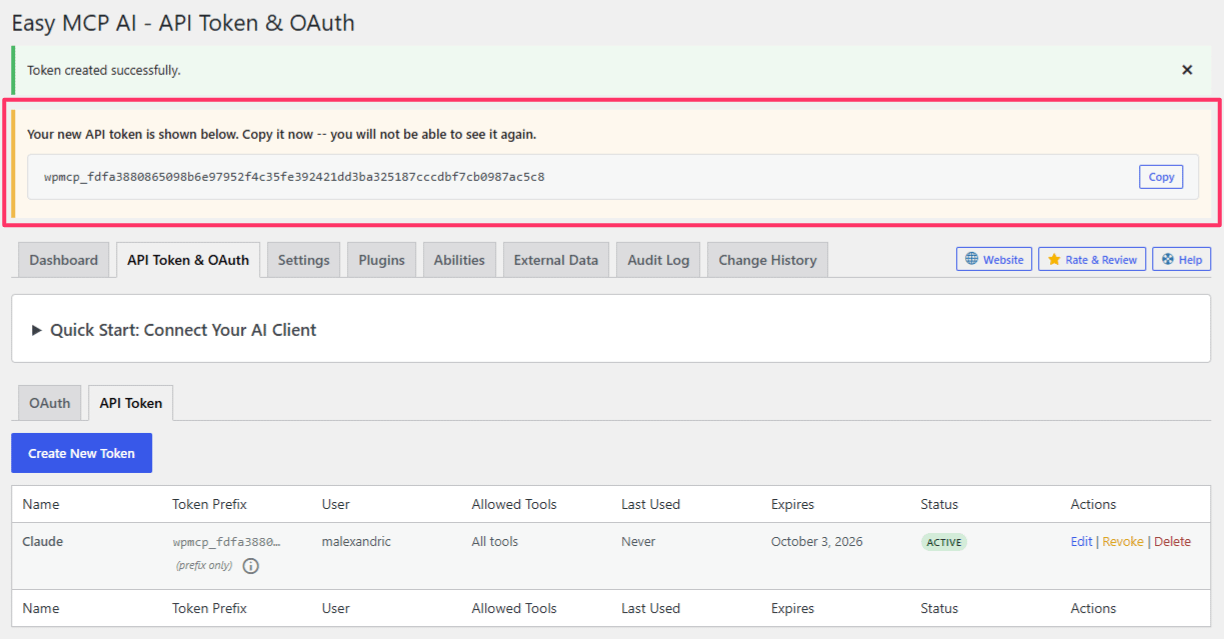
Token Name
A descriptive name that identifies where the token is used, for example "Claude Code - Production". Naming tokens after the client and site makes it easy to spot which one to revoke later.
WordPress User
The token acts as this user: every tool call is checked against the user's WordPress permissions. Tokens can only be assigned to Administrators, Editors, or Authors.
- Administrator: full access, including plugins, themes, users, and site settings (where those tools are enabled).
- Editor: content-only access, covering posts, pages, media, comments, and taxonomies.
- Author: the most restricted option, limited to publishing and managing their own posts.
Choose the least powerful user that can still do the job. For a content-writing assistant, an Editor is usually the right choice.
Expiration Date
New tokens default to expiring in 30 days. You can pick any future date, or leave the field empty for a token that never expires. Expired tokens stop authenticating automatically; you can extend the date later by editing the token.
Tool Permissions
By default, Select All Tools (full access) is checked, which grants every tool the plugin registers, including tools added in future updates.
For tighter control, uncheck it and select individual tools. You can filter the list by category (posts, pages, media, comments, and so on) and by action type: list, get, create, update, delete, search, and upload.
A practical read-only setup is to allow only the list, get, and search actions. The AI can then analyze your site but cannot change anything.
Granting write or delete permissions allows the AI to create, modify, or permanently remove content on your site. Review every non-read-only permission before granting it, and only select tools you actually use.
Using a Token
Pass the token as a Bearer header when configuring your AI client:
Authorization: Bearer YOUR_API_TOKENagainst your site's MCP endpoint:
https://yoursite.com/wp-json/easy-mcp-ai/v1/mcpFor clients that cannot send custom headers, the token can be appended to the endpoint URL instead (…/v1/mcp/YOUR_API_TOKEN). Treat this as a last resort: URL-based tokens appear in server access logs, WordPress debug logs, and browser history. Use the Authorization header whenever possible.
Managing Existing Tokens
The API Token tab lists all your tokens with their name, token prefix, user, allowed tools, last-used time, expiration, and status. Only the prefix is shown; the full token cannot be retrieved after creation.
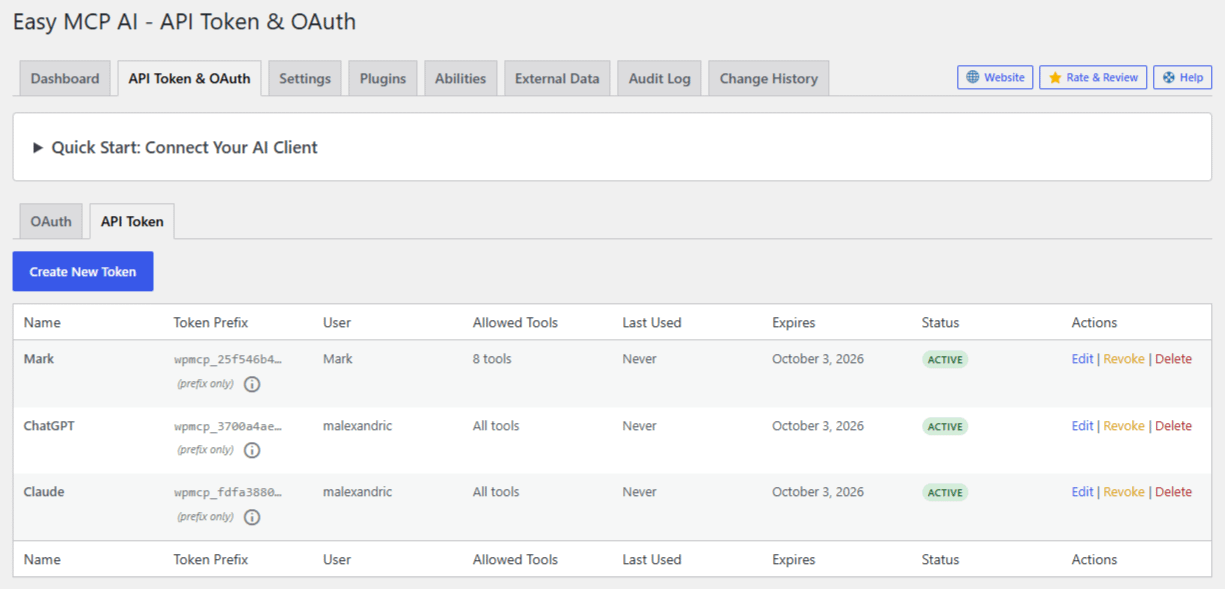
For each token you can:
- Edit: rename it, reassign the user, change the expiration date, adjust tool permissions, or temporarily deactivate it with the Active checkbox.
- Revoke: permanently stop the token from authenticating while keeping its record in the list.
- Delete: remove the token entirely. This cannot be undone.
If a client stops working after a token change, create a fresh token and update the client's configuration. The old value can't be recovered.
Site-Wide Guardrails
Beyond per-token permissions, Easy MCP AI > Settings provides global controls that apply to every token and OAuth connection:
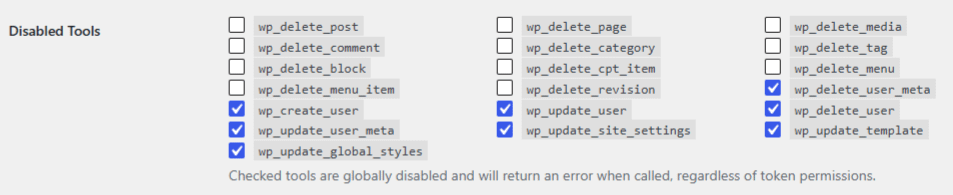
- Disabled Tools: globally switch off sensitive tools, such as the delete tools or user- and site-management tools. Disabled tools return an error when called, regardless of token permissions. On a fresh install, the account and site-control tools (creating or editing users, changing site settings, editing templates and global styles) are disabled by default.
- Whitelist Tools: restrict the entire MCP server to tools matching glob patterns (for example
wp_get_*, wp_list_*for a fully read-only site). - Rate Limit: the maximum number of tool calls per token per minute.
- IP Whitelist: limit MCP access to specific IP addresses or CIDR ranges.
- Force Draft on Create: every post or page the AI creates is saved as a draft, no matter what status it requests.
Auditing What Your Tokens Do
Every tool call is recorded in Easy MCP AI > Audit Log (when audit logging is enabled in Settings), so you can review exactly what each token has done and when. Change History additionally stores before/after snapshots of every write performed via MCP. Both logs are pruned automatically after the retention period you configure.
Security
If you identify a potential security vulnerability in this plugin, please disclose it responsibly. Follow the protocols on the Themeisle Security Page.