
How to Connect GitHub Copilot to WordPress
Connecting GitHub Copilot to your WordPress site brings your content into VS Code: Copilot's agent can read and update posts and pages, manage media, or check site configuration while you work on your theme or plugin. Easy MCP AI runs the MCP server inside WordPress, and Copilot connects to it through VS Code's MCP support.
In this article
Prerequisites
- A WordPress site served over HTTPS with Easy MCP AI installed and activated (see the installation guide).
- Pretty permalinks enabled (Settings > Permalinks set to anything other than "Plain").
- VS Code with an active GitHub Copilot subscription.
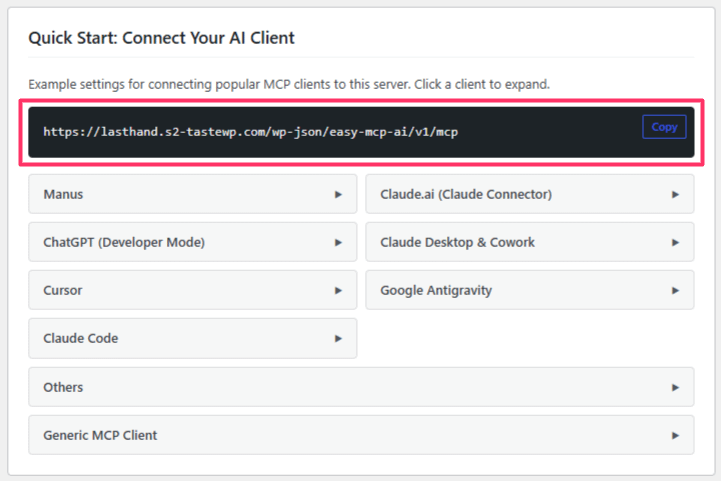
You'll need your site's MCP endpoint URL, which is always your domain followed by /wp-json/easy-mcp-ai/v1/mcp:
https://yoursite.com/wp-json/easy-mcp-ai/v1/mcpYou can copy it from Easy MCP AI > Dashboard in your WordPress admin, in the Quick Start: Connect Your AI Client section.
Option 1: One-Click Install
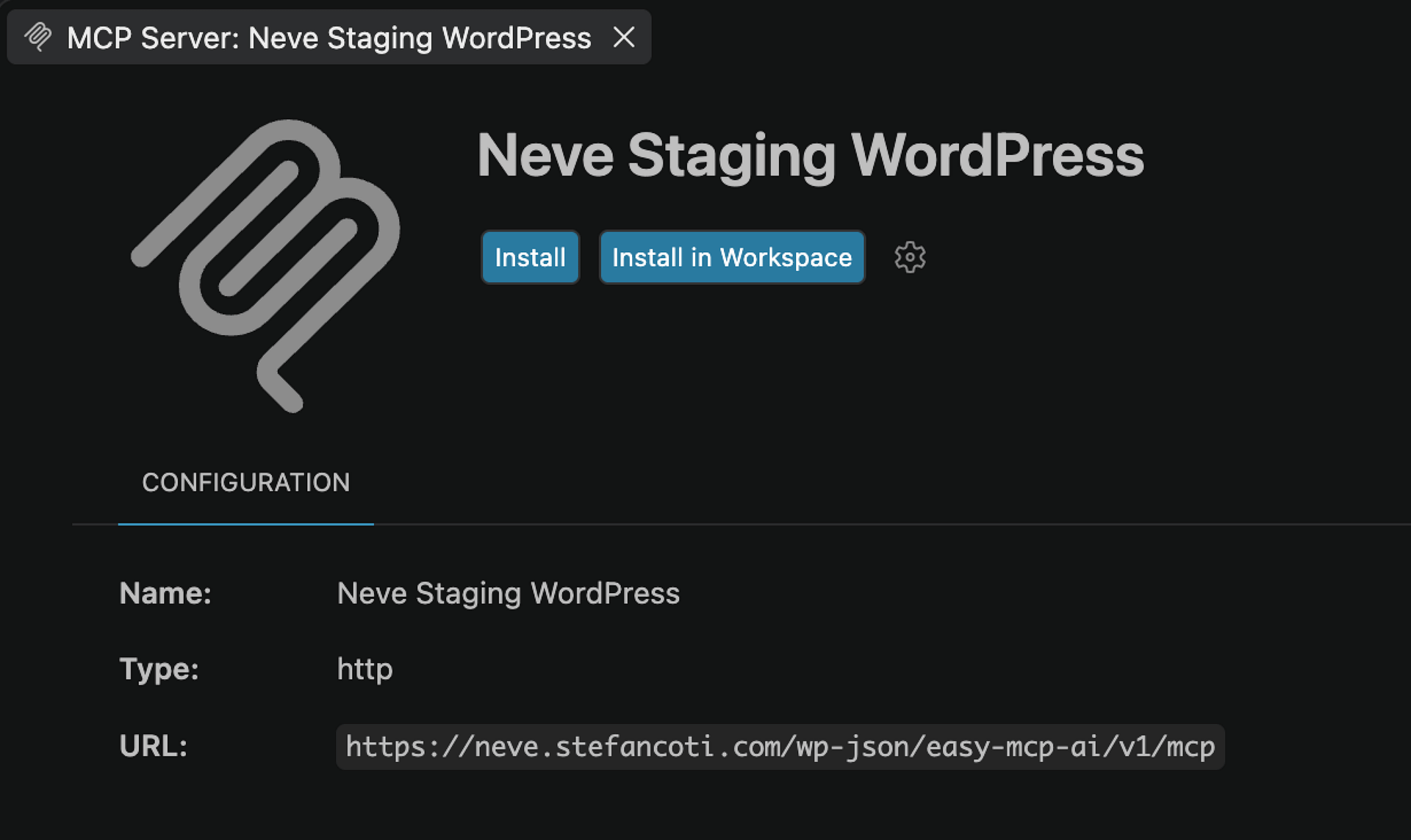
- Go to Easy MCP AI > Dashboard and expand GitHub Copilot (VS Code) in the Quick Start section.
- Click Install in VS Code (1-click). The link opens VS Code with the WordPress MCP server pre-filled.
- Confirm the installation and follow the prompts to start the server.
Option 2: Manual Configuration with an API Token
To share the setup with your team, or to use a token limited to specific tools:
- Create an API token in Easy MCP AI > API Token & OAuth and copy it.
- Add the server to
.vscode/mcp.jsonin your project, replacing the URL with your endpoint andYOUR_API_TOKENwith your token:
{
  "servers": {
    "wordpress": {
      "type": "http",
      "url": "https://yoursite.com/wp-json/easy-mcp-ai/v1/mcp",
      "headers": {
        "Authorization": "Bearer YOUR_API_TOKEN"
      }
    }
  }
}- Save the file and start the server when VS Code offers it.
Never commit a real token; keep it in a per-developer file or an input variable.
Verify the Connection
Open Copilot Chat in agent mode and check the tools list. The WordPress tools appear under the wordpress server.
Then try a first prompt:
Which are the five most recent posts on my WordPress site, and which of them are still drafts?
Copilot asks for approval the first time it runs a WordPress tool.
What You Can Do Once Connected
Easy MCP AI exposes your site's capabilities as MCP tools, organized by area: posts, pages, media, comments, categories and tags, menus, custom post types, blocks, revisions, users, plugins, themes, site settings, and search. Integrations such as WooCommerce and SEO data sources are included when available. In an editor, that shines for development-adjacent tasks:
Create a draft page called "Pricing" using the block markup in the file I have open.
List the active plugins on my site and their versions.
Check which template the blog page uses and show me its content.
Control What Copilot Can Access
The connection acts as the token's assigned WordPress user, so WordPress roles apply as usual. For a development setup, consider a dedicated token limited to the tools you need. Site-wide guardrails (globally disabled tools, rate limits, forced drafts, audit log) apply on top. See Creating and Managing API Tokens for details.
Security
If you identify a potential security vulnerability in this plugin, please disclose it responsibly. Follow the protocols on the Themeisle Security Page.