
Use Social Slider Feed with AI Assistants
Connect a compatible AI client to WordPress to list, create, update, and refresh Social Slider Feed feeds through the WordPress Abilities API.
In this article
Requirements
- Social Slider Feed with AI assistant support installed and active.
- WordPress 6.9 or later, or another environment that provides
wp_register_ability()and the WordPress Abilities API. - A compatible connector that exposes WordPress abilities, such as Easy MCP AI, and an authenticated AI client connected to your site.
- A connected WordPress user with the
manage_optionscapability (permission to manage site settings). This is usually an Administrator account.
Connect your AI client and enable Social Slider Feed abilities
- In your WordPress dashboard, open Easy MCP AI > Dashboard. Under Connect your AI client, choose your AI client and follow the on-screen steps to connect it to your site. For detailed instructions, see Getting Started with Easy MCP AI. If you use another compatible connector, follow its connection instructions.
- Open Easy MCP AI > Tools, then select Abilities.
- Find the Social feed group and enable all three Social Slider Feed abilities.
- Click Save changes, then refresh the available tools in your AI client so it can use the newly enabled abilities.
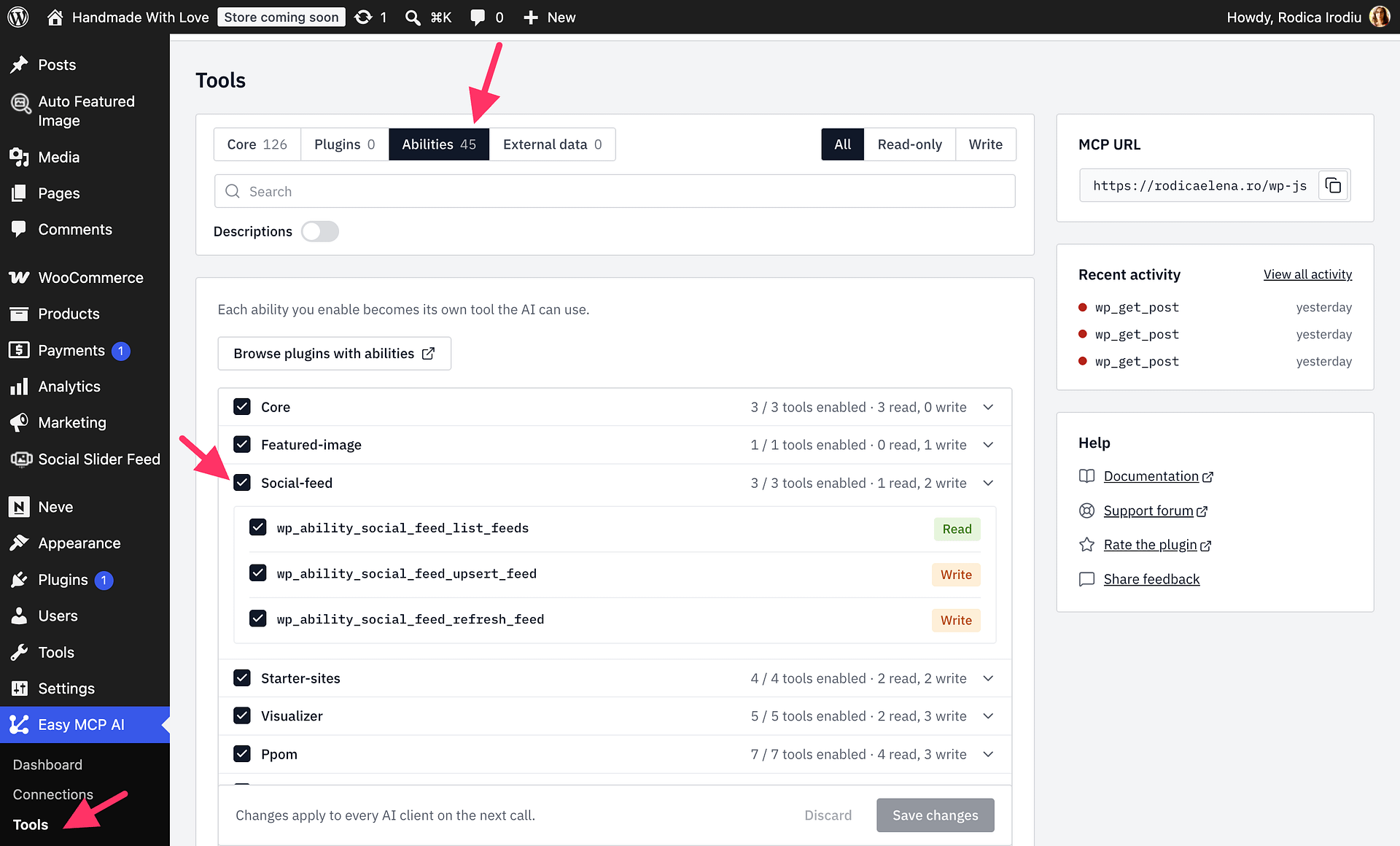
Available abilities
social-feed/list-feedslists your Instagram, Facebook, and YouTube feeds and saved connection names. Include a feed ID to retrieve its settings, shortcode, and a limited preview of feed items.social-feed/upsert-feedcreates a feed or updates an existing one. Setdry_runtotrueto validate and preview a change without saving it.social-feed/refresh-feedbypasses the selected feed's cache, fetches current provider data, and returns a limited preview.
The assistant can use only account connections already saved in Social Slider Feed. These abilities do not return connection credentials.
To make feed changes safely:
- Ask the assistant to list your feeds and saved connection names before requesting a change.
- Ask it to preview a create or update request with
dry_runset totrue. - Review the proposed settings in the response. If they are correct, ask the assistant to repeat the request without the dry run to save the change.
Example prompts
- “List my Social Slider Feed feeds and connected account names.”
- “Preview creating an Instagram slider with 12 images from my connected account, but do not save it.”
- “Change feed 7 to a three-column grid after showing me a dry-run preview.”
- “Refresh my YouTube feed and show me the latest five videos.”
Permissions and privacy
All three abilities require the connected WordPress user to have the manage_options capability. Enabling an ability does not grant the connected user additional permissions. Only enable these abilities for trusted AI clients and accounts.