
How to Add Icons to Menu Items
This guide walks you through adding an icon to a navigation menu item using the Menu Icons plugin — from opening the menu editor to verifying the icon appears on the front end.
📝 Note: The Menu Icons plugin must be installed and activated before you can follow these steps. See Getting Started with Menu Icons if you have not done this yet.
In this article
Adding an Icon to a Menu Item
Step 1: Choose an Icon Type
- In your WordPress admin, go to Appearance > Menus. A Menu Icons Settings meta box appears in the sidebar on the right.
- Under Icon Types select the icon libraries you want to use: Dashicons, Genericons, Font Awesome, SVG etc.
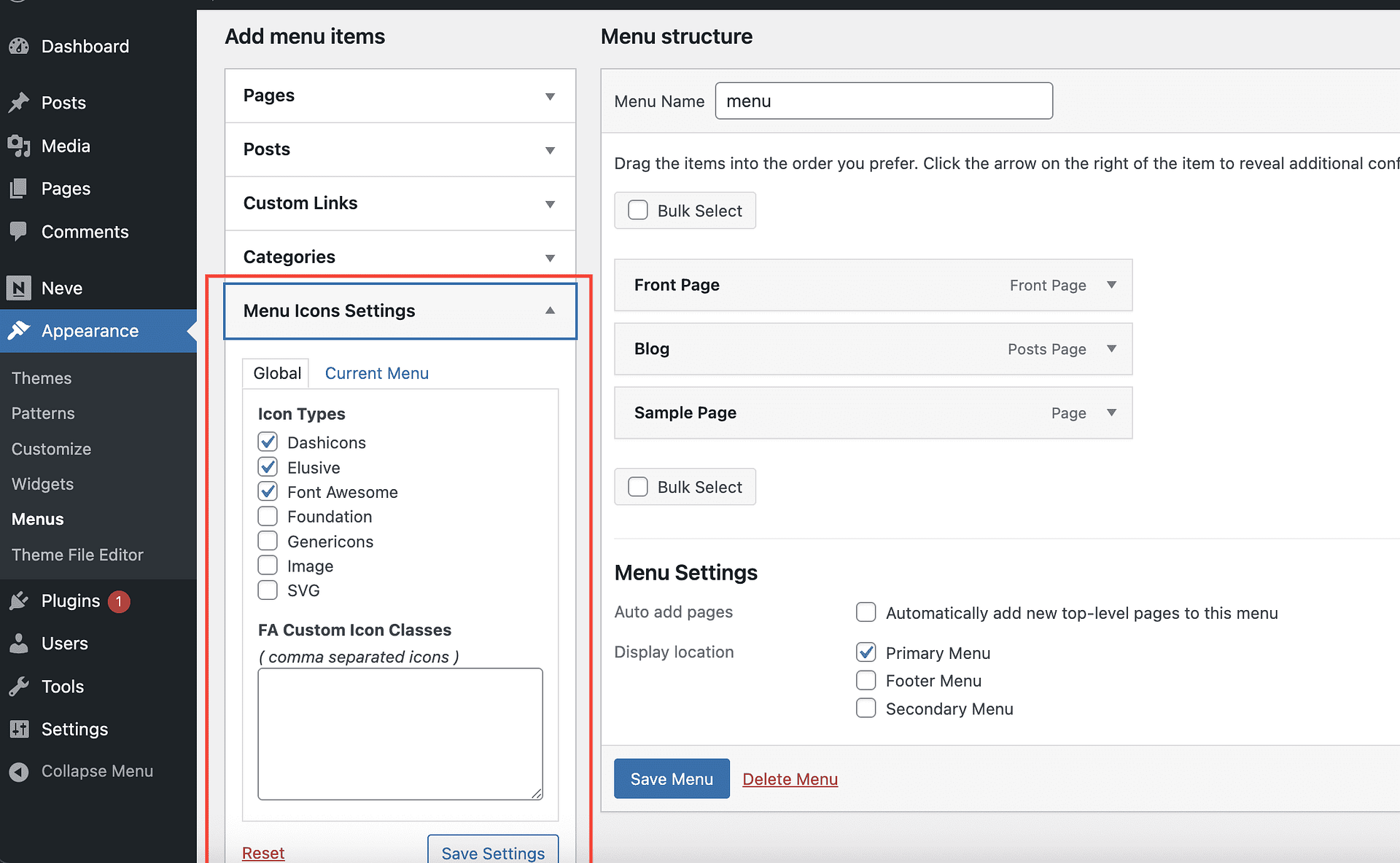
💡 Tip: Dashicons are loaded by WordPress by default and do not add any extra page weight. Choose another library only if you need icons not available in Dashicons.
Step 2: Open the Menu Editor
- In your WordPress admin, go to Appearance > Menus.
- Select the menu you want to edit from the Select a menu to edit dropdown, then click Select.
Step 3: Expand a Menu Item
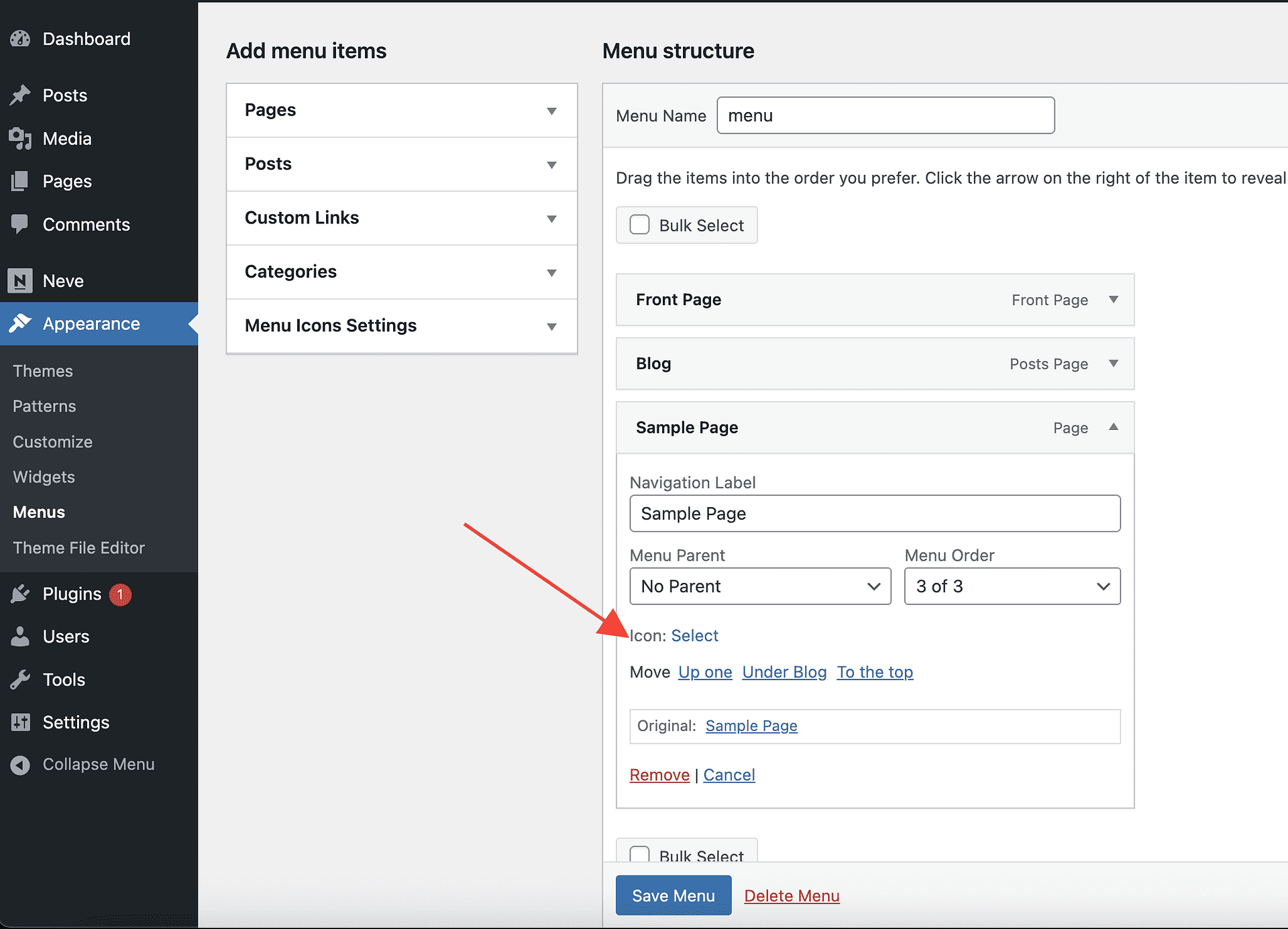
- In the menu editor, find the menu item you want to add an icon to.
- Click the arrow on the right side of the menu item panel to expand it.
An Icon section appears below the standard fields (Navigation Label, Title Attribute, etc.).
Step 4: Select an Icon
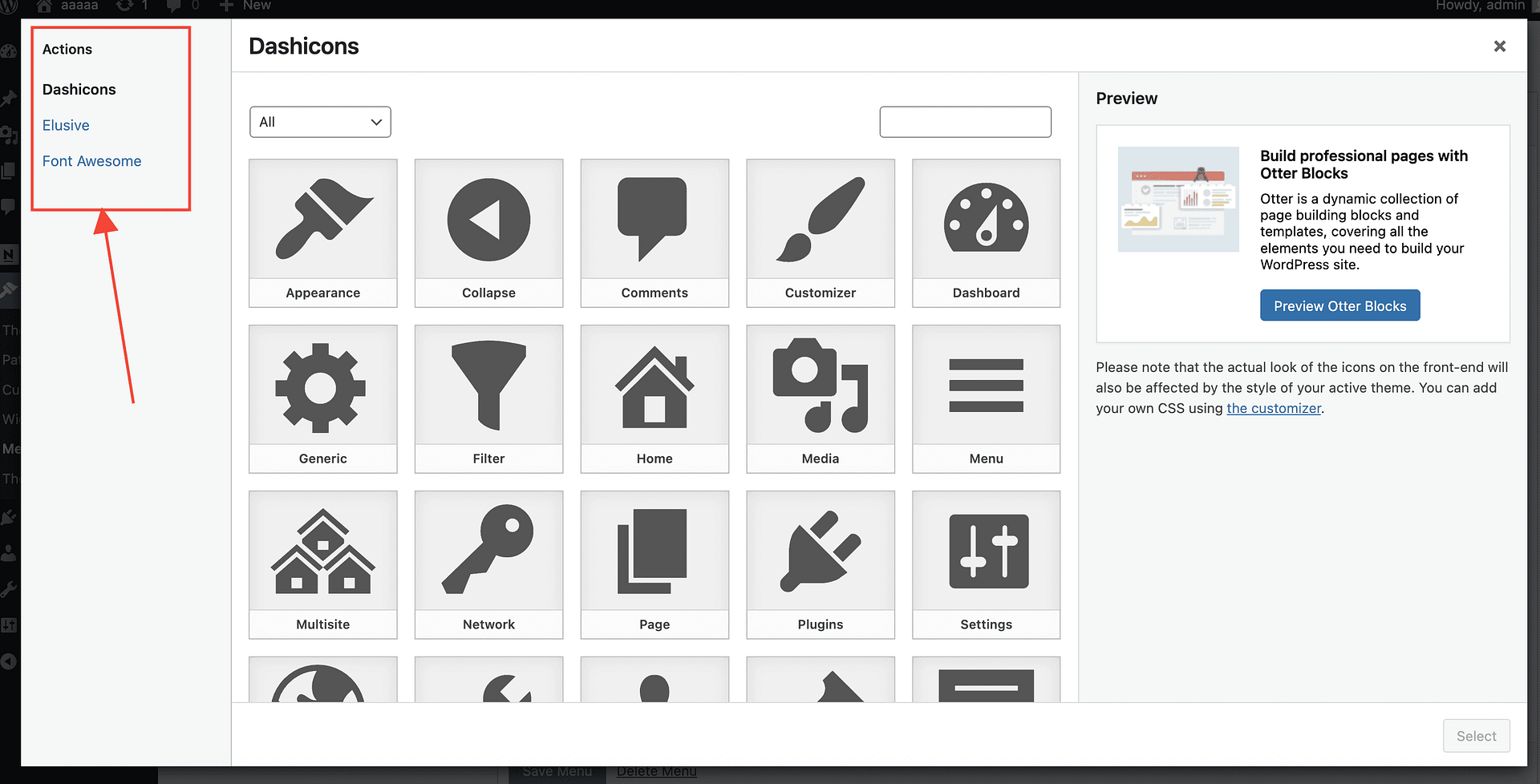
- From Actions choose the library of your choice.
- Click on the icon you want to use. It will be highlighted to confirm your selection.
- Click Select to apply the icon.
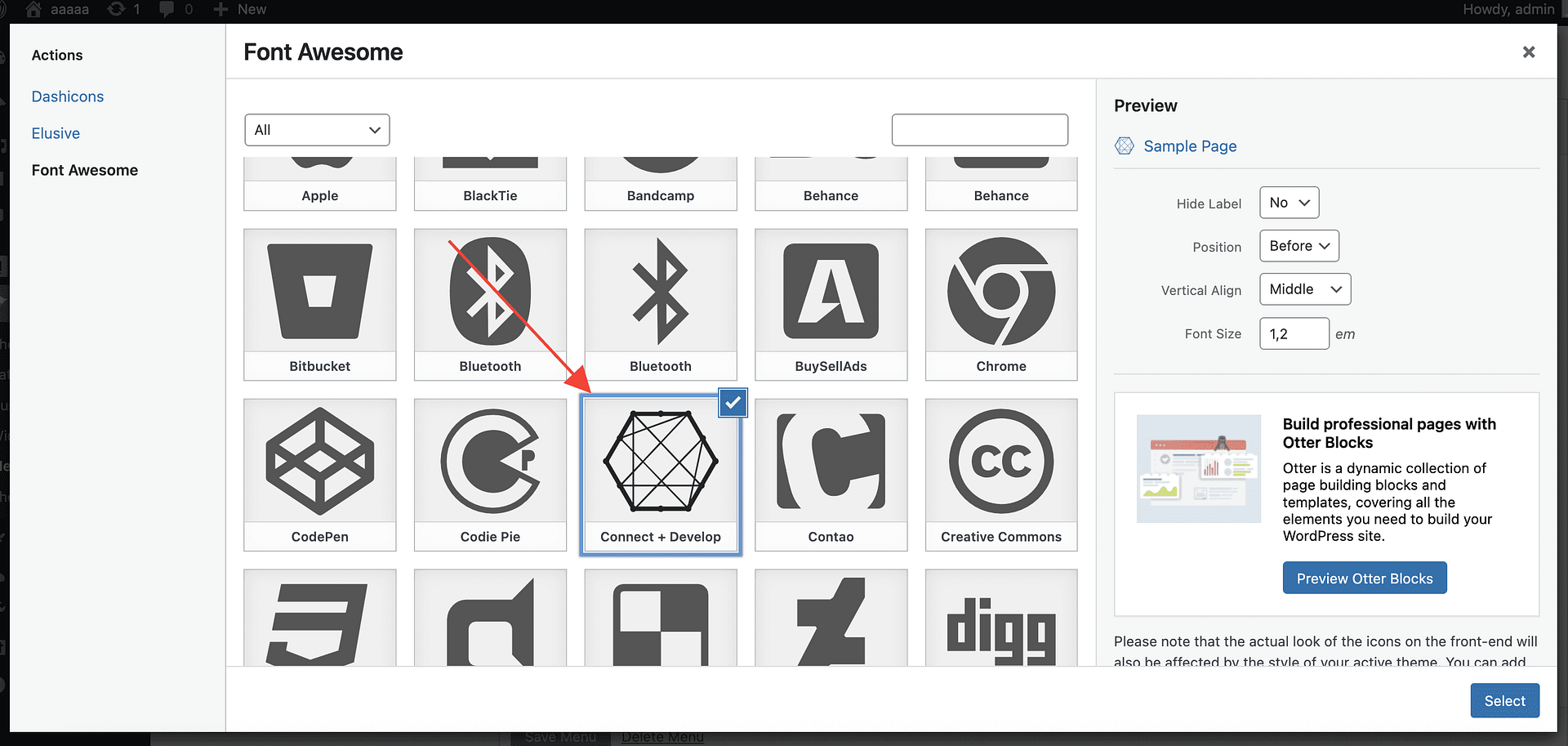
📝 SVG Icons: The Font Awesome picker shows the icon set bundled with Menu Icons, so a logo that exists on Font Awesome's website (such as X, Bluesky, or another newer brand icon) might not appear in the plugin yet. If only that specific icon is missing, select SVG or Image in Icon Types (Step 1), then upload the logo as an SVG or a transparent PNG file instead of choosing from the Font Awesome grid.
Step 5: Configure Icon Options
After selecting an icon, several display options appear in the Icon section of the menu item. SVG Width and SVG Padding appear only after you select a custom SVG.
- Font Size — Controls the display size of the icon. You can enter a value in em units.
- SVG Width — Controls the width of a custom SVG icon in em units.
- SVG Padding — Adds space inside a custom SVG icon in pixels. Enter a value of
0or greater, or leave the field empty to apply no padding. - Vertical Alignment — Controls how the icon aligns vertically with the menu label text (top, middle, bottom, or baseline).
- Hide Label — When enabled, the menu item's text label is hidden and only the icon is shown. Useful for icon-only navigation designs.
- Position — Controls whether the icon appears before or after the menu label text.
Adjust these options to match your site's design.
Step 6: Save the Menu
- After configuring the icon options, scroll to the bottom of the Menus page.
- Click Save Menu.
Your changes are saved and the icon is now assigned to the menu item.
Verifying the Icon on the Front End
- Open your site in a browser (or click Visit Site in the WordPress admin bar).
- Navigate to the page where the menu is displayed.
- Confirm that the icon appears next to the correct menu item in the expected position and size.

💡 Tip: If you do not see the icon on the front end, try clearing your browser cache and any WordPress or hosting-level cache before troubleshooting further.
Troubleshooting
The icon does not appear on the front end
- Confirm the menu is assigned to a menu location. Go to Appearance > Menus, select the Manage Locations tab, and check that your menu is assigned to an active theme location.
- Clear any caching plugins or server-side cache and reload the page.
- Check that the plugin is active at Plugins > Installed Plugins.
Icons are not showing in the icon picker modal
If the entire icon grid is empty after selecting an icon type, try deactivating and reactivating the plugin. If the issue persists, check your browser console for JavaScript errors, which may indicate a conflict with another plugin or theme. If the icon picker loads normally and only one icon is missing, the picker is working — use the SVG or Image fallback described in Step 4.