
How to automatically sync charts with online files
📝 Note: The steps provided in this article can be applied only to online files. To create an online file, please refer to this doc.
Sometimes you find yourself in a situation where you have a spreadsheet that you regularly update, and you want the chart to reflect the changes. Visualizer brings a feature that you can use to sync the data on a specific time interval, which you can set when creating the chart.
This article will present how to use the automatic syncing option and how to create custom import intervals.
📝 Note: Automatic (recurring) synchronization from online files is available on the Plus and Infinite plans only. The Personal plan supports one-time manual imports from an online file, but it cannot schedule recurring sync. See the pricing page for a full plan comparison.
In this article
Default import intervals
1. Navigate to Dashboard > Visualizer > Chart Library.
2. Pick the chart that you want to be always up to date and open its settings.
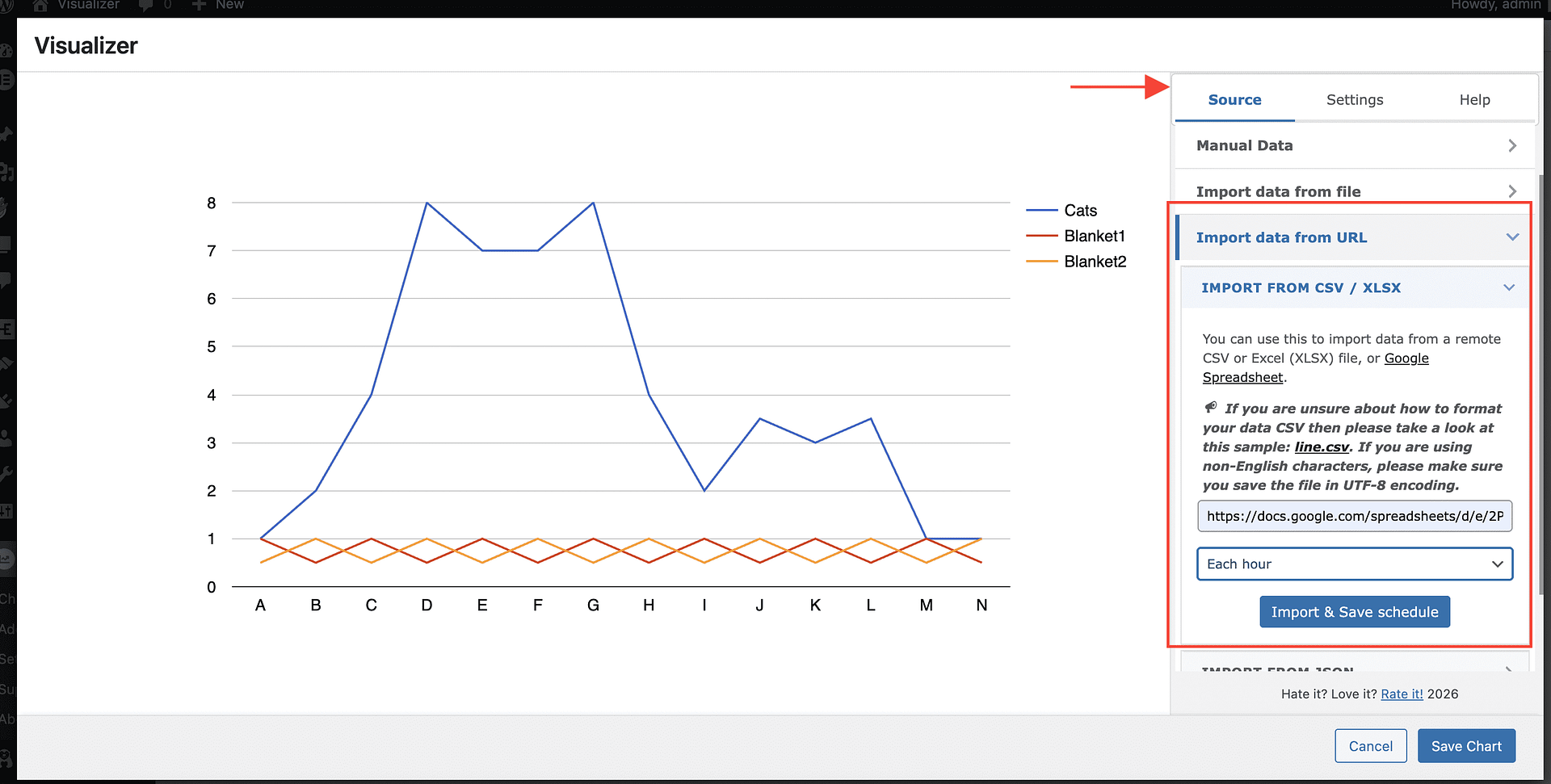
3. Under the Source tab, expand Import data from URL and Import from CSV / XLSX.
4. Under the link of the live source, use the dropdown to establish an import schedule.
Select One-time when your source file is static or when the chart no longer needs regular updates. One-time charts are imported when you save them and are not queued for recurring imports. For recurring sync, choose an interval that is the same as, or longer than, how often your source data actually changes.
Using short recurring intervals across many charts creates repeated background tasks. Each scheduled import run starts new chart imports for about 20 seconds; charts that are still due when that time budget is reached are picked up by the next run. This batching prevents a large backlog from being processed in a single run. If your imports are already overdue, first switch inactive or finished charts to One-time or a longer interval, then retry overdue chart imports in small batches. If actions are pending, failed, overdue, or missing, follow this troubleshooting guide.
Developers can change the per-run time budget in seconds with the visualizer_import_time_budget filter. For example, return 40 to allow the run to start new imports for about 40 seconds:
add_filter( 'visualizer_import_time_budget', function ( $budget ) {
	return 40;
} );
Custom import intervals
The Visualizer plugin provides a feature to synchronize your chart data with a remote CSV file. By default, the plugin checks the file URL every 10 minutes (visualizer_ten_minutes), which is also the smallest built-in interval. If you want to check the file even more often, follow these steps:
Use shorter custom intervals only when they match how often the source data changes, and avoid applying them broadly across many charts because they increase background workload.
1. Copy this code snippet:
add_filter('visualizer_chart_schedules', 'visualizer_chart_schedules', 10, 3);
function visualizer_chart_schedules( $schedules, $type, $chart_id) {
	if($type === 'csv'){
		$schedules = array_merge(
			$schedules,
			array(
				'0.1' => __( 'Every 6 minutes', 'visualizer' ),
			)
		);
	}
	return $schedules;
}

// these 2 functions are for the cron. the interval chosen here should be smaller or equal to than the interval chosen above.
add_filter('visualizer_chart_schedule_interval', 'visualizer_chart_schedule_interval', 10, 1);
function visualizer_chart_schedule_interval($default){
	$default = 'every_minute';
	return $default;
}

add_filter('cron_schedules', 'cron_schedules', 10, 1);
function cron_schedules($schedules){
	$schedules['every_minute'] = array(
		'interval' => 60,
		'display' => __('Every Minute')
	);
	return $schedules;
}
2. Replace the intervals from the code to fit your needs.
3. Paste the code into the plugin's file.
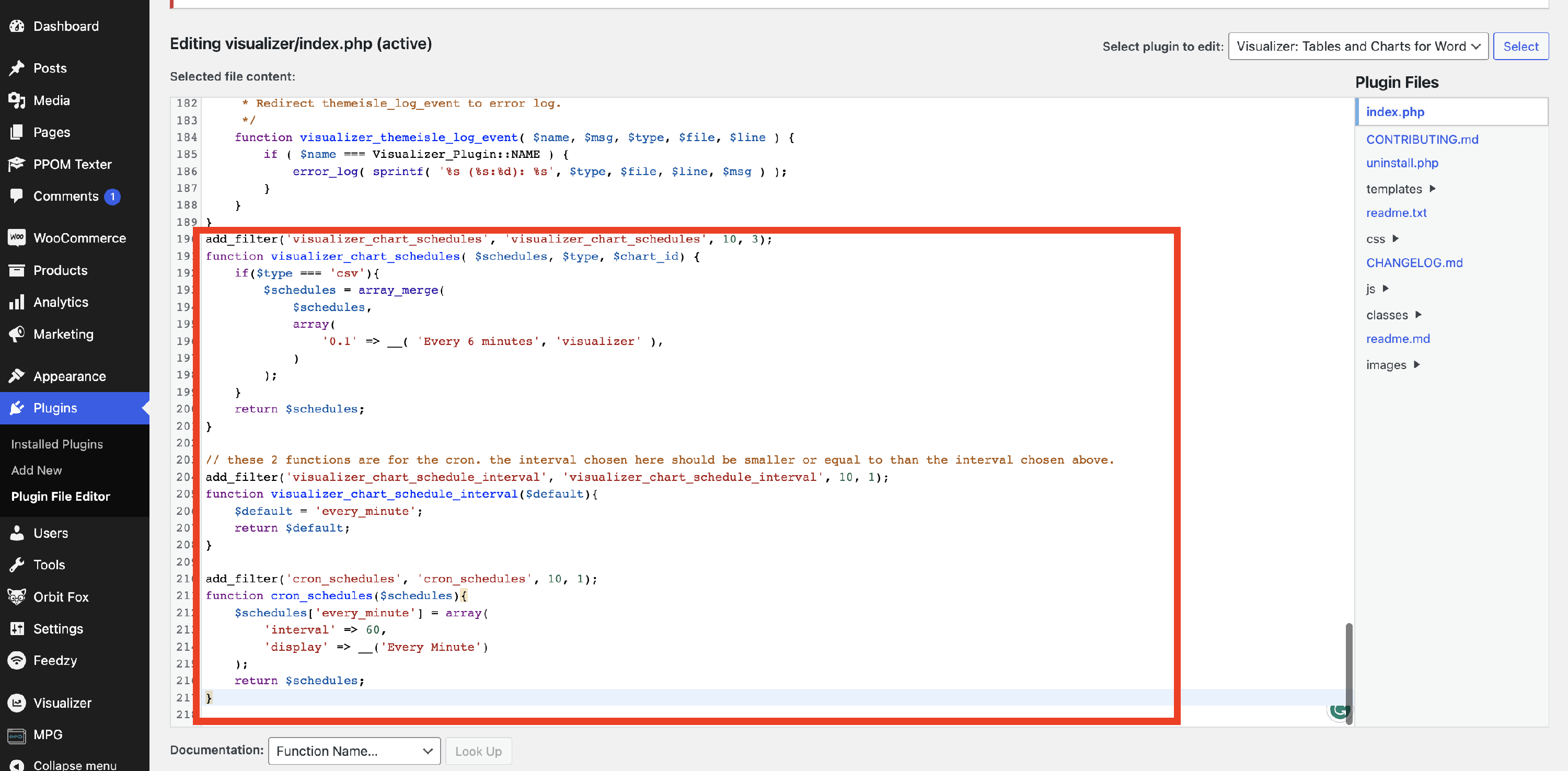
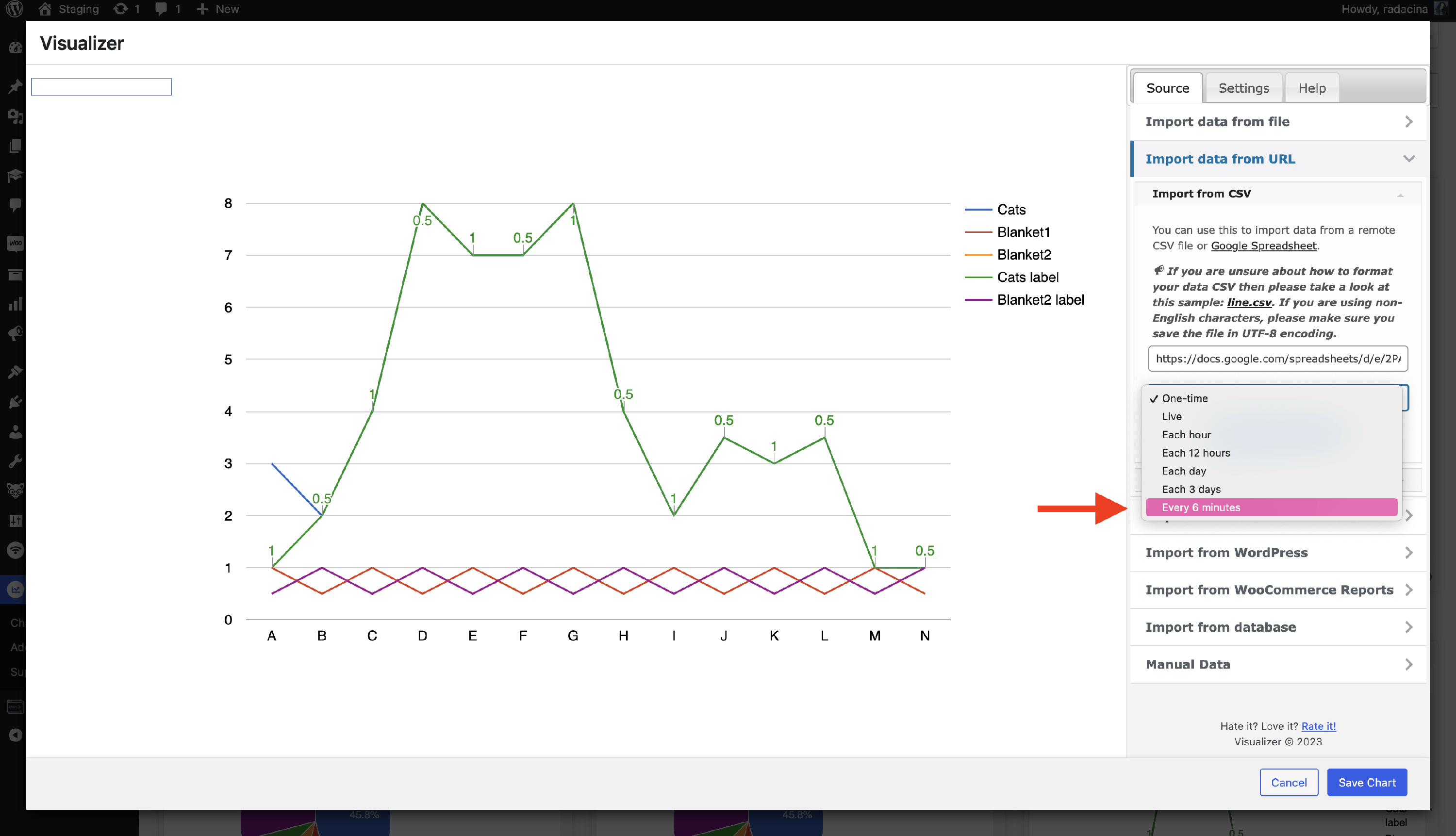
4. Save the changes, then check the available intervals again.
Result
If the import schedule option is grayed out
If the import schedule dropdown is disabled and you see an upgrade prompt, your current license tier does not include automatic synchronization. Scheduled recurring sync requires the Plus or Infinite plan.
On the Personal plan you can still import data from an online file as a one-time import, but the chart will not refresh automatically. To enable recurring sync, upgrade your subscription; see the pricing page to compare plans.