
Creating Featured Images from Post Titles
Learn how to automatically generate beautiful, branded featured images from your post titles. Perfect for text-based content without images.
Overview
The "Generate from Title" feature creates custom graphics with your post title overlaid on backgrounds, colors, or images. This ensures every post has a professional-looking featured image, even without content images.

When to Use Title-Based Generation
Ideal Use Cases
✓ Text-Only Content - Opinion pieces - Tutorials without screenshots - Announcements - News articles
✓ Consistent Branding - Podcast episodes - Video posts - Quote posts - Series/columns
✓ Social Media Optimization - Creates share-worthy images - Consistent appearance in feeds - Professional look across platforms
When NOT to Use
✗ Content already has relevant images
✗ Visual/photo-heavy blogs
✗ Product pages with product photos
✗ Gallery or portfolio posts
Setting Up Title-Based Generation
Step 1: Enable the Feature
- Go to Auto Featured Image > Settings > General
- Select "Generate from Post Title" as generation method
Background Configuration
To configure the background you need to go to Auto Featured Image > Settings > Image Settings
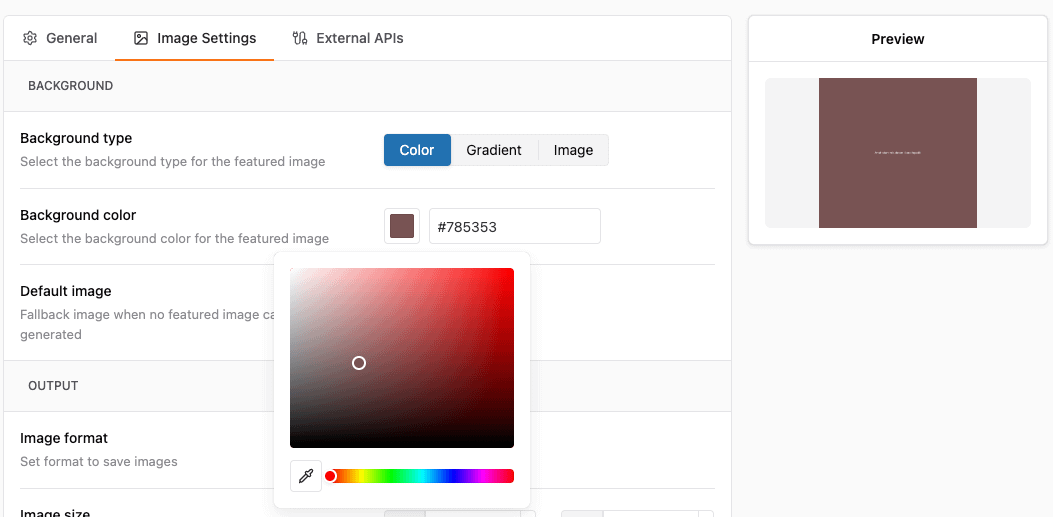
Option 1: Solid Color Background
Best for: Clean, minimal design
Configuration:
Background Type: Solid Color Color: #3498db (or use color picker)
Popular Color Schemes:
| Theme | Colors | Use Case |
| Corporate | #2c3e50, #34495e | Professional blogs |
| Vibrant | #e74c3c, #f39c12 | Creative/design blogs |
| Minimal | #ecf0f1, #bdc3c7 | Tech/minimalist |
| Dark Mode | #1a1a1a, #2d2d2d | Modern aesthetic |
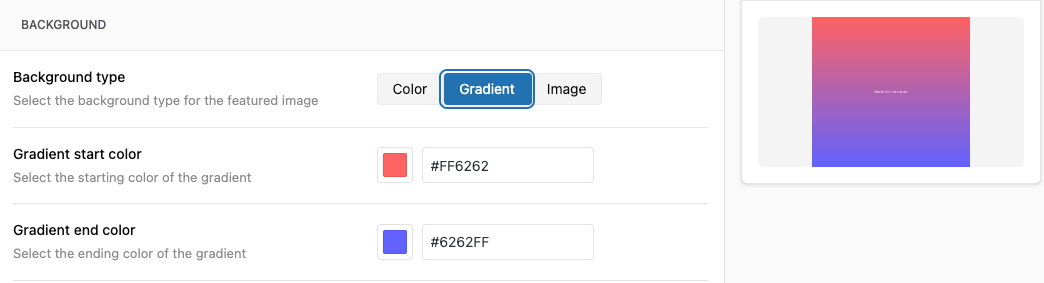
Option 2: Gradient Background
Best for: Modern, eye-catching design
Popular Gradients:
Blue Lagoon: #43e97b → #38f9d7 Bloody Mary: #ff512f → #dd2476 Summer: #fddb92 → #d1fdff Purple Love: #cc2b5e → #753a88
Gradient Tools: - WebGradients - UIGradients
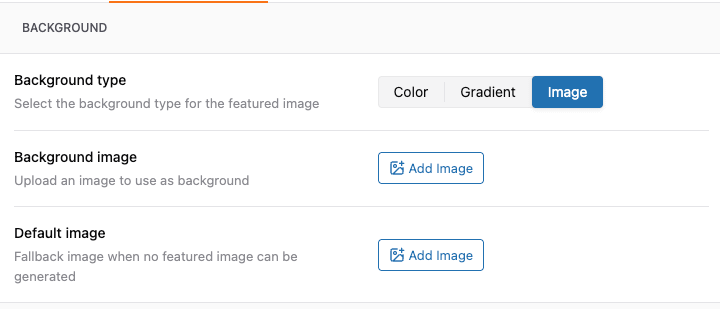
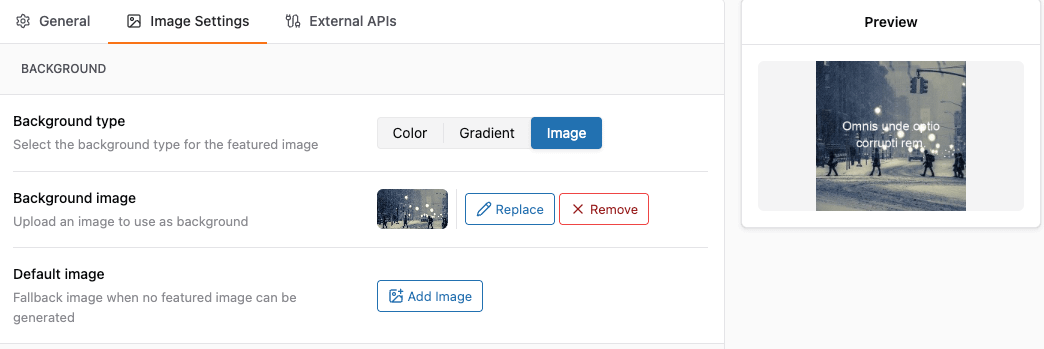
Option 3: Background Image
Best for: Branded, custom look
Best Practices for Background Images:
- Use high-resolution images (1920x1080 or larger)
- Choose subtle patterns or blurred images
- Add dark overlay (40-60%) for text readability
- Ensure consistent brand colors
- Test text visibility
Recommended Background Types:
- Blurred photos
- Subtle patterns/textures
- Brand-related imagery
- Abstract designs
Font Selection and Styling
Choosing the Right Font
Configuration Location: Auto Featured Image > Settings > Image Generation > Typography
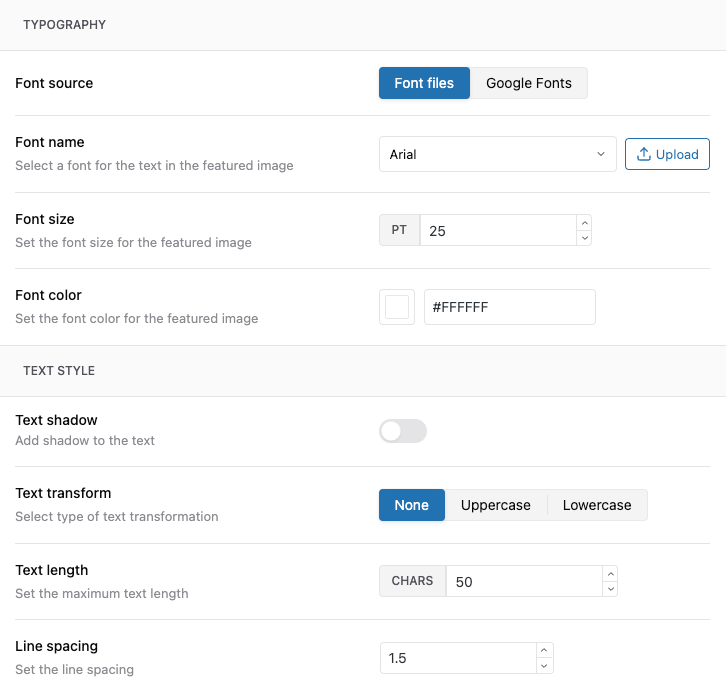
Available Font Options
- System Fonts (Fast, Reliable) :
Arial, Tahoma, Segoe UI - Google Fonts (Pro)
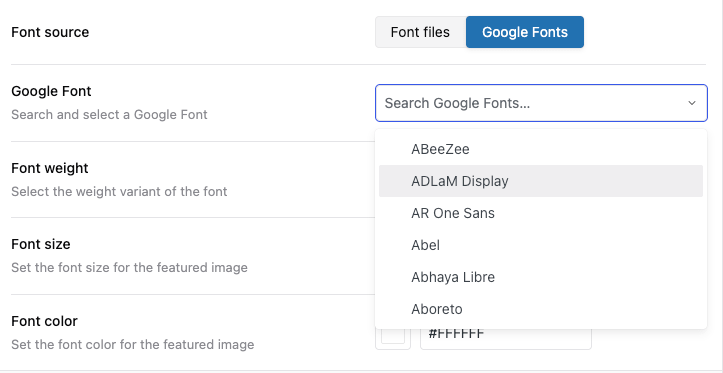
- Upload Fonts (Pro)
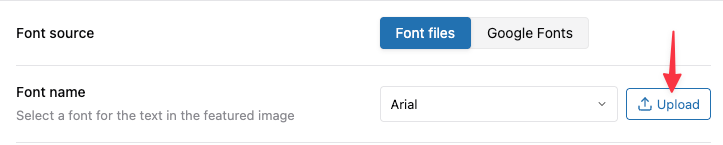
Font Styling Options
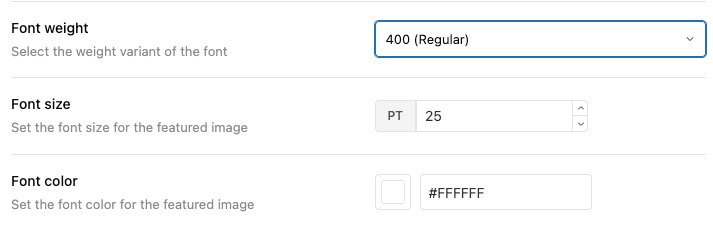
Font Size
Small Posts: 36-42px Medium Posts: 48-60px Long Posts: 30-36px (auto-adjust)
Font Weight
Light: 300 Regular: 400 Medium: 500 Semi-Bold: 600 Bold: 700 Extra Bold: 800
Font Color
Light Backgrounds: #2c3e50 (dark text) Dark Backgrounds: #ffffff (white text) Colored Backgrounds: Test contrast
Text Positioning Options
Horizontal Alignment
Left - For minimal designs Center - Most popular, balanced Right - Unique, artistic
Vertical Positioning
Top - Modern, minimalist Middle - Balanced, traditional Bottom - Stable, grounded Custom - Precise pixel positioning
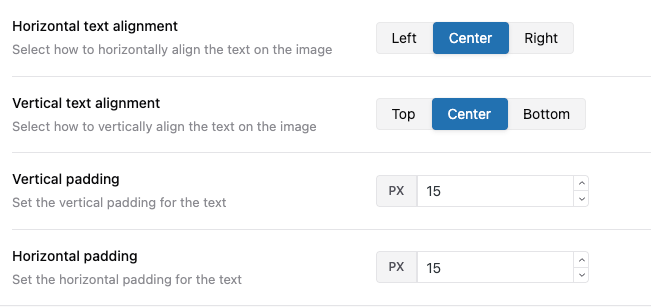
Padding/Margins
Configuration:
Top Padding: 100px Bottom Padding: 100px Left Padding: 80px Right Padding: 80px
Safe Zones: - Keep text 60-100px from edges - Prevents cut-off on different displays - Ensures social media compatibility
Text Effects
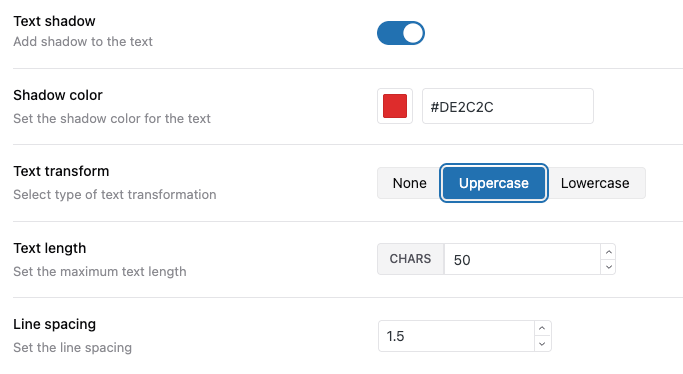
- Text Shadow: Improve readability, add depth
- Text Transform: Transform the text to Uppercase or Lowercase
- Text Length: Set the maximum Text length
- Line Spacing: Set the line spacing
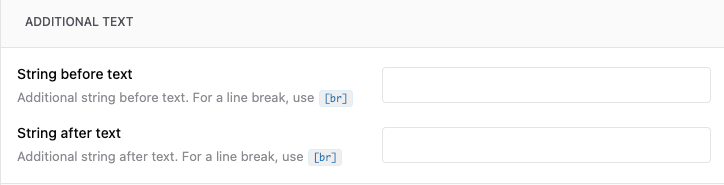
- String before text: Additional string before text. For a line break, use
[br] - String After text: Additional string after text. For a line break, use
[br]
SEO and Social Media Optimization
Optimal Image Dimensions
Recommended Size:
1200 x 630 pixels
Why? - Facebook recommended size - Twitter large card size - LinkedIn preview size - 1.91:1 aspect ratio
Alternative Sizes:
1200 x 675 (16:9) - YouTube-style 1080 x 1080 (1:1) - Square for Instagram
Open Graph Preview
Generated images automatically work with: - Facebook sharing - Twitter cards - LinkedIn posts - Pinterest pins - Slack previews
Related Articles
- Quick Start Guide
- Settings Explained: Complete Reference
- Understanding How Auto Featured Image Works
- SEO Best Practices for Auto-Generated Images
- Using Stock Image Search