
Full walkthrough of the dashboard and all configuration options.
This guide provides a complete walkthrough of the Robin Image Optimizer dashboard and all available configuration options. It explains what each setting does, when to use it, and how it affects image optimization behavior.
Dashboard overview
The dashboard gives a high level view of your image optimization status.
You can see:
- Total images detected in the Media Library
- Number of original images and thumbnails
- Optimization status for originals, WebP, and AVIF
- Pending, converted, and error counts
- Overall size savings
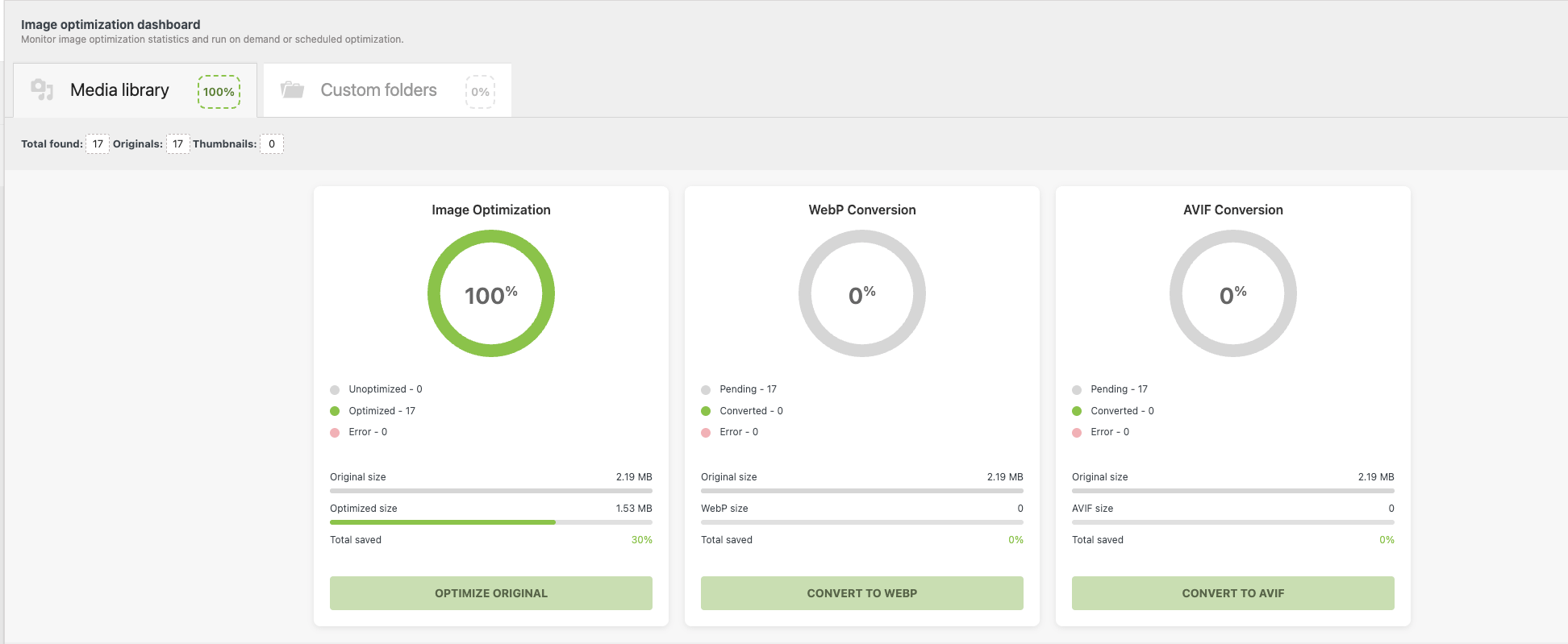
From here, you can start bulk optimization or format conversion and monitor progress in real time.
Main settings
These settings control how images are optimized and delivered.
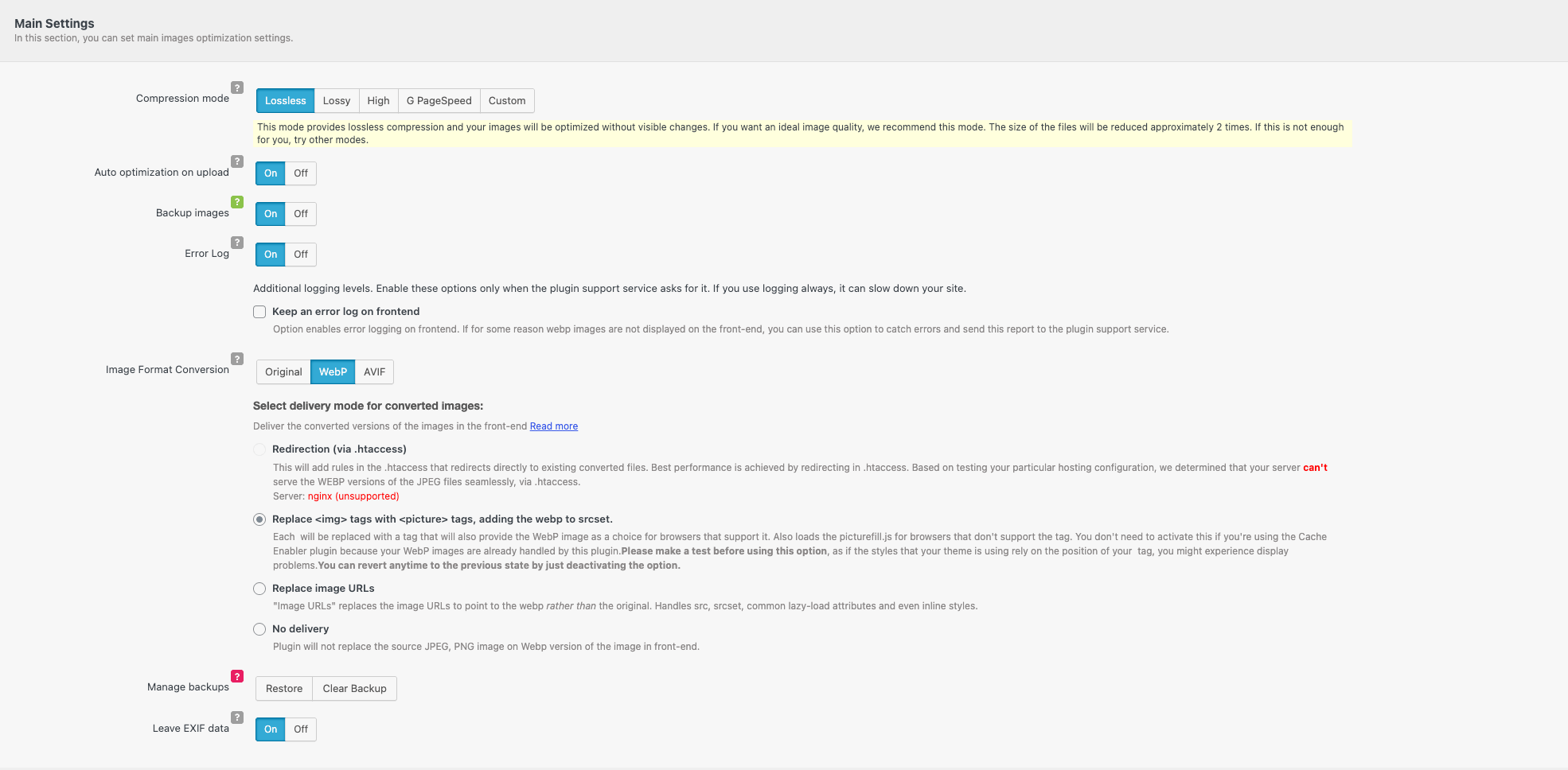
Compression mode
Defines the balance between image quality and file size:
Lossless
Optimizes images without visible quality changes. Recommended for most sites.
Lossy
Applies stronger compression with minor quality loss.
High
Aggressive compression for maximum size reduction.
G PageSpeed
Optimized to meet Google PageSpeed recommendations.
Custom
Allows fine tuned compression control.
Auto optimization on upload
When enabled, images are optimized automatically as soon as they are uploaded to the Media Library.
Recommended for most setups.
Backup images
When enabled, original images are backed up before optimization.
This allows you to restore originals later if needed.
Error log
Enables internal logging for optimization related errors.
Use this only for troubleshooting, as constant logging can impact performance.
Keep an error log on frontend
Logs optimization and delivery errors on the frontend.
Enable this only when requested by support.
Image format conversion
Controls which modern image formats are generated.
Original
No format conversion
WebP
Generates WebP versions of images
AVIF
Generates AVIF versions of images
You can enable WebP or AVIF depending on browser support and server capabilities.
Delivery mode for converted images
Defines how converted images are served on the frontend.
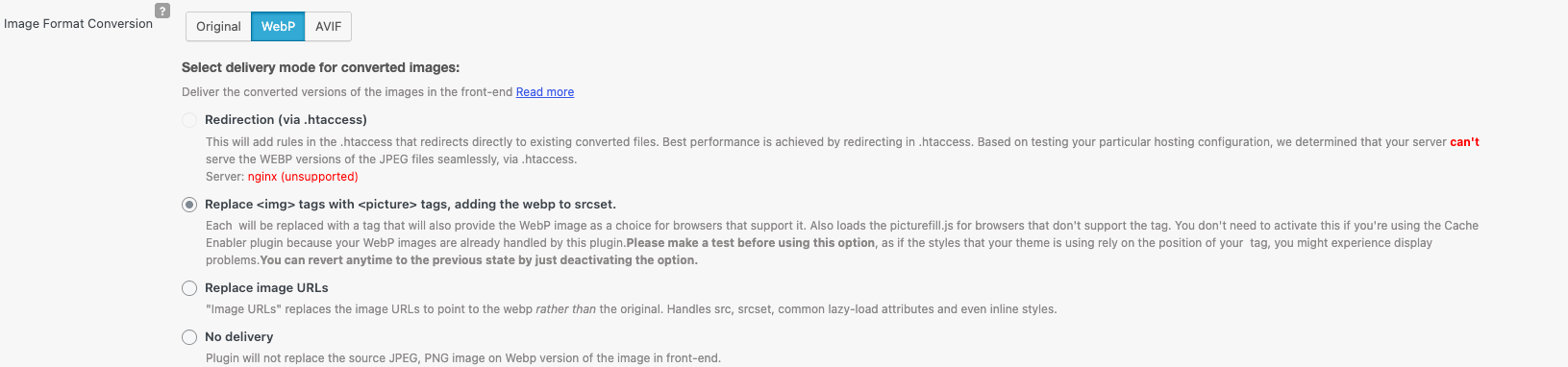
Redirection via .htaccess
Uses server level redirects to serve converted images.
Best performance option for Apache servers with WebP or AVIF support.
Not supported on Nginx.
Replace img tags with picture tags
Replaces image markup with `` elements and adds modern formats to srcset .
Recommended for Nginx servers or when .htaccess redirects are unavailable.
Replace image URLs
Rewrites image URLs to point directly to converted formats.
Handles src, srcset, lazy load attributes, and inline styles.
No delivery
Converted images are generated but not served on the frontend.
Useful for testing or staging environments.
Manage backups
Restore
Restores original images from backup
Clear backup
Permanently removes stored backups
Leave EXIF data
When enabled, EXIF metadata is preserved during optimization.
Keeping EXIF data increases file size slightly.
This setting only applies to images optimized after it is enabled.
Optimization settings
These settings control how images are processed during optimization.
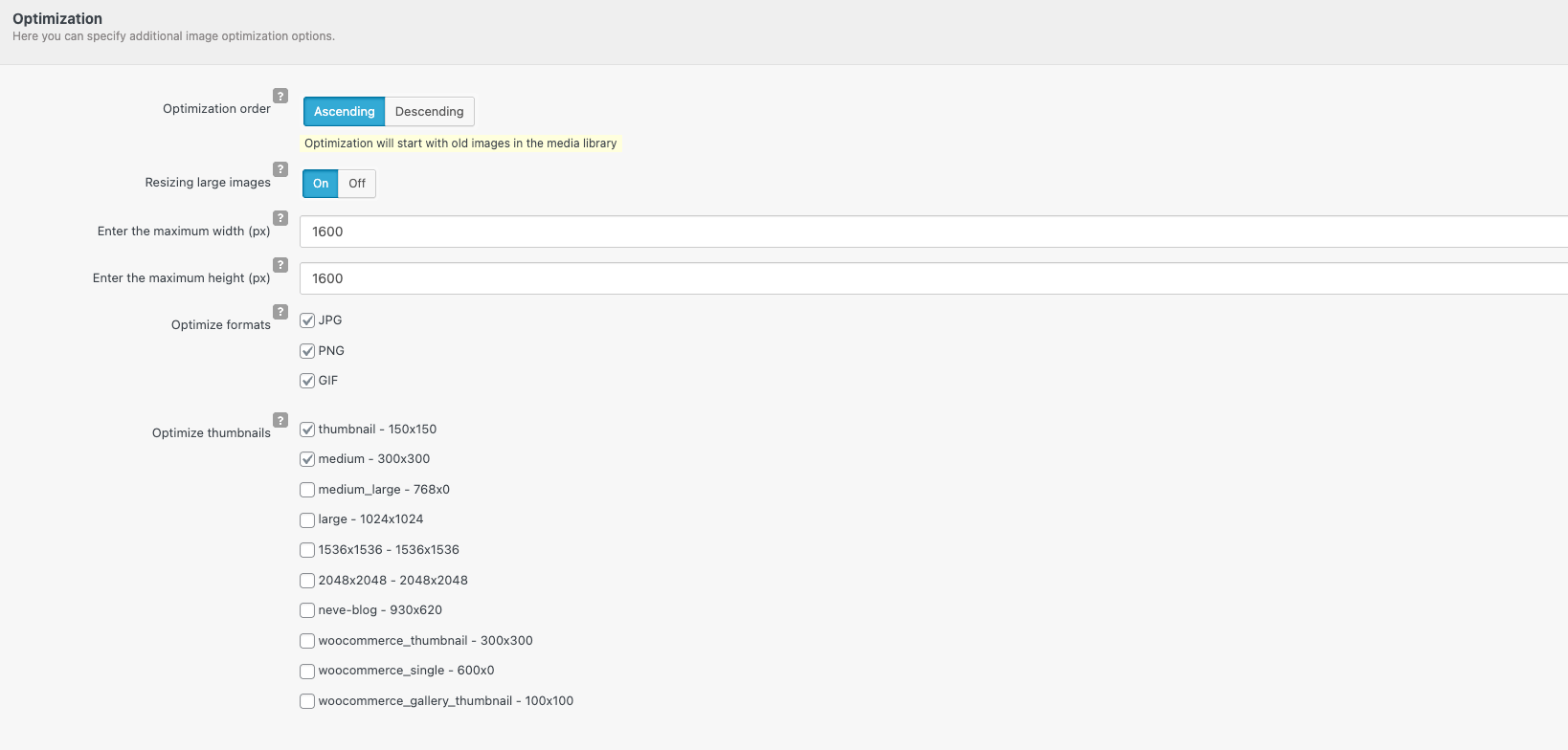
Optimization order
Ascending
Starts optimization with older images
Descending
Starts with the most recently uploaded images
Resizing large images
When enabled, images larger than the defined dimensions are resized.
- Maximum width in pixels
- Maximum height in pixels
Helps prevent serving oversized images.
Optimize formats
Select which image formats should be optimized:
- JPG
- PNG
- GIF
Optimize thumbnails
Choose which registered image sizes should be optimized.
These sizes usually come from WordPress, your theme, or plugins such as WooCommerce.
Scheduled and background optimization
Controls how optimization runs over time.
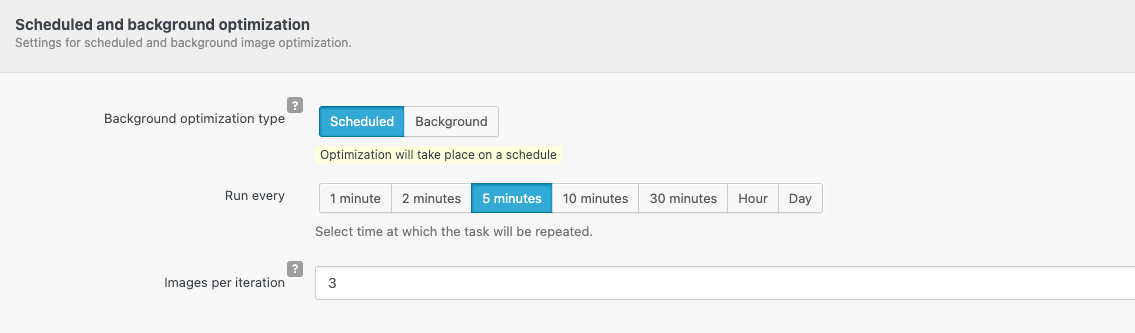
Background optimization type
Scheduled
Optimization runs at fixed intervals
Background
Optimization runs continuously in the background
Schedule frequency
When Scheduled is selected, choose how often optimization runs:
- 1 minute
- 2 minutes
- 5 minutes
- 10 minutes
- 30 minutes
- Hour
- Day
Images per iteration
Defines how many images are processed in each optimization cycle.
Lower values reduce server load. Higher values speed up optimization.
Best practices
- Use Lossless compression for production sites
- Enable backups before bulk optimization
- Start with Scheduled optimization on shared hosting
- Increase Images per iteration only after testing server limits
This guide provides a complete reference for configuring and managing image optimization using Robin Image Optimizer.