
Managing payment methods
WP Full Pay support 25+ payment methods:
- Credit cards (Visa, Mastercard, American Express, Discover, Diners Club, JCB, China UnionPay, Cartes Bancaires, and Meses sin intereses)
- Wallets and local payment methods (Alipay, Apple Pay, Cash App Pay, Google Pay, GrabPay, MobilePay, PayNow, WeChat Pay, Revolut Pay, Amazon Pay, and Stripe Link)
- Bank redirects (BLIK, Bancontact, EPS, iDEAL, Przelexy24, and TWINT)
By enabling payment methods on the payment forms, you offer flexibility and encourage your customers to complete the checkout process.
Enabling/disabling payment methods are done in Stripe dashboard.
In this article
Enable/disable payment methods
Here's how to enable/disable the payment forms from Stripe dashboard:
Log in to your Stripe Dashboard
Navigate to the Payment Methods settings to view a list of available local payment methods you can accept.
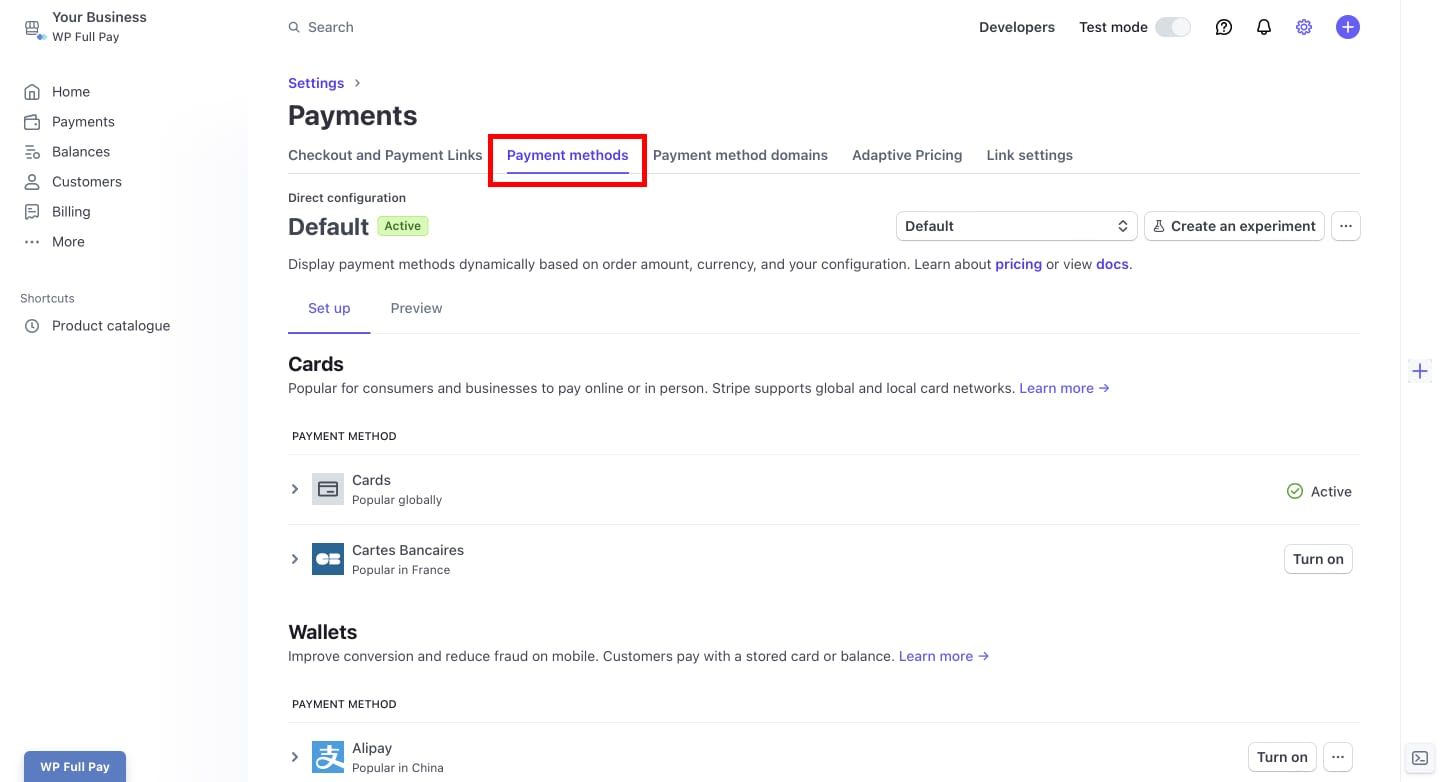
Click the Turn on button next to the payment method you want to accept.
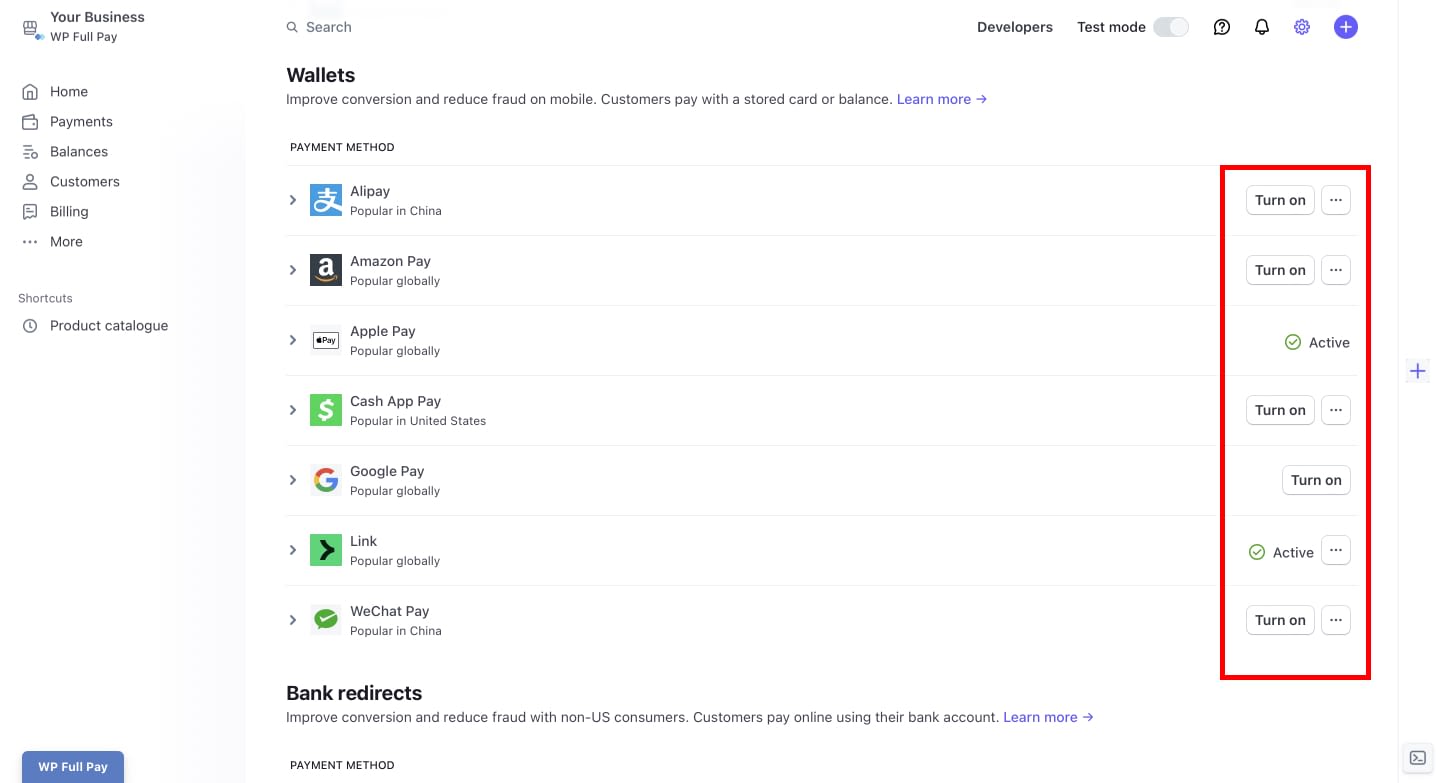
Depending on the payment method, you may be prompted to provide additional information required by the scheme. Follow the prompts to complete this step.
After turning on the payment method, most will show as “On” immediately.
- Some payment methods may display as “Pending” temporarily.
If a payment method remains in "Pending" status longer than expected, contact Stripe support for assistance.
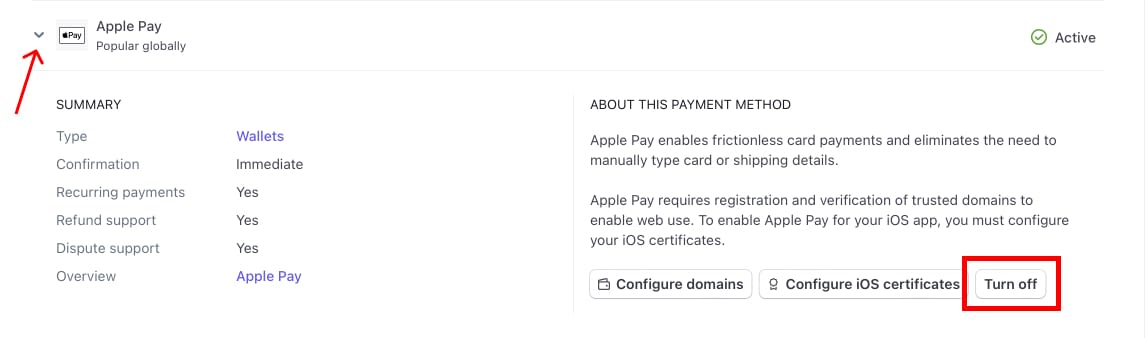
To disable a payment method, click on the arrow on the left, and click on the Turn off button.
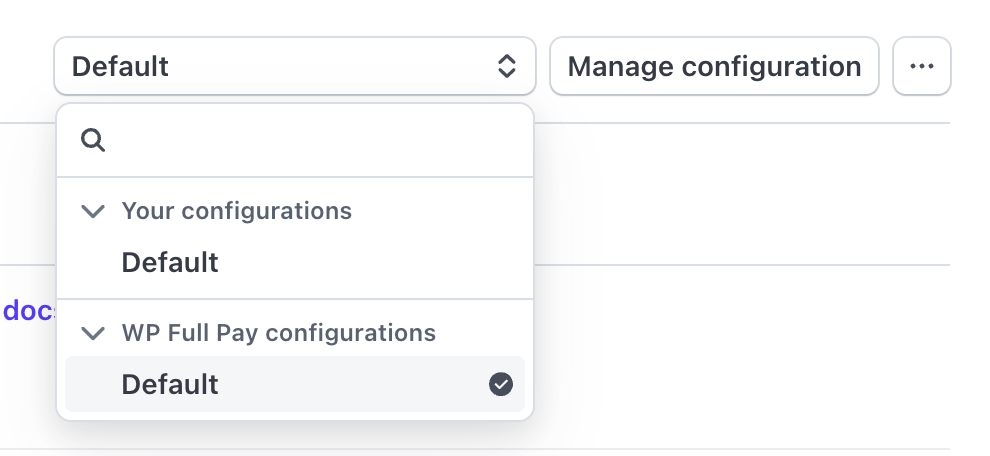
Make sure you have selected the payment method configuration called "Default" under the “WP Full Pay configurations” via the dropdown in the upper right hand of the page when adding payment methods:
Payment Methods in WP Full Pay
WP Full Pay supports additional payment methods for one-off payment forms, including bank redirect and buy-now-pay-later type payment methods.
In addition to configuring your Stripe account to turn on or off individual payment methods, you will also need to configure the individual form with the payment methods you wish to support. This allows you to e.g. have one form in Euros that support all the European payment methods, and another one in US dollars focused on the North American market.
Enabling payment methods on a form
First locate your form in the WP Full Pay admin console and then select the "Payment" tab of the form. At the bottom of the page you'll see a list of payment methods that can be enabled for the form
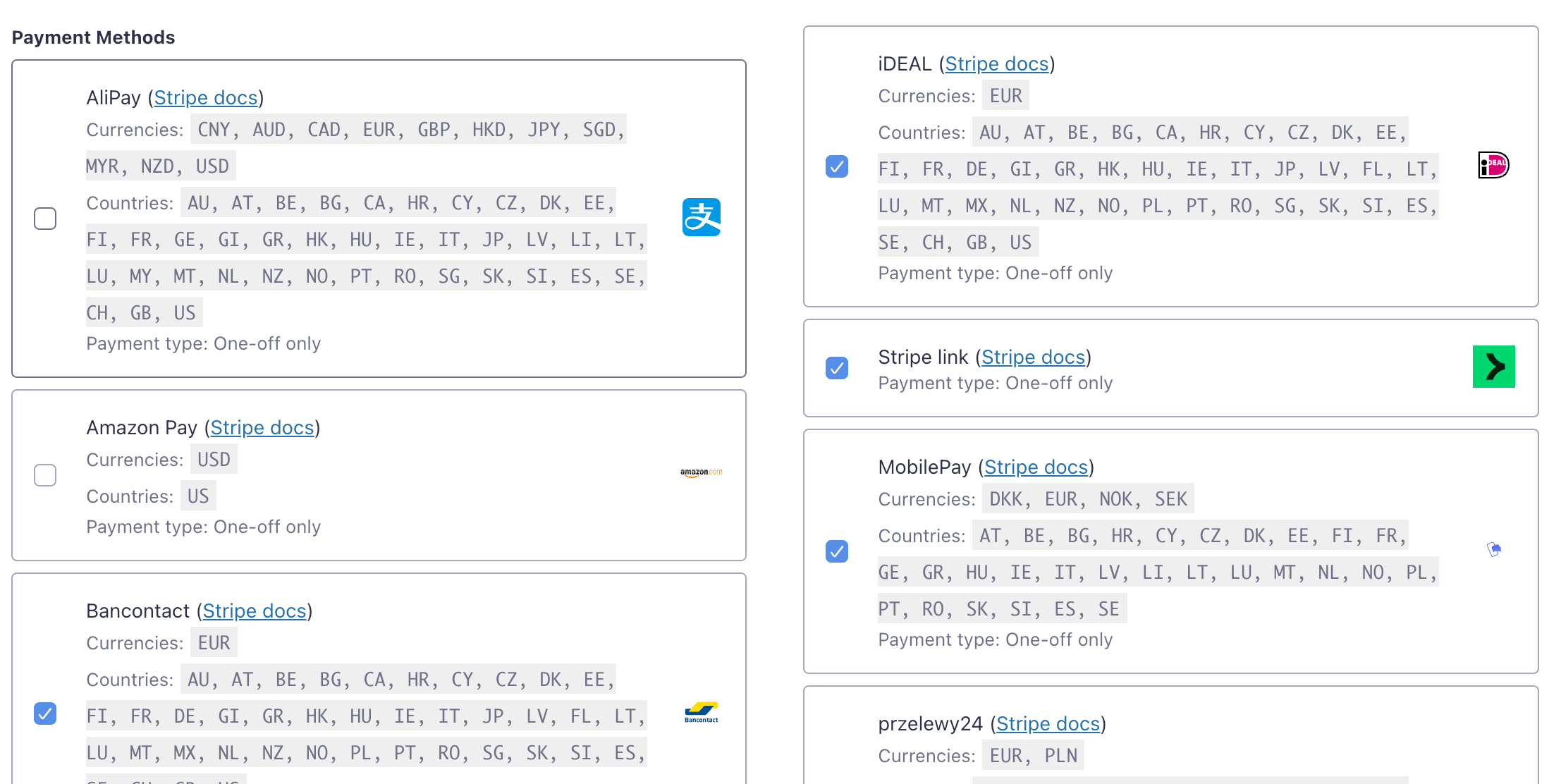
Selecting payment method types to enable
Check or uncheck payment methods to select which will be available on the selected form.
Note that it is only possible to select payment methods on the one-off/one-time payment type forms at this point in time .
When done, save the form and the payment methods will show up for those customers that are eligible (Stripe will determine eligibility based on the customer's location, the configured currency, etc.)
Wallet Eligibility
WP Full Pay supports various wallet payment methods, including PayNow, GrabPay, and Revolut, for eligible one-time payment flows.
Please note that these wallet payment methods are only displayed when the form currency, Stripe account, and payment method settings meet the eligibility requirements for the selected wallet.
Apple Pay and Google Pay work differently. They don't have their own checkbox in the form's payment method list — they're offered through the Credit Card payment method. Turning them on in Stripe doesn't mean every visitor sees them: Stripe shows a wallet button only when the visitor's browser, device, and saved wallet are eligible, and when your Stripe account, payment method configuration, form currency, customer location, and domain all meet Stripe's requirements. See Stripe's Apple Pay documentation for the current requirements.
Payment methods not showing up?
- First, make sure you are using the latest WP Full Pay release.
- Secondly, selecting payment methods requires that you have gone through the "Connect Live Account" flow from the Full Pay -> Settings -> Stripe Account page.
- Lastly, make sure that the form type you are editing is an
Inline one-time payment form. The option to select payment methods is not yet available on other types of forms.
Apple Pay or Google Pay is not in the form's payment method list: this is expected. Make sure Credit Card is checked on the form — Apple Pay and Google Pay are offered through it.
Apple Pay or Google Pay doesn't appear on the published form:
- In your Stripe Dashboard, confirm the wallet is turned on in the payment method configuration WP Full Pay uses (Default under WP Full Pay configurations, as described above).
- Confirm your site's domain is registered and active for wallet payments in your Stripe Dashboard.
- Confirm Credit Card is enabled on the form.
- Test over HTTPS, in a normal (not private or incognito) browser window, on an eligible device and browser with the wallet set up and a saved payment card — for example, Safari with Apple Pay, or Chrome with Google Pay.
📝 Note: An expired WP Full Pay license doesn't disable Apple Pay or Google Pay. The wallets keep working without an active license, but a transaction fee applies. See What Happens When Your License Expires for details.