
Feedzy Troubleshooting Guide
This guide covers the basic checks that we perform when the Feedzy plugin doesn't work as expected.
In case you want more information about the Feedzy RSS Feeds plugin, please refer to the main documentation.
In this article
General requirements
- The feed has to be in an XML format, like this one
- The feed has to be valid on this website
- Even if your feed passes standard validators like W3C, it may still cause errors in Feedzy due to the different parsing rules in the SimplePie library. Feedzy uses the Simple Pie library. The feed(s) you want to use need to be compatible with the library.
Displaying feeds
First, please make sure that the general requirements are met.
- In case images are not displayed, you can check if the feed provides them, by searching for: image, PNG, JPG, GIF and other popular image extensions.
- If you are using an editor like Gutenberg or Elementor, and some of the parameters you configured doesn't work as expected, we recommend trying the shortcode approach. Try to use the same options configured in the editor, in a shortcode. How to use Feedzy with a shortcode
Importing feeds
- First please make sure that the general requirements are met.
- If your logs show
WP HTTP Error: cURL error 28orConnection timeout after 10001 ms, follow Troubleshoot cURL error 28 timeout when Feedzy fetches an RSS feed. - Make sure that cron enabled on your website
- Install & activate WP-Cron Status Checker plugin
- Check the plugin widget in the Dashboard
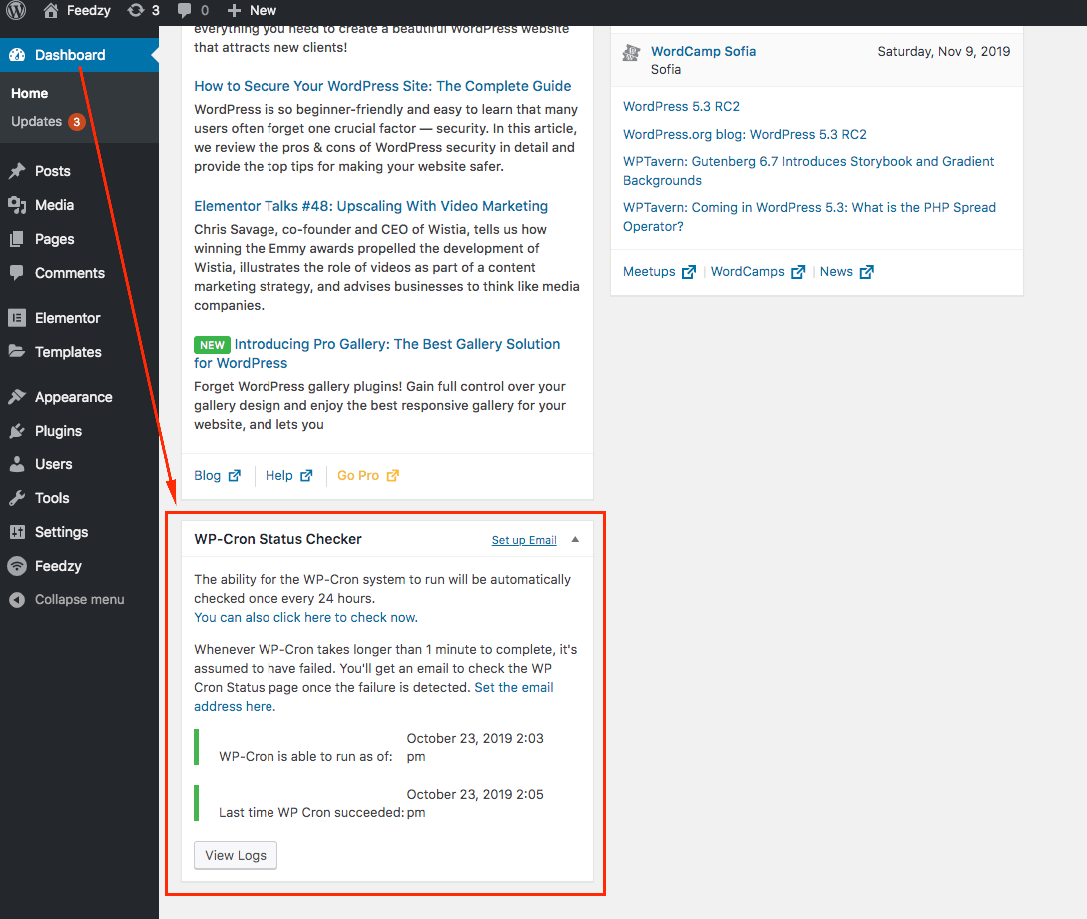
- If cron is disabled on your site, we recommend contacting your hosting provider
Warning: Unable to register cron job. Your feeds might not get updated
If you see the warning "Unable to register cron job. Your feeds might not get updated", WordPress could not register or run Feedzy's scheduled event. Feedzy uses WP-Cron for scheduled imports, so imports may stop until WP-Cron works correctly.
Use this quick checklist:
- Install WP Crontrol or WP-Cron Status Checker and confirm cron is active.
- In Tools > Cron Events (WP Crontrol), look for Feedzy events (usually starting with
feedzy_). - Visit
https://yourwebsite.com/wp-cron.php?doing_wp_cronin a browser tab and confirm it returns no error. - If you use caching or security plugins, temporarily disable them and test again.
- Ask your hosting provider whether WP-Cron is disabled or blocked on your server.
For a full step-by-step check, see How to Check if Cron Jobs are Working on Your Site.
Scheduled imports run only when I click "Run Now"
If an import job runs correctly when you click Run Now but does not run on its own schedule — or runs much later than expected — the cause is usually WP-Cron, not Feedzy. WP-Cron is triggered by visits to your site, so on staging, low-traffic, or heavily cached sites (for example, sites using LiteSpeed or another full-page cache), scheduled events can be delayed or skipped entirely.
- In Tools > Cron Events (WP Crontrol), find the Feedzy events (they usually start with
feedzy_) and check the Next Run column. A time in the past, or "Now" that never clears, means WP-Cron is not firing on schedule. - Confirm the schedule saved on the import job is the one you expect. To change or replace it, follow How to Set New Schedule for Import Cron Jobs in Feedzy.
- If WP-Cron is unreliable in your environment, replace it with a real server-side cron job that calls
wp-cron.phpat a fixed interval. A 5–15 minute interval works well for most import schedules, and this is the recommended setup for low-traffic and cached sites. Follow How to set up a real cron job in WordPress for the full steps, including thedefine( 'DISABLE_WP_CRON', true );constant.
Only 10 posts are imported
If Feedzy imports only 10 posts, check these items in order:
- Open Feedzy > Import Posts, edit the import job, then check Step 4 > General feed settings > Items Count. This value is the maximum number of items per run.
- Confirm the source feed actually contains more than 10 available items by opening the RSS URL directly in your browser.
- Validate the RSS URL at W3C Feed Validation Service.
- Review the import status counters (Found / Duplicates / Imported) to see whether items are being skipped.
- Review keyword/date filters and duplicate settings, which can reduce the number of imported posts.
- Use Purge & Reset only when you intentionally want to re-import previously seen items.
📝 Note: Items Count is a per-run maximum, not a guarantee. Feedzy cannot import more items than the source feed provides, and previously imported items may be skipped as duplicates.
To change this limit, follow How to use Feed to Post feature in Feedzy and review General feed settings > Items Count.
Nothing was imported
If the import job runs but reports "Nothing imported!", Feedzy read the feed and then skipped every item. Work through these checks in order.
1. Confirm the required mappings are set
Go to Feedzy > Import Posts, edit the import job, and open Step 3: Map Content. The post title and post content mappings must contain a value, because an item cannot become a post without them.
📝 Note: Featured Image is optional. Leave it blank when the source feed does not provide images. Do not fill it in only to complete every field in the wizard.
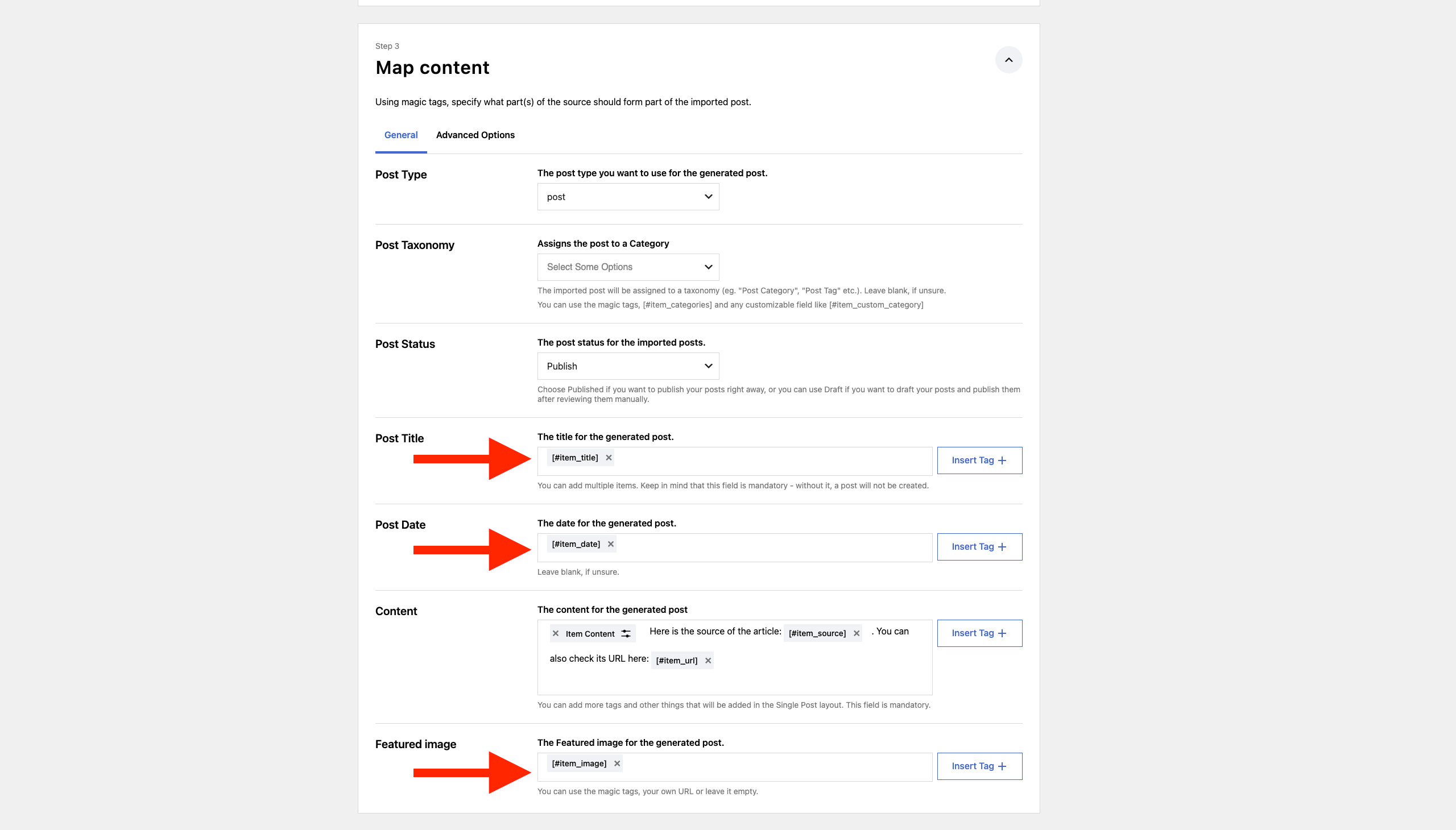
2. Turn on detailed logging before investigating further
An empty log does not mean nothing happened. At the default Error logging level Feedzy records only failures, and the most common reasons for an empty run — duplicates and filters — are not failures, so they never reach the log.
- Go to Feedzy > Settings > General.
- Set Logging Level to Debug.
- Click Save, then run the import job again with Run Now.
- Go to Feedzy > Settings > Logs and read the entries for that run. They record why each item was skipped.
3. Check the common reasons every item is skipped
- Every item was already imported. Feedzy skips items it has already seen. This is the usual cause when a job that worked for months stops importing while the source feed still looks healthy. Compare the Found / Duplicates / Imported counters, and see After X hours, no more content was imported.
- A filter or condition excludes every item. Review the keyword filters, date filters, and any conditions set in Step 2. A condition that requires a field the feed does not provide — for example requiring full content from a feed that only supplies short summaries — removes every item.
- The item limit or the feed itself changed. Check Step 4 > General feed settings > Items Count, and open the source URL in your browser to confirm it still returns the items you expect.
📝 Note: "Unable to find image" in the import preview is informational, not an error. It means the source item does not expose an image that Feedzy can detect. When you import posts or pages, this does not stop an item from being imported — the post is created without a featured image. See Images weren't imported.
4. If the job imports into the Media library
When an import job is set to create Media items instead of posts or pages, the image is the item being created. An item whose image cannot be resolved therefore cannot be created at all, and a job where no item resolves an image reports "Nothing imported!". Either map Featured Image to an image the feed actually provides, or change the job to import posts or pages instead.
"Empty URL" when adding an import source
If Feedzy shows an Empty URL error even though your feed URL opens normally, the source field may include hidden characters from copy-paste (such as trailing spaces, line breaks, or invisible formatting).
Use these steps to reset the source field:
- In your WordPress admin, go to Feedzy > Import Posts and open the affected import job.
- In Step 1: Sources configuration, remove the existing value from RSS Feed Sources completely.
- Manually type the full feed URL again instead of pasting it.
- Click Validate to test the source again.
- Click Save, then run the import job again.
If the issue continues:
- Confirm the URL is a direct RSS/XML feed by opening it in your browser.
- Validate the feed on https://validator.w3.org/feed/?.
- If Feedzy admin pages still behave unexpectedly, clear your cache or any optimization/minification plugin cache, then retry.
- Check Feedzy > Settings > Logs for related entries.
- Contact support at store.themeisle.com/contact and include the source URL plus relevant Feedzy log entries.
"Invalid feed URL" when validating or importing a source
If Feedzy shows Invalid feed URL, the source URL (and any redirect target it uses) must pass URL safety checks before Feedzy fetches feed data.
Use this checklist:
- Make sure the source uses
http://orhttps://. - Confirm the hostname resolves in DNS.
- Make sure the source host and any redirect host resolve only to publicly routable IP addresses.
- Do not use localhost or domains/IPs that resolve to private, loopback, link-local, multicast, or reserved ranges.
If the URL opens in your browser but still fails in Feedzy, check whether it redirects to an internal/non-public destination at any step in the redirect chain.
Images weren't imported
The images might not be available in the feed. You can search for popular image extensions. Also, make sure to set the proper magic tags for them.
Identify which message you are seeing
The message tells you whether an image was found at all, which decides what you can do about it:
- "Unable to find image" in the import preview means the source item does not expose an image that Feedzy can detect. There is no image URL to download, so no download or external-image setting can produce one. A fallback image is the only way to give these posts a featured image.
- "Unable to download image", a 403 Forbidden status, or upload errors in Feedzy > Settings > Logs mean an image URL was found but could not be saved to your site. See Featured images fail with a 403 Forbidden error and the SVG guidance below.
To give posts a featured image when the feed provides none, set an image under Feedzy > Settings > General > Fallback Featured Image Settings, or set one on the individual import job.
SVG or unsupported file type errors
If your logs or error-report emails show "Cannot upload the image to Media Library" together with "Sorry, you are not allowed to upload this file type", Feedzy is usually trying to save an SVG image — most often its bundled default placeholder (feedzy.svg) — as a featured image when a feed item has no usable image of its own.
Update Feedzy first
The current version of Feedzy detects file types that WordPress does not allow, such as SVG, and skips them instead of repeatedly recording an upload error. This stops the bundled placeholder from filling your logs and error-report emails with these messages, so updating is the first thing to check when you see them.
- Go to Plugins and confirm that Feedzy RSS Feeds — and Feedzy RSS Feeds Pro, if you use it — are updated to the latest version on the site where the errors occur.
- Make sure you are updating the site that actually generates the alerts. Error-report emails and log entries are tied to a specific site, so an update applied to a staging copy does not update your live site automatically.
- Open Feedzy > Settings > Logs and check the dates on the entries to confirm whether the errors are still happening or are older entries from before the update.
- Run the import job again and confirm the errors no longer appear.
If these SVG errors keep arriving in your error-report emails even after the upload errors stopped, the reports are most likely repeating old log entries. See Error-report emails keep showing the same old errors below.
If you specifically want SVG featured images
WordPress blocks SVG uploads by default for security reasons, and Feedzy follows the same Media Library rules. If you genuinely need SVG images from your feed saved as featured images:
- Enable SVG uploads with a trusted WordPress plugin that sanitizes SVG files.
- Or replace the fallback/default image with a non-SVG format such as JPG, PNG, or WebP whenever possible.
- If posts import correctly and featured images are optional for that feed, you can leave your setup unchanged.
How to verify
- Run the import job again.
- Confirm whether new posts were imported successfully.
- Check Feedzy > Settings > Logs and confirm the upload errors are no longer being added.
- If imports and front-end output are correct, no further action is required unless you specifically need SVG featured images.

Full post content wasn't imported
This feature is available only in the Developer and Agency subscriptions. The magic tag for importing the full post content is #item_full_content.
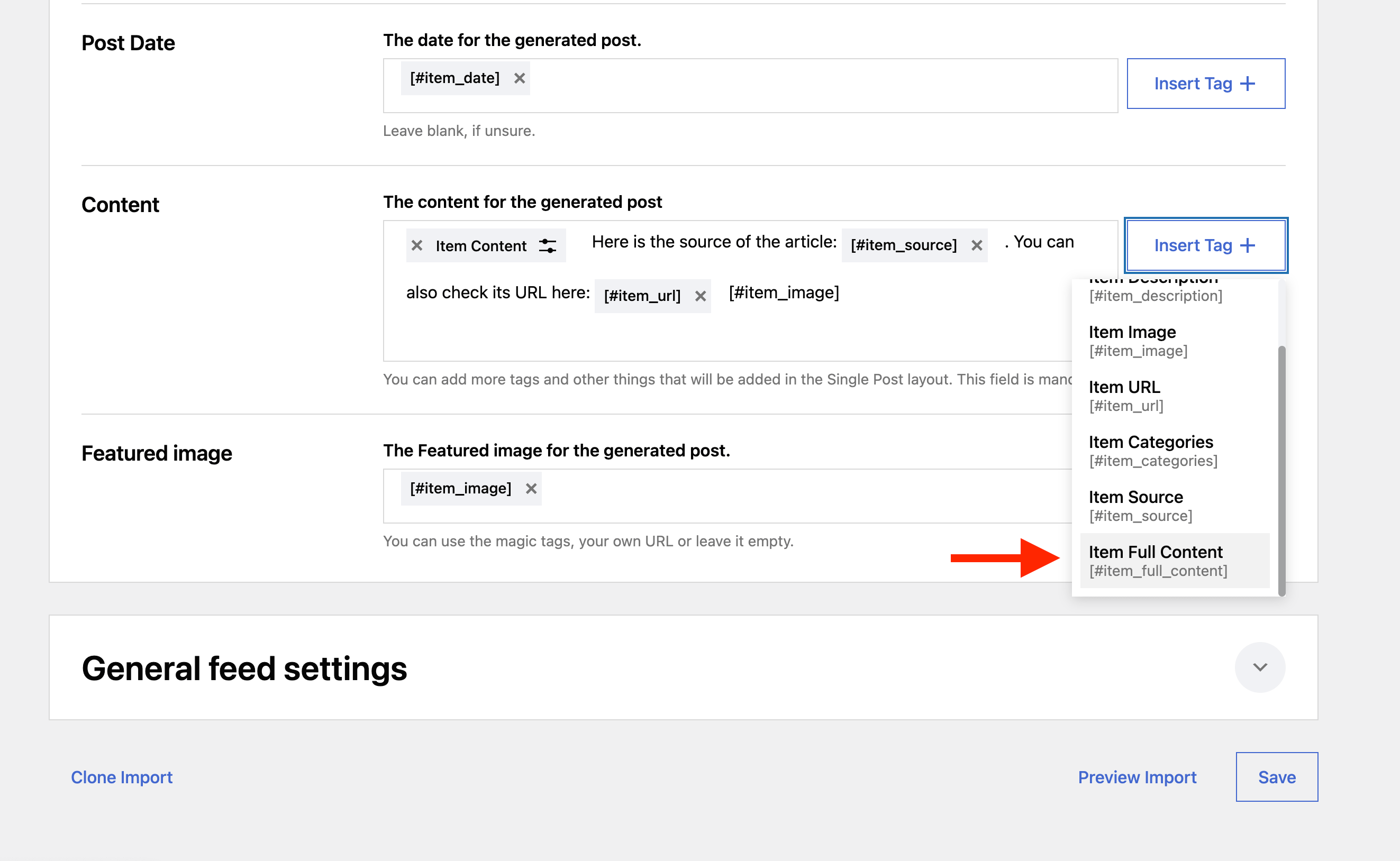
To configure the full content import correctly, follow these steps:
- Confirm your active subscription is Developer or Agency.
- In Feedzy, go to Feed to Post and open your import job.
- In the import wizard, navigate to Step 3 – Map Content.
- In the Content field, set the value to
#item_full_content. - Save the import job and click Run Now, or wait for the next scheduled run. To test with fresh results, delete previously imported posts before running the job again.
If you have the correct subscription but are still experiencing issues retrieving the full post content, please refer to this guide: How to Import Full Content with Images
Full post content is partial or shorter than expected
If the import runs successfully but the imported content is shorter than the original article, the source feed or source page may be limiting what Feedzy can retrieve.
When you use #item_full_content, Feedzy visits each item's URL and attempts to extract the article content directly from the page. The amount of content available depends entirely on the source:
- Some feeds provide only excerpts, even when mapped to the full-content tag. Feedzy cannot add content that the source does not include.
- Some source pages block or restrict content extraction, for example through paywalls, JavaScript rendering, or bot-blocking. Feedzy can only parse content that is present in the page's HTML source at the time of the request.
- Some pages structure content in ways that prevent full extraction, such as content loaded dynamically via JavaScript or spread across multiple paginated pages.
To check whether the source is limiting the available content:
- Open the source article URL directly in your browser.
- Compare the visible content on the page with the imported post in WordPress.
- If the content matches, Feedzy is working correctly and the limitation is on the source side.
- If the page shows substantially more content than was imported, contact support with the source URL for further investigation.
📝 Note: Feedzy cannot generate content that is not provided by the source feed or source page. If the source limits the content, no configuration change in Feedzy will produce more content.
For more detail on how #item_content and #item_full_content differ, see What's the difference between Feedzy content and full post content?
AI rewrite or translation adds extra text
When using the Rewrite with AI action in Feedzy with OpenAI or OpenRouter, the AI provider may return more than just the translated or rewritten content. Without explicit instructions, AI models often include explanations, commentary, introductory phrases, notes, or fragments in a different language alongside the actual result.
To prevent unwanted output, your prompt must instruct the AI to return only the modified content. Include a closing constraint such as:
Translate {content} into English. Return only the translated article text. Do not add explanations, notes, headings, or comments.Rewrite {content} in a neutral news style. You must only respond with the modified content.Paraphrase {content}. Do not include any preamble, explanation, or commentary. Respond only with the rewritten text.
💡 Tip: Always end your AI prompt with a clear constraint such as "You must only respond with the modified content" or "Return only the translated text". Without this, most AI models will include introductory or explanatory text alongside the actual result.
For more details on setting up AI-powered rewriting and translation in Feedzy, see How to Paraphrase using AI in Feed to Post.
After X hours, no more content was imported
The feeds are automatically checked by the plugin every 60 minutes or according to the schedule you set in the import settings. New content might not be available so soon; therefore, we recommend waiting between 12 and 24 hours to see if new posts are imported, as the plugin checks them for duplicates and pulls only unique posts.
Troubleshooting import jobs with multiple sources
If your import job uses multiple sources — added manually or via a feed group — and results are not as expected, validate each source individually to identify which one is causing the issue. Follow these steps for each source:
- Open the source URL directly in your browser and confirm the page loads without errors.
- Confirm the URL points to an XML feed (for example
https://wpshout.com/feed/) and not a blog or category page (for examplehttps://wpshout.com/category/news/). A feed URL typically ends with/feed/or returns raw XML content in the browser. - Create a separate import job that uses only that one source. Running a single-source job makes it easier to confirm whether Feedzy can process it correctly.
- When setting up the test import job, apply these two practices to make troubleshooting easier:
- Assign imported posts to a dedicated category so they are easy to find once the job runs.
- In step 3 of the import job, after the Item Content or Item Full Content magic tag, add the Item URL magic tag. This appends a "Read more" link to each imported post so you can compare the imported content against the original source. If elements like the featured image or parts of the content are missing, check the original source post — Feedzy can only import what is provided by the feed.
📝 Note: If all the above steps have been verified and the import still does not work as expected, please contact support at store.themeisle.com/contact.
Imported posts disappeared or were deleted after import
If posts were imported successfully but later disappeared from your site or from their assigned categories, check Feedzy's automatic post deletion setting before assuming an import or cron problem. Feedzy can be configured to remove imported posts automatically after a set number of days.
- Go to Feedzy > Settings > Miscellaneous.
- Check the Delete the posts created from all feeds, after a number of days field.
- If this value is greater than
0, imported posts older than that number of days are deleted automatically across all import jobs. If the value is0, deletion is instead controlled by each import job's own Auto-Delete value, so check that setting on the affected import job as well. To turn off automatic deletion completely, set both the global value and the import job's Auto-Delete field to0. - Click Save.
⚠️ Important: Disabling automatic deletion stops future posts from being removed, but it does not restore posts that were already deleted. Recover those from a site backup if you need them.
For full details on how automatic deletion works, including the companion Delete attached featured image option, see Automatic post deletion.
Some posts are missing or import counts do not match posts created
If the import job runs and reports a count of items processed, but fewer posts appear in WordPress than you expected, there are several possible causes to check.
📝 Note: A log line such as "Treating this feed of type '128' as an RSS feed" is standard feed-detection output, not an error — even when it appears under the ERROR label in your logs. The number is an internal code for the feed format Feedzy detected, and the feed is still processed normally. This entry does not cause items to be skipped, so use the checks below to find the actual cause of the missing posts.
1. Confirm the feed and cron are healthy
Before investigating individual items, rule out feed-level and schedule-level problems:
- Validate the source feed URL on https://validator.w3.org/feed/? and confirm it still contains the items you are expecting.
- Verify that WP-Cron is running correctly — install the WP-Cron Status Checker plugin and check the dashboard widget.
- Confirm that Feedzy's import filters (keyword filters, date filters, or duplicate-detection settings) are not excluding the items in question.
2. Check the Feedzy logs for item-level errors
If the feed and cron are healthy, item-level errors are the most common reason specific posts are silently skipped. Check the logs:
- Go to Feedzy > Settings > Logs.
- Look for error entries that reference the affected feed or time period. Image processing, image download, or upload errors on individual items will appear here.
- If the log shows no entries, set Logging Level to Debug under Feedzy > Settings > General, then run the import job again. At the default Error level Feedzy records only failures, so items skipped as duplicates or removed by a filter leave no entry and the log can look empty after a run that imported nothing.
If the log shows image-related errors, see the next section for the recommended workaround.
Image processing errors can block individual imports
Feedzy downloads and saves each featured image after the post has been created, so an image that cannot be downloaded or saved does not normally stop the post from being imported. When you import posts or pages, a broken image URL, an unsupported file format, or a remote server that rejects the download leaves you with a post that has no featured image, not a missing post. Those failures are recorded in Feedzy > Settings > Logs.
Image failures do prevent items from being created in one case: when the import job creates Media items instead of posts or pages. There the image is the item, so an item whose image cannot be downloaded or saved is not created at all.
📝 Note: If posts are missing rather than only their images, check duplicate detection, the Step 2 filters and conditions, and the required title and content mappings first. See Nothing was imported.
Workaround: use external images or skip the featured image
If your logs show image processing, image download, or image upload errors, try one of these approaches:
- In your WordPress admin, go to Feedzy > Import Posts.
- Click Edit on the affected import job.
- In the import wizard, go to Step 3: Map Content / Content & Image and click the Advanced tab.
- Enable the Use external images / Use external image URL option to tell Feedzy to reference images at their original source URL instead of downloading them into the Media Library. Alternatively, if featured images are not required for this feed, clear or leave blank the featured image field.
- Click Save, then click Run Now to re-run the import.
After the job runs, check whether the previously missing posts now appear in WordPress.
⚠️ Important: When you use external images, the images are served directly from the source URL and are not saved to your WordPress Media Library. If the source website later removes or changes those image URLs, the images will stop displaying on your imported posts. Keep this trade-off in mind and use this option when reliable local image storage is not a priority. For more detail on the external image setting, see How to Prevent Duplicate Images in the Media Library with Feedzy.
Featured images fail with a 403 Forbidden error
Sometimes the posts import correctly but their featured images are missing, and the logs show an "Unable to download image" error with a Forbidden or 403 status. Entries like this usually reference the try_save_featured_image() function:
Unable to download image: https://example.com/image.jpg
... "errors":["Forbidden"] ... "function":"Feedzy_Rss_Feeds_Import->try_save_featured_image()"
Feedzy downloads each featured image with a separate server-to-server request that is independent of fetching the feed. The image host or its CDN (for example, CloudFront) can reject that request — through hotlink protection, firewall or bot-protection rules, or because it does not recognize the default WordPress user agent — and return a 403 Forbidden. When this happens, the feed still imports and the posts are created, but without their featured images.
📝 Note: Feedzy's Proxy and User Agent settings apply only to the RSS feed request, not to featured-image downloads. They can fix a feed that returns 403, but they do not change how featured images are downloaded, so they will not resolve a 403 on the images themselves.
To get the images to display, use the Use external images / Use external image URL option described under Image processing errors can block individual imports above. This references each image at its original source URL instead of downloading it into your Media Library. For details and trade-offs, see How to Prevent Duplicate Images in the Media Library with Feedzy.
Enable import error notifications
To catch import failures as soon as they happen — rather than noticing missing posts after the fact — enable logging and error-report emails in Feedzy.
Enable logging
- Go to Feedzy > Settings > General.
- Find the Logging Level dropdown.
- Set it to Error to record import failures. While you are actively troubleshooting, choose Debug instead: it captures the most information, including why individual items were skipped, but produces larger log files. None disables logging entirely.
- Click Save.
- After the next import run, go to Feedzy > Settings > Logs to review the recorded entries. Filter by type to focus on errors.
📝 Note: Set the logging level back to None or Error once your investigation is complete to avoid accumulating large log files.
Enable error-report emails
- Go to Feedzy > Settings > General.
- Enable the Report errors via email toggle.
- Enter an email address in the Email address field, or leave it blank to use the WordPress admin email.
- Choose a frequency in the Email Reporting Frequency dropdown (Daily or Weekly).
- Click Save.
Feedzy will now send an email summary of any import errors on the schedule you selected. This makes it easier to spot image or feed failures before they accumulate into a large backlog of missing posts.
Error-report emails keep showing the same old errors
If you already fixed an import or image upload error but the same entries keep arriving in your daily or weekly error-report emails, the report is most likely repeating historical log entries rather than reporting new failures.
Feedzy keeps a single local log file and does not clear it after each report is sent. Every error-report email summarizes the recent error entries that are still stored in that log file, so entries recorded before you resolved an issue keep reappearing in each report until the log is cleared. Feedzy removes the log file automatically only after it goes 14 days without new entries (or grows past its size limit), so old errors can keep showing up for a while if you do not clear them yourself.
Check whether an entry is new or historical
- Go to Feedzy > Settings > Logs.
- Review the timestamp on each entry and compare it against the date you applied your fix. Entries dated before that fix are historical and do not mean the error is still happening.
Clear the log manually
To stop old entries from appearing in future reports, clear the log file:
- Go to Feedzy > Settings > General.
- Find the Logging Level setting. When a log file exists, its size is shown next to the dropdown along with a Delete button.
- Click Delete to clear the log file.
📝 Note: Clearing the log only removes historical entries from future reports — it does not fix the original error. If the underlying issue is still present, new entries will be recorded the next time the import runs.
After clearing the log
- Run the import job again, or wait for the next scheduled run.
- Check Feedzy > Settings > Logs and your next error-report email.
- If no new entries appear, the original issue is resolved. If new entries with current timestamps appear, the error is still occurring — continue troubleshooting with the relevant section above.
Admin UI and JavaScript Issues
If Feedzy settings pages are unresponsive, pop-ups fail to open, or clicks on options like magic tags have no effect, the cause is usually a JavaScript conflict between Feedzy and another plugin on your site. Optimization plugins, security plugins, and scripts that minify or combine JavaScript are the most common sources of this type of conflict.
Check the browser console for JavaScript errors
Before isolating plugins, confirm that a JavaScript error is responsible:
- Open the Feedzy settings page or the page where the issue occurs.
- Press F12 (or Cmd + Option + I on Mac) to open your browser's developer tools.
- Click the Console tab.
- Look for red error messages. These errors identify the script or plugin causing the conflict.
If you see JavaScript errors in the console, proceed with the plugin isolation steps below.
Isolate the conflicting plugin using Health Check & Troubleshooting
The Health Check & Troubleshooting plugin lets you deactivate all other plugins temporarily without affecting your live site. This makes it easy to confirm whether a plugin conflict is causing the issue.
- Install and activate the Health Check & Troubleshooting plugin from Plugins > Add New.
- Go to Tools > Site Health and click the Troubleshooting tab.
- Click Enable Troubleshooting Mode. This deactivates all plugins except the ones you allow, but only in your browser session — your visitors are not affected.
- In troubleshooting mode, make sure only Feedzy RSS Feeds (and Feedzy Pro, if you use it) are active.
- Open the Feedzy settings page and test whether the issue is resolved.
📝 Note: Troubleshooting mode only affects your browser session. Your site continues to run normally for all other visitors while you test.
Identify the conflicting plugin
If the settings work correctly with only Feedzy active, another plugin is causing the conflict. Reactivate your other plugins one at a time to identify which one triggers the issue:
- In the Health Check & Troubleshooting panel, reactivate one plugin at a time.
- After each reactivation, reload the Feedzy settings page and test whether the issue reappears.
- When the issue returns, the plugin you just reactivated is the source of the conflict.
Once you have identified the conflicting plugin, check whether it has settings to exclude Feedzy admin pages from JavaScript minification, combination, or other optimizations. Excluding Feedzy from those rules typically resolves the conflict.